AI Ambient Sound Generator for Video Backgrounds (Guide)
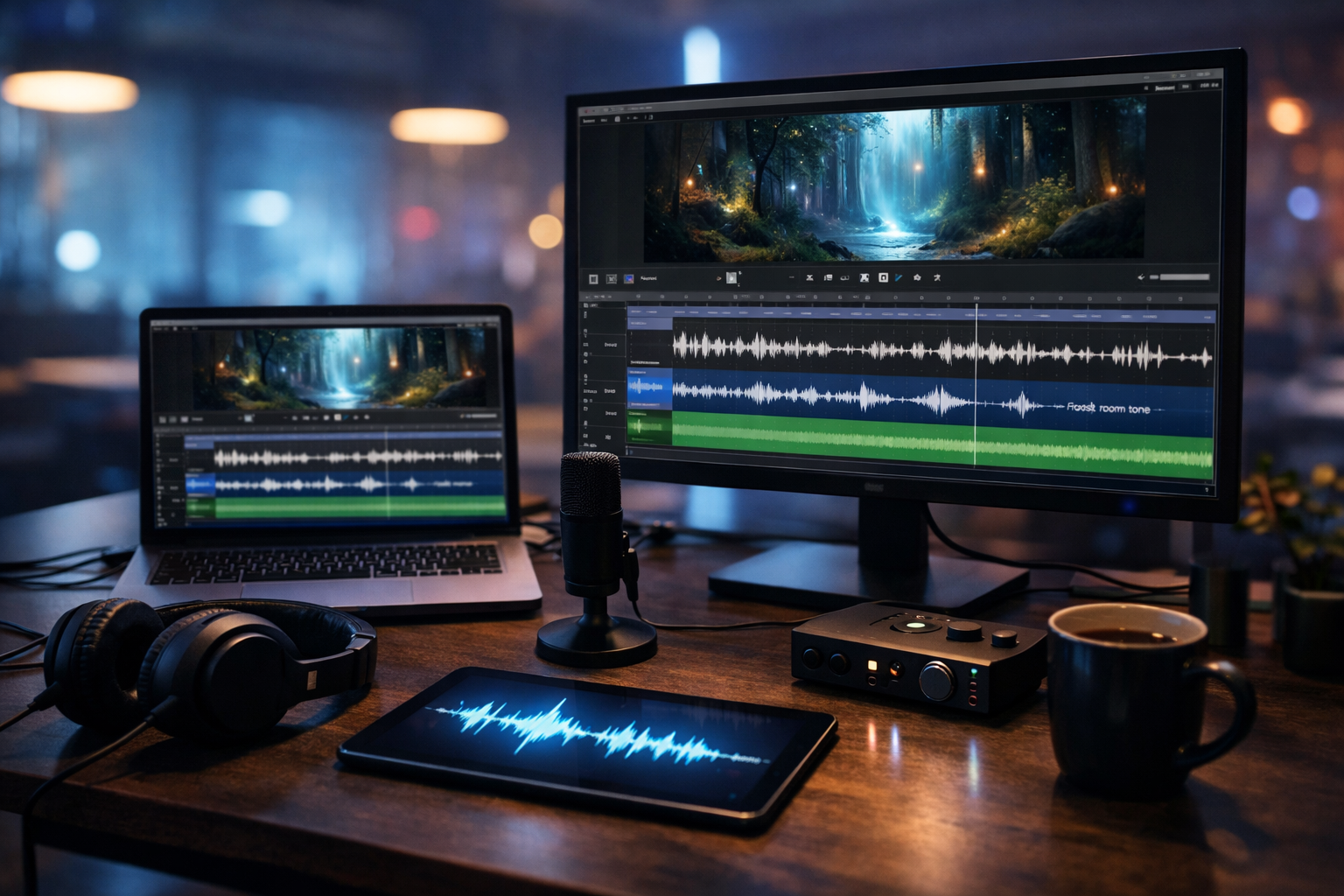
An AI ambient sound generator for video backgrounds helps you create believable atmosphere—rain behind a café scene, wind in a drone shot, or subtle room tone under a talking head—without hunting through stock libraries. When used well, ambient layers make videos feel more professional, hide awkward silence, and keep viewers engaged, especially on social platforms where sound is a major quality signal.
What is an AI ambient sound generator for video backgrounds?
Ambient sound (also called “atmosphere”, “bed”, or “room tone”) is the background audio that makes a scene feel real. In video, it’s the difference between a clip that looks cinematic and one that feels “empty”. An AI ambient sound generator creates this ambience from a text prompt (and sometimes reference audio), producing loopable, consistent sound beds such as city hum, office air conditioning, birdsong, ocean surf, or interior reverb.
Instead of searching stock audio and hoping it matches your visuals, you describe the scene and mood. The generator creates a tailored atmosphere you can edit, loop, and mix under voice-over, dialogue, or music.
Why ambient audio matters more than most creators realise
Viewers forgive imperfect visuals faster than they forgive “thin” audio. Ambient layers solve several common video problems in one move:
- They make edits smoother by masking hard cuts and jump cuts.
- They add realism to b-roll (streets, nature, cafés, gyms, workshops).
- They improve perceived production quality for product demos and explainers.
- They support mood: calm, suspense, cosy, futuristic, energetic, eerie.
- They help voice-over sit naturally, especially when recorded in untreated rooms.
For brands, ambience can also reinforce identity. A sustainable outdoor brand might lean into natural ambience; a fintech brand may favour clean, minimal, “quiet office” beds; a gaming channel may use neon, cyberpunk atmospheres.
Common video types that benefit from AI ambience
If your video includes any silence or generic music, you likely need ambience. Here are high-impact use cases:
- Talking-head tutorials: add subtle room tone to reduce the “dead air” feel between sentences.
- Product demos: use clean studio room tone plus gentle “device” ambience for tech products.
- Reels/Shorts: ambience under captions helps retention when music is low or omitted.
- Travel b-roll: match location: coastal wind, market chatter, distant traffic, birds.
- Podcast video: consistent ambience stabilises the sound across multi-camera cuts.
- Explainer animations: low “airy” beds keep the audio from feeling sterile.
- Background loops for websites: gentle ambience can complement silent hero videos (keep it optional and subtle).
What to look for in an AI ambient sound generator
Not all tools are equal. For video backgrounds, your priority is consistency and controllability, not novelty. Use this checklist:
1) Loopable, seamless output
A good ambience bed should loop without an obvious “join”. If your generator produces small variations that are too noticeable, it becomes distracting.
2) Clean noise floor and minimal artefacts
Artefacts are the AI equivalent of compression warble or odd ringing. For background beds, any weirdness stands out—especially under voice-over.
3) Control over intensity and distance
“City street” could mean distant traffic hum or loud honking and sirens. You want control via prompt wording (and ideally parameters) to set foreground/background distance.
4) Scene specificity
The best results come when you describe location, time, weather, and materials: “small tiled bathroom with quiet ventilation” is more mixable than “bathroom ambience”.
5) Fits your full workflow
Ambience rarely exists alone. You usually also need script, voice-over, visuals, and sometimes a short video render. An all-in-one platform reduces tool switching and speeds up iteration.
A practical workflow: from scene to finished background audio
Here’s a reliable workflow you can repeat for almost any project. You can handle the whole pipeline with our AI content tools, using AI to create the script, visuals, video segments, and—crucially—your ambience and supporting audio.
Step 1: Define the “audio story” for the scene
Before you generate anything, answer three questions:
- Where is the viewer? (small office, forest trail, underground station, kitchen)
- How far away are the sounds? (distant, mid, close)
- What’s the emotion? (calm, tense, cosy, futuristic, lonely)
This prevents over-designed ambience that fights your message.
Step 2: Generate 2–4 variants, not one
For each scene, generate multiple takes with small changes: intensity, time of day, distance, fewer “events”. You’ll mix faster because you can choose the cleanest bed.
Step 3: Edit for loops and transitions
In your editor (or DAW), find a stable section and loop it. Use short crossfades (50–200 ms) to remove clicks. If there’s a noticeable event (a car horn, bird call, door slam), either remove it or keep it only where the visuals justify it.
Step 4: Mix under dialogue or voice-over
Most ambience should be felt more than heard. As a starting point:
- Set voice-over/dialogue first.
- Bring ambience up until you notice it, then drop it slightly.
- High-pass ambience (often 80–150 Hz) to reduce rumble.
- If speech loses clarity, dip ambience around 2–4 kHz very gently.
Aim for “present but not competing”. If you’re producing short-form content, check the mix on phone speakers.
Step 5: Keep ambience consistent across cuts
If your b-roll jumps between angles in the same location, use one consistent ambience bed underneath. This “glues” the scene together and hides micro-discontinuities in camera audio.
Prompt templates: get better ambience in fewer tries
High-performing prompts share the same structure: location + time + weather + distance + intensity + exclusions. Use these templates and swap details based on your footage.
Template 1: Natural ambience (clean, loopable)
Prompt: “Wide natural ambience of [location], [time of day], [weather]. Distant perspective, gentle intensity, minimal distinct events, smooth loop, no voices, no music.”
Example: “Wide natural ambience of a pine forest trail at sunrise after light rain. Distant perspective, gentle intensity, minimal bird calls, smooth loop, no voices, no music.”
Template 2: City bed for b-roll
Prompt: “Urban ambience bed for [street type], [time], distant traffic hum, occasional soft pass-bys, no sirens, no honks, no speech, loopable.”
Example: “Urban ambience bed for a modern business district street at lunchtime, distant traffic hum, occasional soft pass-bys, no sirens, no honks, no speech, loopable.”
Template 3: Interior room tone for talking-head videos
Prompt: “Indoor room tone in a small [room], quiet ventilation, subtle air movement, very low noise floor, no clicks, no voices, no music, seamless loop.”
Example: “Indoor room tone in a small home office with carpet and curtains, quiet ventilation, subtle air movement, very low noise floor, no clicks, no voices, no music, seamless loop.”
Template 4: Brand-friendly ‘tech’ ambience
Prompt: “Minimal futuristic ambience for a tech product demo: soft synth air, subtle electronic room tone, gentle movement, no melody, no percussion, loopable, clean.”
Use this under motion graphics when you want atmosphere but not a full music track.
How to avoid the most common mistakes
Ambient audio is simple—but it’s easy to overdo. These are the mistakes that most often make videos feel amateurish.
- Using “eventful” ambience as a bed: frequent horns, loud birds, door slams and chatter quickly become distracting. Prefer steady textures.
- Mismatched reverb/space: a “big hall” ambience under a small-room talking head feels wrong. Match room size and materials.
- Too loud: ambience should support the message. If viewers notice it, it’s probably high.
- Inconsistent ambiences per cut: switching beds every shot makes the scene feel unstable. Use one bed per location.
- Not checking on mobile: low-end rumble and harsh fizz show up differently on phone speakers.
Example: building a polished 30-second reel with AI ambience
Let’s say you’re creating a 30-second Instagram reel for a coffee brand: close-ups of grinding beans, steaming milk, pouring latte art, and customers in the background. You want it cosy, premium, and not too noisy.
- Write the concept and captions: Use AI text generation for a punchy hook, on-screen captions, and a CTA. (You can do this with our AI content tools.)
- Generate ambience bed: “Cosy café interior ambience, early morning, warm and calm, distant soft chatter and clinking cups, no clear words, no music, loopable, gentle.”
- Add highlight SFX sparingly: one steam hiss, one grinder burst, one pour—placed exactly on the visual beats.
- Mix: keep the café bed low; make the hero SFX slightly louder than the bed; ensure captions are readable and the audio doesn’t fight voice-over if present.
- Export variants: one version with only ambience + SFX, one with light music + ambience (very low), and test which retains better.
The result feels like a real café, not a silent montage with generic music pasted on top.
Pair ambience with voice-over for higher-converting videos
If you’re creating ads, explainers, or product demos, a strong voice-over often outperforms music-only edits. With Gen AI Last, you can generate narration and supporting audio in one place, then keep ambience as the “glue” underneath. The key is to choose ambience that supports the setting without distracting from the message.
A simple recipe that works across most business videos:
- Voice-over: clear and present.
- Ambience: low, consistent, matched to location (office, studio, outdoors).
- Music (optional): very subtle, no dominant melody if the script is dense.
Using Gen AI Last to produce the full video background package
Creators often treat ambience as an afterthought, but it works best when planned alongside the visuals and copy. Gen AI Last is designed for end-to-end creation—so you can move from idea to publishable assets without juggling multiple subscriptions.
- AI Text Generation: write the script, hooks, captions, YouTube description, and ad variations.
- AI Image Generation: create thumbnails, storyboards, and social graphics that match the mood.
- AI Video Generation: build short marketing videos, product demos, and explainers.
- AI Audio Generation: create voice-overs, narration, background music, and ambience for video backgrounds.
If you’re a startup or small team, the biggest win is speed: you can test more concepts, publish more consistently, and keep branding tighter across formats. To see what’s included, view pricing from $10/month.
Quick-start checklist: better ambient audio in 10 minutes
Use this checklist when you’re in a hurry and just need the background to sound “right”.
- Identify the location and time (e.g., “small kitchen at night”).
- Decide distance (distant/close) and intensity (gentle/moderate).
- Add exclusions: “no voices, no music, no sirens, minimal events”.
- Generate 3 takes; choose the cleanest.
- Loop with short crossfades.
- High-pass to remove rumble; reduce harsh highs if needed.
- Mix under dialogue; check on mobile speakers.
FAQ: AI ambience for video backgrounds
Is AI-generated ambience better than stock ambience?
It can be. Stock libraries are fast, but AI ambience is often better when you need a very specific setting, a consistent loop, or multiple variations that match a branded style.
Should ambient sound replace music?
Not necessarily. Ambience and music solve different problems. Ambience provides realism and continuity; music provides energy and structure. Many high-performing edits use both—just at sensible levels.
How loud should background ambience be?
There’s no single number, but a good rule is: set dialogue first, then bring ambience up until it’s noticeable, and pull it back slightly. It should support the scene without drawing attention.
Start creating: ambience that makes your videos feel real
An AI ambient sound generator for video backgrounds is one of the quickest upgrades you can make to your content. With a few prompt tweaks—distance, intensity, exclusions—you can produce clean, loopable atmospheres that elevate b-roll, smooth edits, and make voice-overs sit naturally.
If you want to create the script, visuals, video, and audio in one place, start creating for free and build your next video background package end-to-end.
Ready to Create with Generative AI?
Join thousands of creators using Gen AI Last to generate text, images, audio, and video — all from one platform. Start your 7-day free trial today.
Start Free — Try 7 DaysQuick Links
Create AI content from $10/month
View Plans