AI Ambient Sound Generator for Video Backgrounds (2026)
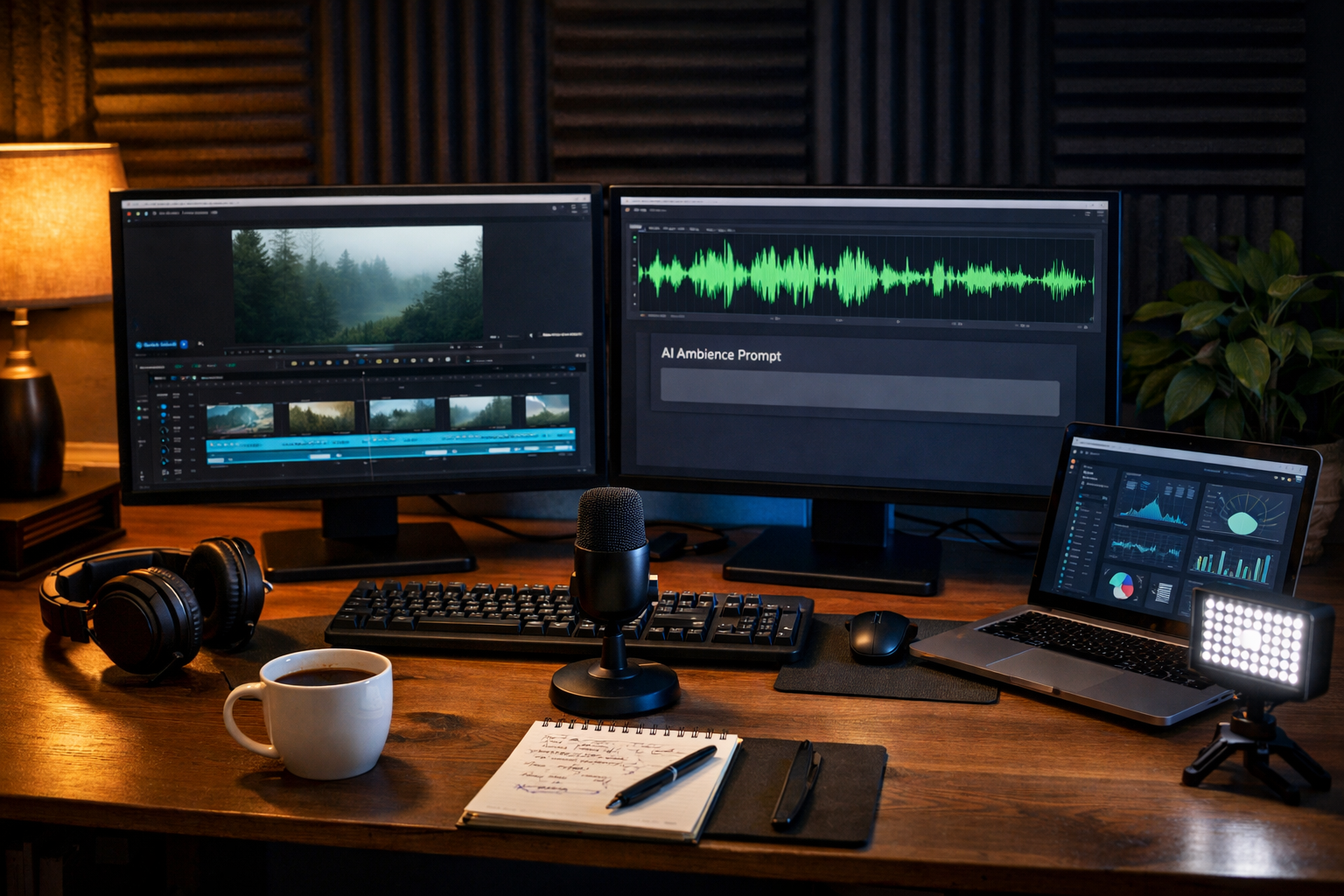
An ai ambient sound generator for video backgrounds can turn silent b-roll into something viewers actually feel: a calm café hush, a rainy window at night, a gentle office hum or a cinematic room tone that makes your visuals look more expensive. If you publish reels, YouTube explainers, product demos or course videos, AI ambience helps you set mood fast without hunting for stock audio that never quite fits.
What is an AI ambient sound generator for video backgrounds?
Ambient sound (also called atmosphere, ambience or room tone) is the subtle audio bed that makes a scene believable. An AI ambient sound generator creates that bed from a text prompt, usually producing loopable audio you can place under dialogue, music or voice-over.
For video backgrounds, ambience matters because your visuals often don’t provide “obvious” sound cues. Think product close-ups, animated text, talking-head edits, screen recordings, slow-motion b-roll or slideshow-style promos. Without a natural audio layer, everything feels sterile. With the right ambience, it feels intentional.
Common use cases
- B-roll under voice-over (travel clips, office shots, lifestyle footage)
- App demos and screen recordings (subtle “workspace” hum)
- Explainer videos and courses (clean room tone for consistency)
- Social reels with on-screen text (ambient bed + light music)
- Brand loops for websites, events or digital signage (seamless looping atmospheres)
Why ambience makes video backgrounds feel premium
Viewers judge production quality in seconds. Even when they can’t describe it, they notice when audio feels empty or mismatched. A well-chosen ambient layer can:
- Improve perceived quality by adding realism and depth
- Increase watch time because the video feels “complete” and less jarring
- Support emotion (cosy, clinical, tense, uplifting, futuristic)
- Mask hard cuts in b-roll sequences and reduce silence between edits
- Strengthen brand identity when your audio palette stays consistent
What to generate: 7 ambience types that work for video backgrounds
If you’re not sure where to start, pick an ambience category that matches your visual setting and your message. These are reliable options for background video:
1) Indoor room tone (clean and neutral)
Best for tutorials, courses, talking-head edits and corporate explainers. Aim for “barely there” sound that prevents silence.
2) Office / co-working ambience (modern and productive)
Soft HVAC hum, distant keyboard taps, faint movement. Ideal for SaaS demos, startup stories and LinkedIn-style videos.
3) Café ambience (friendly and social)
A quiet coffee shop bed is perfect for lifestyle b-roll, creator vlogs, “day in the life” edits, or brand storytelling.
4) Nature ambience (calm and restorative)
Birds, gentle wind, distant water. Great for wellness, coaching, travel, mindfulness and slow b-roll montages.
5) Rain / storm ambience (dramatic or cosy)
Rain can be relaxing or intense depending on detail (light drizzle vs heavy thunder). Brilliant under cinematic product shots and moody brand videos.
6) Urban ambience (energetic and modern)
Distant traffic, soft city bed, occasional pass-bys. Useful for street b-roll, brand campaigns and event footage.
7) Futuristic / sci-fi ambience (tech-forward)
Subtle synth drones, airy pulses, “spaceship room tone”. Works well for AI, fintech, cyber security and product launches.
How to prompt an AI ambient sound generator (with templates)
The fastest way to get usable ambience is to describe: place + time + mood + sound sources + mix notes. Avoid vague prompts like “make relaxing ambience”. Instead, specify what should be present and what should be absent.
Prompt framework
- Location: small café, open-plan office, forest trail, rainy city street
- Time & weather: early morning, late night, golden hour, light rain, winter wind
- Mood: calm, focused, warm, tense, luxurious, minimalist
- Details: distant chatter, cups clinking, soft HVAC, far traffic, occasional footsteps
- Mix constraints: no sudden loud peaks, no music, loopable, consistent texture
5 ready-to-use ambience prompts for video backgrounds
- Minimal office bed: “Clean modern office ambience, subtle HVAC hum, distant keyboard typing, occasional soft chair movement, no voices, no sudden peaks, consistent and loopable, neutral tone.”
- Cosy café: “Quiet neighbourhood coffee shop ambience, soft background murmur, occasional cup clinks and espresso machine hiss far away, warm cosy mood, no loud laughter, loopable 60–90 seconds.”
- Rainy window: “Night-time rain on window ambience, gentle rainfall, distant city traffic muffled, cosy and cinematic, no thunder, smooth continuous texture suitable under narration, seamless loop.”
- Nature calm: “Forest morning ambience, light breeze through leaves, small birds in the distance, no aggressive chirps, tranquil wellness vibe, no music, loopable and stable.”
- Futuristic tech: “Futuristic lab room tone, soft low synth drone, subtle airy pulses, quiet electrical ambience, no melody, no harsh high frequencies, loopable background for product demo.”
How to match ambience to your video background (a practical checklist)
Your ambience should support the story without drawing attention. Use this checklist before you export:
- Match the space: small room tone for close indoor shots; wider outdoor ambience for landscapes.
- Control brightness: brighter visuals often suit lighter ambiences (daytime city, airy office). Darker visuals pair well with rain, low drones or night beds.
- Keep dynamics steady: video backgrounds usually need low variation so loops don’t feel “busy”.
- Leave room for voice: if you add narration, choose a mid-scoop or low-passed ambience so speech stays clear.
- Avoid recognisable distractions: clear words, distinct sirens, loud laughs, prominent bird calls can pull attention away from your message.
- Test on phone speakers: what sounds subtle on studio headphones can get harsh on mobile.
A simple workflow with Gen AI Last: sound + video in one place
Gen AI Last is an all-in-one platform for generating audio, video, images and text from prompts. That matters because ambient sound doesn’t live on its own—you typically need a background video, a script, captions and visuals too.
You can explore our AI content tools to create the full set of assets for a campaign, then keep your production style consistent across formats.
Example workflow: 30-second product background video
- Generate the video background: create a clean product demo or lifestyle b-roll sequence using AI video generation.
- Create the ambient bed: use AI audio generation to produce a loopable atmosphere that matches the setting (studio, café, outdoors).
- Add voice-over: generate a narration track for clarity and conversions (optional, but powerful).
- Write captions and titles: use AI text generation for on-screen copy, hooks and calls-to-action.
- Create supporting visuals: generate thumbnails, banners or social graphics with AI image generation.
If you’re budgeting carefully, view pricing from $10/month—every plan includes full access to text, image, audio and video tools, which is ideal for startups and small teams producing content weekly.
Mixing tips: make ambience sit properly under voice and music
Even perfect ambience can feel wrong if it’s too loud or fighting your voice-over. These practical adjustments help in any editor (Premiere Pro, DaVinci Resolve, CapCut, Final Cut Pro, etc.).
Suggested levels (quick starting points)
- Narration present: ambience very low (often around -30 to -20 LUFS integrated depending on your mix). The goal is “felt, not heard”.
- No narration, just text on screen: ambience can be higher, but avoid peaks that distract.
- Music + ambience: pick one to lead; ambience should fill gaps without muddying the track.
EQ and dynamics cheatsheet
- High-pass filter: remove rumble below ~80–120 Hz if your ambience feels boomy.
- Reduce harshness: gentle dip around 2–5 kHz if it competes with speech presence.
- Soft compression: tame occasional peaks so the loop feels consistent.
- Fade loops: add crossfades to prevent clicks at the loop point.
Common mistakes (and how to fix them)
If your AI ambience sounds “AI-ish”, the fix is usually prompt specificity and mix control rather than abandoning the approach.
- Too busy: remove distinct events. Prompt: “no prominent voices, no sudden events, steady texture”.
- Sounds like music: specify “no melody, no rhythmic elements, purely atmospheric”.
- Doesn’t match the room: describe the space size and materials (small carpeted room vs large hall).
- Distracting frequencies: apply EQ (often a gentle low-pass above 10–12 kHz for smoother beds).
- Loop is obvious: generate longer ambience (60–120 seconds), then loop with crossfades.
Practical examples: ambience that sells the scene
Here are three scenarios showing how an AI ambient sound generator for video backgrounds changes the viewer’s perception.
Example 1: SaaS screen recording
Visual: dashboard walkthrough, cursor movements, feature callouts.
Problem: silent audio feels like a raw tutorial.
Fix: subtle co-working ambience + clean voice-over. Keep ambience extremely low and consistent.
Prompt idea: “Modern co-working space room tone, very subtle HVAC, distant keyboard taps, no voices, no coffee sounds, minimal and loopable.”
Example 2: Product b-roll for an online shop
Visual: slow close-ups, hands using product, light reflections.
Problem: looks nice but feels emotionally flat.
Fix: add a cosy indoor ambience (soft room tone) plus gentle background music. The ambience makes the scene believable; music carries the emotion.
Example 3: Wellness reel with text-only overlays
Visual: nature shots, slow pans, quotes on screen.
Problem: stock tracks feel generic or overused.
Fix: generate a bespoke forest morning bed that matches your footage and loops cleanly under the reel.
How to build a reusable “ambience library” for your brand
If you publish often, stop generating from scratch every time. Instead, create a small set of branded ambience beds you can reuse and tweak.
- Choose 3–5 core settings: e.g., clean studio, modern office, café warmth, calm nature, cinematic rain.
- Generate long versions: aim for 90–180 seconds for flexible editing and cleaner loops.
- Name consistently: “Brand_Office_Clean_120s_v1” so your team can find them fast.
- Keep mix templates: save a preset EQ and level for narration videos vs silent b-roll.
- Refresh quarterly: generate a v2 set so your audio identity evolves without changing completely.
FAQ: AI ambience for video backgrounds
Should ambient sound replace background music?
Usually no. Ambience and music do different jobs: ambience sells the setting and realism; music drives emotion and pacing. Many high-performing edits use both—just keep ambience subtle.
How long should an ambience track be for looping?
For most backgrounds, 60–120 seconds is a practical minimum. Longer tracks loop more naturally, especially for office, café and rain textures.
What’s the fastest way to get a consistent result?
Use a prompt template and only change the setting details. Keep constraints constant: “no voices, no sudden peaks, loopable, no melody”. Consistency beats novelty for branded content.
Create your next video background in minutes
A strong ai ambient sound generator for video backgrounds is one of the simplest upgrades you can make to your content: it adds polish, mood and realism without complicated sound design. With Gen AI Last, you can generate the ambience, the voice-over, the visuals and even the video itself from prompts—ideal when you need consistent output on a startup budget.
If you want to test ideas quickly, start creating for free and build a small ambience library you can reuse across every reel, demo and explainer.
Ready to Create with Generative AI?
Join thousands of creators using Gen AI Last to generate text, images, audio, and video — all from one platform. Start your 7-day free trial today.
Start Free — Try 7 DaysQuick Links
Create AI content from $10/month
View Plans