AI Ambient Sound Generator for Video Backgrounds (Guide)
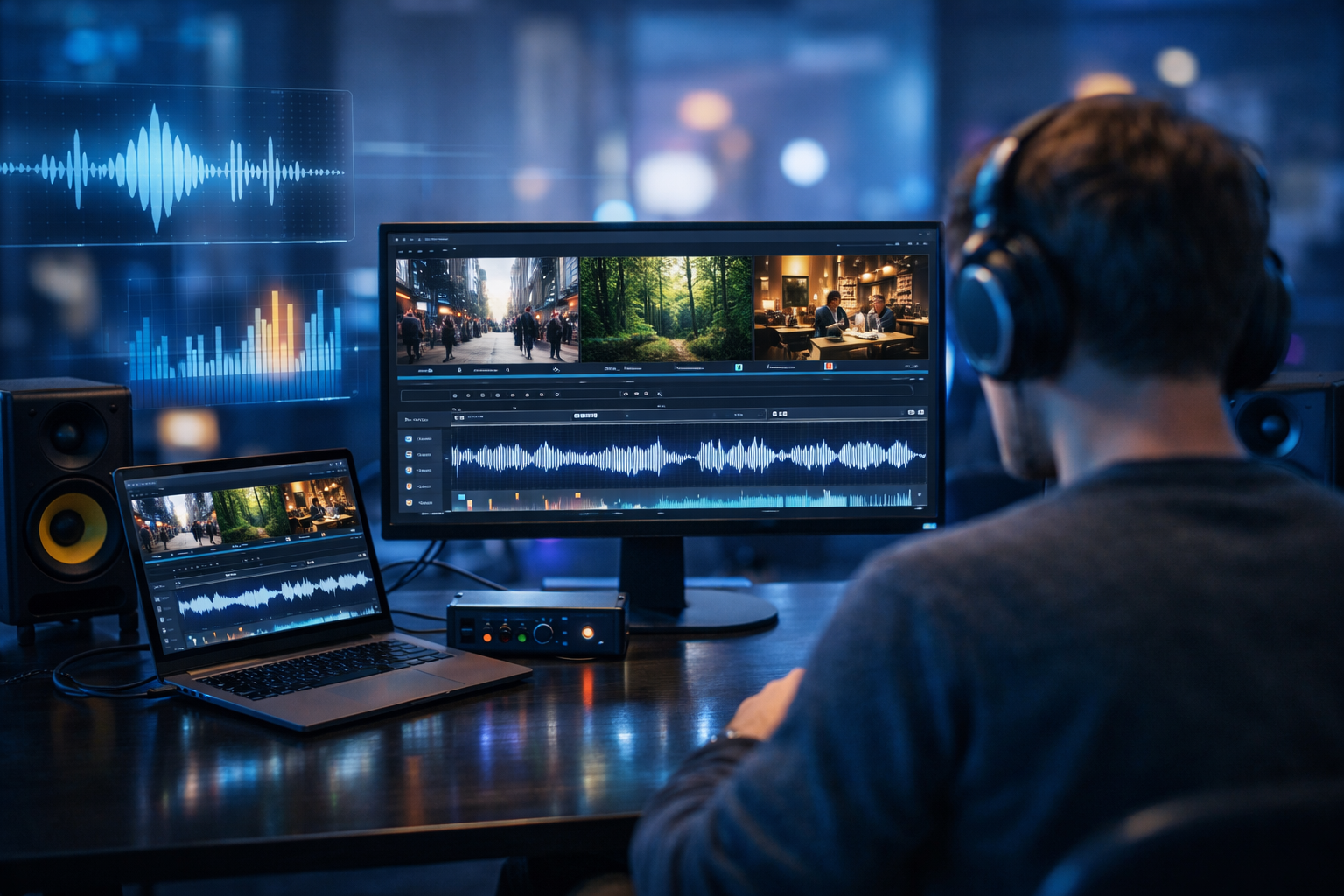
An AI ambient sound generator for video backgrounds can be the difference between a video that looks “fine” and one that feels real. Ambient audio (room tone, nature beds, city wash, subtle movement) makes visuals believable, improves watch time, and helps your brand sound consistent—without spending hours hunting for stock loops or recording your own.
What “ambient sound” means for video backgrounds
Ambient sound is the continuous, low-attention audio that supports what the viewer sees. It is not a voice-over, not a music track, and not a loud effect. Think of it as the sonic “air” around your footage: distant traffic in a street scene, a soft refrigerator hum in a kitchen, or gentle wind and birds under a landscape shot.
When you add a well-matched ambience bed, your visuals feel grounded and your edits feel smoother—especially when you cut between shots with different microphones or no recorded production audio at all (common with B-roll, screen recordings, or AI-generated video).
Why ambience improves video performance
- It increases realism: viewers subconsciously expect environments to “sound” like they look.
- It hides edits: a consistent bed masks small cuts, jump edits, and noise differences.
- It supports emotion: calm room tone vs stormy wind changes the meaning of the same shot.
- It improves comprehension: light ambience can make speech feel more natural than dead silence.
- It strengthens branding: recurring ambience palettes (e.g., clean tech “hums”) build recognisable style.
What an AI ambient sound generator does (and why it’s useful)
An AI ambient sound generator creates background sound from a text prompt (and sometimes from reference cues like duration or intensity). Instead of searching libraries for “cafe ambience” and then trimming, looping, EQ’ing, and layering, you describe what you need and generate variations quickly.
For creators, marketers, and small teams, the biggest win is speed: you can match ambience to each scene, iterate during editing, and keep your audio cohesive across a campaign.
When AI ambience is better than stock
- You need a specific blend (e.g., “quiet London street at dawn with distant buses, light drizzle, occasional footsteps”).
- You need the same environment across multiple videos, but with subtle variation so it doesn’t feel looped.
- You want to avoid recognisable, overused stock beds.
- You’re generating visuals (or using B-roll) that has no production audio to match.
Common video use-cases for ambient backgrounds
If you produce content regularly—ads, reels, product demos, explainers—ambient audio is one of the easiest upgrades you can make.
1) Social reels and short-form B-roll
Fast cuts can feel harsh in silence. A subtle, consistent ambience bed helps shots flow together. Example: a montage of a skincare routine can use “bright bathroom room tone with soft water movement, occasional towel rustle” under the music.
2) Product demos and app walkthroughs
Screen recordings often feel sterile. A gentle “modern office” ambience can make your demo feel human, while staying out of the way of narration. This is especially effective for SaaS, fintech, and productivity tools.
3) YouTube explainers and tutorials
Ambient sound can reduce the perceived “deadness” around a voice-over. Used carefully, it helps narration feel like it exists in a space, rather than floating above the visuals.
4) Brand films and mood pieces
For cinematic storytelling, ambience is a narrative tool: wind builds tension, distant crowd wash signals scale, and subtle interior tone can create intimacy.
5) AI-generated or stock video footage
AI video clips rarely come with usable sound. Generating ambience that matches the setting is essential if you want the final piece to feel credible.
How to create ambient audio that actually fits your video
The secret is specificity. “Forest ambience” is a start, but it won’t necessarily match your shot. Use the same approach you’d use for a visual prompt: describe the scene, distance, motion, and mood.
A simple ambient prompt formula
- Location: cafe, subway platform, coastal cliff, open-plan office.
- Time/season: dawn, late night, winter, summer heat.
- Foreground vs background: distant traffic, occasional footsteps, close water trickle.
- Texture words: soft, airy, warm, damp, crisp, muffled, spacious.
- Intensity: very subtle / medium / lively, with limits (no sudden loud events).
- Duration/looping: request a seamless loop if you’ll repeat it.
Prompt examples (copy/paste and adapt)
- Minimalist tech demo: “Subtle modern office room tone, quiet HVAC hum, distant keyboard taps, occasional soft chair movement, very low intensity, no speech, seamless 60-second loop.”
- Urban B-roll: “London street ambience at dawn, distant buses and tyres on wet road, faint footsteps, light drizzle, muffled city wash, no sirens, medium-low intensity, 45 seconds.”
- Cosy cafe: “Quiet cafe ambience, gentle clinking cups, soft espresso machine in the distance, low murmur (indistinct, no recognisable words), warm tone, subtle, 60 seconds, loopable.”
- Nature landscape: “Pine forest ambience, light wind through needles, occasional small birds, distant stream, calm and airy, no close insects, very subtle, 90 seconds.”
- Fitness montage: “Modern gym ambience, distant treadmill hum, occasional weight rattle far away, roomy reverb, energetic but controlled, no shouting, 30 seconds.”
A practical workflow using Gen AI Last (video + ambience + voice)
Gen AI Last is built for end-to-end content production: you can generate scripts, visuals, video, and audio from prompts in one place—ideal when you’re producing multiple variations for ads or social campaigns.
If you want to explore the full suite, you can access our AI content tools and combine audio generation with video and text workflows.
Step 1: Define your video’s “sound world”
Before generating anything, list 2–3 environments your video needs. For a product demo, that might be: (1) quiet office bed, (2) brighter “reveal” ambience, (3) subtle transition whoosh (optional). Keeping a consistent sound world prevents a patchwork feel.
Step 2: Generate your ambient bed
Use the prompt formula above and create two to four variations. Pick the version that best matches your visual pacing. If your edit has frequent cuts, prefer a stable ambience with fewer distinct events.
Step 3: Generate your voice-over (if needed)
If your video includes narration, generate it separately from the ambience. This keeps your mix clean: voice remains intelligible, ambience remains consistent. Aim for a natural delivery and avoid overly dramatic reads unless your brand tone demands it.
Step 4: Build the video and mix with intention
Place ambience under the entire scene. Then mix:
- Level: for narration-led videos, ambience is often very low—audible only when you focus on it.
- EQ: reduce harsh highs if ambience fights speech; roll off low rumble if it muddies.
- Automation: dip ambience slightly under key sentences or on-screen text moments.
- Transitions: crossfade ambience between locations to avoid sudden “air changes”.
Step 5: Create versions for different placements
Ads and short-form often need multiple cuts. Keep the same sound bed “family” across versions so your campaign is recognisable even when visuals change.
Gen AI Last is priced to be accessible for small teams—view pricing from $10/month to get full access to text, image, audio, and video generation.
How to choose the right type of ambience for your background
Not every video needs “busy” realism. Many marketing videos perform better with controlled, stylised ambience that supports the message.
Realistic ambience (documentary feel)
Use when the video is meant to feel candid: behind-the-scenes, interviews, travel, customer stories. Prompts should include natural variation, distance, and occasional events—without becoming distracting.
Stylised ambience (brand feel)
Use when the video is a polished ad, product reveal, or motion-graphic explainer. Prompts should include smoother textures: “soft”, “clean”, “warm”, “minimal”, “no sudden events”.
Hybrid ambience (music + environment)
If you’re running a music bed, your ambience must be even simpler—otherwise it will clutter the mix. Generate a low-frequency “room” plus a tiny amount of high-frequency “air”, and keep it stable.
Quality checklist: make AI ambience sound professional
- No obvious loop points: request “seamless loop” and use crossfades.
- No intelligible speech: background chatter should be indistinct to avoid distraction.
- Control the peaks: avoid sudden loud events (sirens, door slams) unless required.
- Match the space: small rooms feel tighter; outdoors feels wider and airier.
- Consistency across scenes: keep the same sonic palette within the same location.
- Mix for the platform: phone speakers need simpler ambience with less sub-bass.
Licensing and brand-safety considerations
Ambient audio for marketing needs to be safe and reusable. Regardless of tool, you should confirm the usage rights for generated audio in your workflow and document what you used for each campaign.
Practical tips:
- Avoid recognisable melodies in “ambient” prompts if you only want environmental sound.
- Exclude trademarks and brand identifiers (e.g., “in Starbucks”)—describe the environment instead (“busy coffee shop”).
- Keep a prompt log for each deliverable so you can recreate or revise later.
Mini case studies: ambience that lifts the edit
Case study A: SaaS product demo (30–45 seconds)
Problem: The demo felt cold and “screen-recording-ish”.
Solution: Add a subtle office bed, then automate it down under key feature callouts.
Prompt idea: “Clean open-plan office room tone, soft HVAC, occasional distant click, very subtle, no voices, 60-second seamless loop.”
Case study B: Travel reel (15 seconds)
Problem: B-roll clips had no matching location audio; cuts felt disconnected.
Solution: Use one cohesive “coastal town” ambience under the whole reel, then add small one-shot effects (optional) for emphasis.
Prompt idea: “Coastal town ambience, distant seagulls, soft wind, light waves far away, occasional footsteps on pavement, bright airy tone, 30 seconds.”
Case study C: Brand explainer with motion graphics
Problem: Motion graphics plus music felt busy; voice-over struggled to stand out.
Solution: Replace “realistic” ambience with a minimal, stylised bed that supports the brand tone.
Prompt idea: “Minimal futuristic ambience, soft warm synth air, gentle low hum, smooth texture, no rhythm, no pulses, 60 seconds, loopable.”
Troubleshooting: fix common ambience problems fast
“My ambience is distracting”
- Lower the level first; ambience should often be felt more than heard.
- Regenerate with “very subtle”, “no sudden events”, “no close sounds”.
- EQ down the 2–5 kHz range if it competes with speech clarity.
“It doesn’t match the scene”
- Add distance cues: “distant traffic”, “far away”, “muffled”.
- Add time/season: “winter night”, “summer morning”, “after rain”.
- Specify space size: “small tiled bathroom”, “large warehouse”, “narrow corridor”.
“It sounds looped or repetitive”
- Generate a longer duration and cut a middle section for your loop.
- Layer two similar ambience beds at very low levels to create variation.
- Use gentle crossfades (1–3 seconds) at edit points.
Fast-start: a complete “prompt pack” for video backgrounds
Use these as starting points when you need quick results and a consistent style.
- Neutral indoor: “Neutral indoor room tone, soft ventilation, very low noise floor, no events, 60 seconds, seamless loop.”
- Modern agency: “Creative studio ambience, distant typing and mouse clicks, occasional paper rustle far away, clean and bright, no voices, subtle, 60 seconds.”
- Night city: “Night city wash, distant traffic, occasional far horn, light wind, spacious stereo, medium-low intensity, 45 seconds.”
- Rainy window: “Rain on window, soft room tone inside, distant thunder very far, cosy and warm, subtle, 90 seconds.”
- Nature calm: “Calm meadow ambience, light breeze, occasional birds, no insects close, airy, very subtle, 90 seconds.”
Create your next video with matching ambience in one place
The easiest way to stay consistent is to keep your script, visuals, video, voice-over, and ambient sound workflow connected. With Gen AI Last, you can generate your narration, build your video assets, and produce ambience that matches each scene—without juggling multiple subscriptions.
If you want to test a full end-to-end workflow, start creating for free. When you’re ready to scale, you can keep everything—text, images, audio, and video—on one affordable plan.
Ready to Create with Generative AI?
Join thousands of creators using Gen AI Last to generate text, images, audio, and video — all from one platform. Start your 7-day free trial today.
Start Free — Try 7 DaysQuick Links
Create AI content from $10/month
View Plans