AI Course Video Generator for Online Educators (2026 Guide)
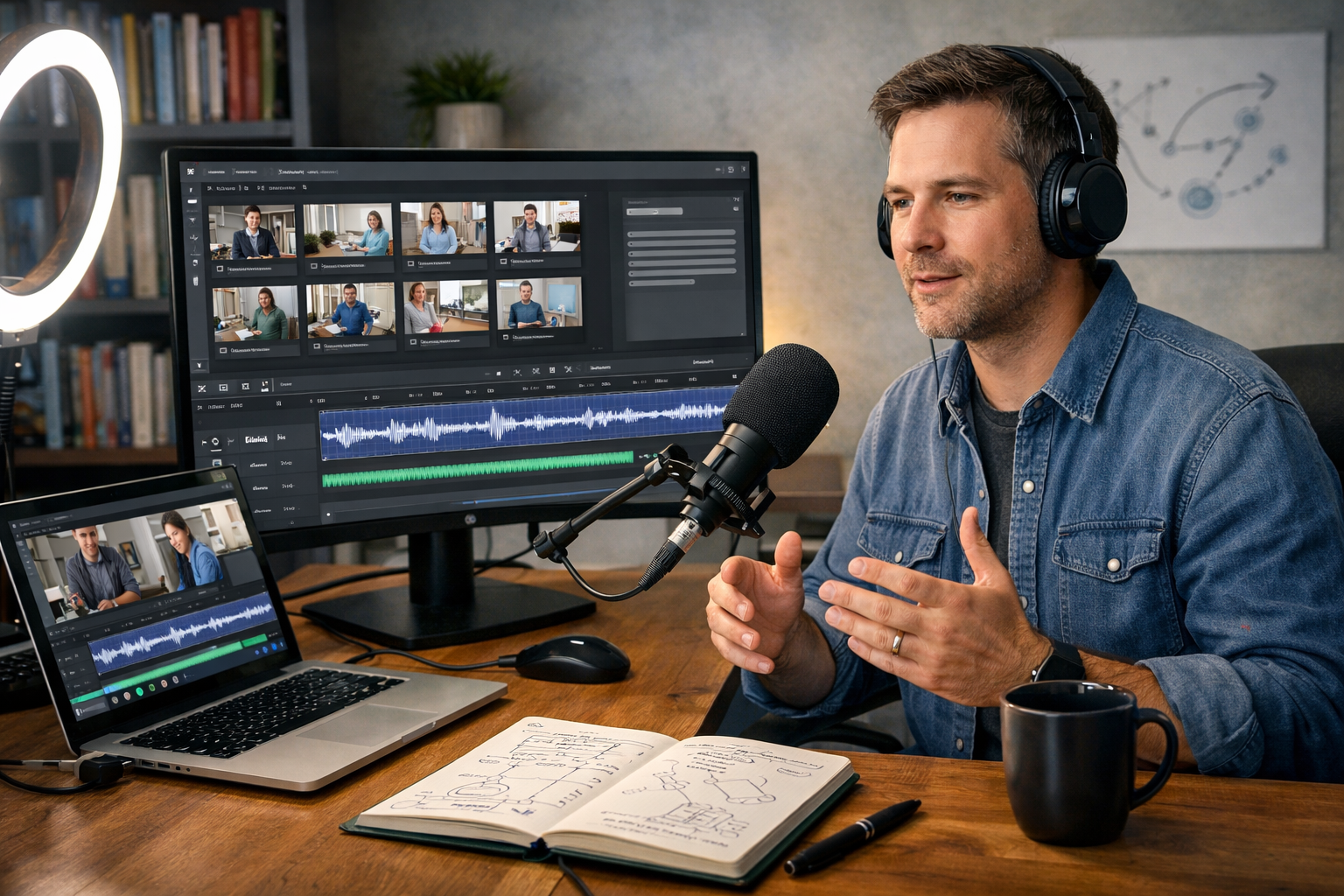
An ai course video generator for online educators can turn a rough lesson idea into a polished module—script, visuals, voice-over and edit—without a production team. If you’re juggling curriculum design, student support and marketing, AI helps you ship consistently, keep quality high, and update lessons quickly when platforms or tools change.
What “AI course video generator” really means for educators
In practice, an AI course video generator is less about a single “magic button” and more about a workflow: planning the lesson, writing a script, creating supporting visuals, generating a voice-over, and assembling everything into a video format suitable for your LMS (Teachable, Thinkific, Kajabi, Moodle, etc.).
The most useful tools don’t just render video—they help you teach better by speeding up the repetitive parts so you can focus on pedagogy: clarity, examples, sequencing, and student outcomes.
Gen AI Last is designed for exactly this end-to-end creation: text for scripts and lesson notes, images for slides and diagrams, audio for narration, and video for explainers and module previews—available together via our AI content tools.
Why online educators are adopting AI video generation now
Students expect clear, structured lessons with good pacing and consistent audio. Meanwhile, educators face constant pressure to publish more content across more channels: course lessons, social reels, email campaigns, and landing pages.
- Speed without sacrificing structure: AI accelerates scripting and outlining so you can iterate faster.
- Consistency across modules: Standardise lesson formats, tone, and terminology.
- Lower production costs: Create clean visuals and narration without hiring separate freelancers for every update.
- Faster updates: Re-recording a 6-minute lesson becomes a quick re-render with a revised script and voice-over.
- Multi-format distribution: Turn one lesson into a full module, a 60-second reel, and supporting posts.
What to look for in an AI course video generator (educator checklist)
Not all “AI video generators” are built with teaching in mind. Before you commit, check that the tool supports the realities of instructional design and course publishing.
1) Script control (not just a template)
You need the ability to shape learning: define objectives, introduce concepts, provide examples, check understanding, and summarise. Look for text generation that can write in your tone and at your learners’ level (beginner, intermediate, advanced).
2) Visual creation for teaching (diagrams, slide-style imagery, product demos)
Courses often need more than “stock” visuals. You may need schematic graphics, UI mockups, product screenshots (recreated safely), or step-by-step diagrams. AI image generation helps you create consistent visuals that match your lesson style.
3) Audio you can actually teach with
Learners tolerate imperfect visuals more than unclear audio. Prioritise narration that sounds clean, paced, and natural. Bonus if you can generate multiple versions quickly (e.g., faster/slower, more energetic, more formal).
4) Video formats and duration flexibility
Educators commonly publish: 5–12 minute lessons, 1–2 minute concept explainers, and 15–60 second social clips. Your generator should support different aspect ratios and re-cutting content into shorter segments.
5) Affordable access for ongoing course maintenance
Courses aren’t “one-and-done”. You’ll update lessons as tools evolve and student questions reveal gaps. A predictable subscription matters—Gen AI Last includes text, image, audio, and video generation from one plan; you can view pricing from $10/month.
A step-by-step workflow: generate a course video module with Gen AI Last
Below is a practical, repeatable workflow you can use to create a full lesson: outline, script, visuals, voice-over, and video. Adjust the pacing for your subject (coding, language learning, marketing, fitness, compliance training, etc.).
Step 1: Define the lesson outcome (and keep it measurable)
Start with what learners should be able to do by the end. This prevents AI-generated content from becoming vague or overly broad.
- Good: “By the end, learners can write a persuasive product description using a 4-part structure.”
- Too broad: “Understand product descriptions.”
In Gen AI Last’s text generation, prompt for: target audience, prerequisites, outcome, and time limit (e.g., 7 minutes). This keeps the lesson tight.
Step 2: Generate a lesson outline with time stamps
Ask for a structure that supports learning: hook, concept, example, practice, summary. Time stamps help you keep your module length consistent across the course.
Example prompt: “Create a 7-minute lesson outline for beginners. Include time stamps, a quick analogy, one worked example, and a 3-question self-check at the end.”
Step 3: Write the script (with on-screen cues)
A strong course script is not just narration—it includes cues for what students should see: slide title, diagram, demonstration, or key bullet points. Generate your script in two columns: Narration and Visual.
- Narration: What you will say, conversational and paced.
- Visual cues: Slide title, diagram description, B-roll suggestions, or screen recording steps.
- On-screen emphasis: 3–5 key phrases to highlight per lesson (avoid long paragraphs).
Gen AI Last’s AI text generation is ideal here: generate a first draft, then prompt again to simplify language, tighten pacing, or add a second example for tricky concepts.
Step 4: Create lesson visuals (slides, diagrams, module covers)
Use AI image generation to create consistent visuals across your course—especially if you don’t have a design background. For educators, the most useful assets are:
- Module cover images: One per module to keep your course library tidy and professional.
- Slide-style illustrations: Clean, minimal graphics that reinforce a concept.
- Process diagrams: Step-by-step visuals for frameworks and workflows.
- Scenario images: Realistic scenes for role-play learning (customer calls, interviews, classroom situations).
Tip: keep a “course style guide” prompt with your preferred colour palette, lighting style, and composition, then reuse it for consistent imagery.
Step 5: Generate narration (audio) that matches your teaching tone
Once your script is approved, create a voice-over. For best results, add pronunciation notes for acronyms or brand names, and insert pauses after key ideas. Gen AI Last’s AI audio generation helps you produce clean narration quickly, which is especially helpful when you need to update a single lesson without setting up a recording space.
- Pacing: Aim for clarity over speed—online learners often multitask.
- Micro-pauses: Add short pauses after definitions and before examples.
- Energy consistency: Keep the same tone across a module to reduce cognitive load.
Step 6: Produce the video (lesson, promo, and a short clip)
With script, visuals, and audio ready, generate your lesson video. Then immediately create two derivatives:
- Module promo (30–60 seconds): What students will achieve, who it’s for, and the outcome.
- Social clip (15–30 seconds): One key tip or myth-buster that drives discovery.
This “create once, publish three ways” approach makes your course marketing sustainable without spending hours every week.
Practical prompt templates for educators (copy and adapt)
Use these as starting points inside Gen AI Last. Replace the brackets with your topic and audience.
Template 1: Lesson outline prompt
Prompt: “Create a [6–10]-minute lesson outline on [topic] for [audience level]. Include: learning objective, prerequisites, hook, core concept, 1 worked example, 1 quick practice activity, common mistakes, and a 3-question self-check. Add suggested on-screen visuals for each section.”
Template 2: Two-column script prompt (narration + visuals)
Prompt: “Write a two-column script for a course video. Column A: narration (conversational, clear, British English). Column B: on-screen visuals (slide title + 3 bullets, or diagram description). Topic: [topic]. Audience: [audience]. Keep it to ~[X] minutes at 140 wpm. End with a short recap and one action step.”
Template 3: Voice-over clean-up prompt
Prompt: “Edit this script for voice-over: shorten long sentences, remove jargon, add natural pauses, and add pronunciation notes for terms in brackets. Keep meaning identical. Script: [paste].”
Template 4: Visual prompt for a concept diagram
Prompt: “Create a clean, minimal, slide-friendly illustration of [concept]. Use simple shapes, strong contrast, and space for an educator to overlay labels later. No text. 16:9 composition, high clarity, modern style.”
Quality control: how to keep AI-generated lessons accurate and trustworthy
AI speeds up production, but educators are still responsible for accuracy and learner outcomes. Build a lightweight QA routine before publishing.
- Run a fact check pass: verify definitions, steps, and claims against primary sources.
- Check alignment: ensure every section supports the lesson outcome (remove interesting but off-topic content).
- Test with one learner: ask a student or colleague to note where they got confused.
- Accessibility basics: provide captions or transcripts, avoid tiny on-screen text, and describe critical visuals in narration.
- Consistency: standardise terminology (same names for the same concepts throughout the course).
Common mistakes educators make with AI video generators (and how to avoid them)
Most problems come from treating AI as the teacher rather than the assistant. These fixes keep your content educational, not just “produced”.
Mistake 1: Overlong scripts that feel like lectures
Fix: ask for one concept per lesson, with a worked example and a quick check for understanding. If you have three concepts, make three lessons.
Mistake 2: Generic visuals that don’t teach anything
Fix: prioritise diagrams, frameworks, and step-by-step visuals tied to your narration. Use AI images to explain, not just decorate.
Mistake 3: Inconsistent tone and terminology across modules
Fix: create a short course style prompt: target learner, tone (friendly, concise), formatting rules, and a glossary of key terms. Reuse it for every script.
Mistake 4: Skipping updates because production feels painful
Fix: keep lesson projects modular. With Gen AI Last, you can quickly regenerate just the changed parts—revised script, updated voice-over, refreshed visuals, and a new video cut.
How educators can use AI beyond the lesson video
A course succeeds when learners can find it, trust it, and complete it. The advantage of an all-in-one platform is turning your teaching into a full content system.
- Course landing page copy: generate benefit-led sections, FAQs, and outcomes using AI text generation.
- Email sequences: welcome series, lesson reminders, and re-engagement campaigns.
- Social content: turn each lesson into 3–5 posts and one short reel.
- Podcast-style audio: publish lesson audio as bonus material for commuters.
If you want to consolidate your workflow, start from our AI content tools so scripting, visuals, narration, and video live in one place.
Cost and planning: what an educator can produce in a week
A realistic schedule for a solo educator (after you’ve built your templates):
- Day 1: outline 4–6 lessons, confirm outcomes and examples.
- Day 2: generate and edit scripts, add self-check questions.
- Day 3: create module covers + key diagrams.
- Day 4: generate narration, refine pacing.
- Day 5: produce videos + cut promos and short clips.
With predictable pricing that includes all modalities, it’s easier to keep creating and updating. You can view pricing from $10/month and decide whether monthly, 6-month, or annual fits your publishing cadence.
Frequently asked questions
Can I use an AI course video generator if I’m not technical?
Yes—start with templates. Use AI to generate an outline, then a two-column script, then visuals and narration. Once you’ve done one module, you can reuse the same prompts for the rest of your course.
Will AI replace my teaching style?
It shouldn’t. Treat AI as your production assistant. You set the learning outcomes, examples, and feedback points. The best results come from editing AI drafts to match your voice and your learners’ needs.
How do I keep lessons original?
Anchor each lesson in your real experience: your frameworks, case studies, student questions, and worked examples. Use AI to structure and polish, not to invent authority.
Get started: build your first AI-generated lesson in under an hour
If you already have a course idea, the fastest path is: define one measurable outcome, generate a 7-minute outline, write a two-column script, create 3–5 supporting visuals, generate narration, and produce the video. Then cut a short promo clip for marketing.
To try the full workflow in one place, start creating for free and explore how Gen AI Last combines text, image, audio, and video generation for online educators building courses on a schedule.
Ready to Create with Generative AI?
Join thousands of creators using Gen AI Last to generate text, images, audio, and video — all from one platform. Start your 7-day free trial today.
Start Free — Try 7 DaysQuick Links
Create AI content from $10/month
View Plans