AI Course Video Generator for Online Educators (Guide)
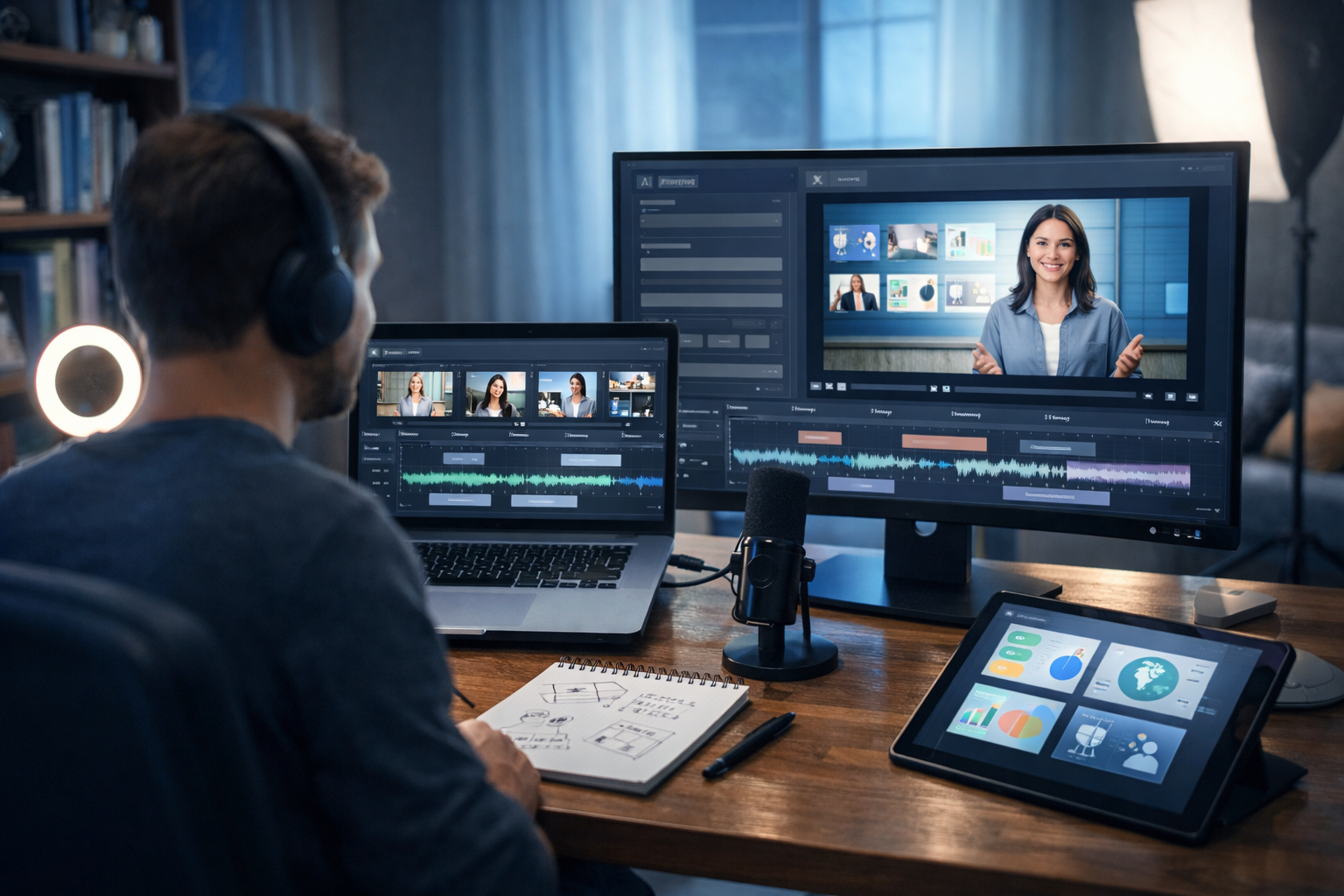
An ai course video generator for online educators can turn a lesson idea into a polished video module in hours instead of days—without needing a full production team. If you’re building or updating an online course, you can now generate scripts, visuals, voice-overs and edited video sequences from a simple prompt, then refine them to match your teaching style and learners’ needs.
What is an AI course video generator (and what it isn’t)?
An AI course video generator is a toolset that helps educators produce course videos by automating key steps: outlining, scriptwriting, visual creation, voice narration, and video assembly. In practice, it’s rarely “one-click” for high-quality teaching. The best results come from combining AI speed with your subject expertise and instructional judgement.
It’s also important to separate video generation from good instruction. AI can help you produce clearer explanations, consistent visuals and accessible captions—yet you still need learning outcomes, examples, practice activities, and assessments. AI is your production assistant, not your pedagogy.
Why online educators are adopting AI for course video creation
Video is often the most time-consuming part of course production. Educators typically juggle planning, filming, editing, slide design, sound clean-up, and revisions. An AI workflow reduces the friction and makes it realistic to ship content consistently—especially if you’re a solo creator or a small training team.
- Faster lesson production: Move from outline to a first-draft video plan in minutes.
- Lower production costs: Generate visuals, voice-overs and explainer segments without outsourcing every asset.
- Consistent quality: Standardise intros, pacing, terminology, and on-screen design across modules.
- More accessibility: Produce scripts, captions, and alternative narration versions for different learner needs.
- Rapid updates: When content changes, regenerate sections instead of re-recording everything.
What to look for in an AI course video generator for online educators
Not all AI tools are built with teaching in mind. When evaluating options, prioritise features that support instructional clarity and production efficiency—not just flashy visuals.
1) Script + structure generation (aligned to learning outcomes)
A strong tool should help you produce more than a script. It should help you create:
- Module and lesson outcomes (what learners can do afterwards)
- A clear lesson arc (hook → concept → example → practice → recap)
- On-screen cues (where to show diagrams, bullet points, or demos)
Gen AI Last includes AI text generation for outlines, scripts, quizzes, and supporting materials. You can draft faster, then refine for accuracy, tone, and level.
2) Visual generation that supports comprehension
Course videos often need diagrams, process visuals, product screenshots, or realistic scenes. Look for image generation that can produce consistent styles and specific elements (e.g., “step-by-step flow diagram style”, “lab bench setup”, “app UI mockups”). With Gen AI Last’s image generation, you can create lesson visuals, thumbnails, and banners without hunting stock images for every slide.
3) Video generation built for explainer-style content
For educators, the ideal AI video output is clean, structured, and easy to edit into lessons. You want short segments, not a single long cinematic clip. Gen AI Last supports AI video generation for explainer videos, product demos, and social reels—useful formats for micro-lessons, promo videos, or course introductions.
4) Audio narration and voice-overs
Audio quality affects perceived professionalism more than many educators realise. AI audio can help you generate clear narration, consistent intros/outros, or alternative voice versions. Gen AI Last includes AI audio generation for voice-overs, narration, podcast-style audio, and background music—ideal when you need a polished sound without spending hours recording and cleaning audio.
5) Pricing that supports long-term course production
Course creation is ongoing. You’ll update modules, release new cohorts, and add bonus lessons. Tools that charge separately for text, images, audio, and video can become expensive quickly. Gen AI Last provides full access to text, image, audio, and video generation from $10/month, which is friendly for solo educators and small training teams. You can view pricing from $10/month to compare plans.
A practical workflow: from lesson idea to finished course video
Below is a repeatable, educator-friendly workflow you can use for each lesson. It’s designed to keep your teaching accurate while letting AI handle repetitive production tasks.
Step 1: Define outcomes, audience level, and constraints
Before you generate anything, write three notes:
- Audience: beginners / intermediate / advanced, plus context (career switchers, undergrads, managers, etc.)
- Outcome: 2–4 measurable statements (e.g., “Explain X”, “Apply Y to Z scenario”)
- Format: talking head, slides + narration, screencast, or hybrid
Step 2: Generate a lesson outline and storyboard
Use AI text generation to draft a structured outline and a storyboard table. Aim for short segments (30–90 seconds each) so you can update specific parts later.
Example prompt (copy and adapt):
“Create a lesson storyboard for an online course. Topic: [TOPIC]. Audience: [LEVEL]. Duration: 7 minutes. Learning outcomes: [OUTCOMES]. Output a table with columns: timestamp, narration, on-screen visuals, key terms, example, checkpoint question. Keep it clear and educational.”
Step 3: Write the script in your teaching voice
Ask for a conversational script that matches your style: supportive, direct, academic, or energetic. Add cues for pauses, emphasis, and “you try” moments.
- Keep sentences short for narration.
- Use one concept per paragraph.
- Insert mini-recaps every 1–2 minutes.
Gen AI Last’s text tools can also create supporting assets: lesson summaries, downloadable worksheets, quiz questions, and discussion prompts. Explore our AI content tools to build the full lesson pack.
Step 4: Generate lesson visuals (slides, diagrams, thumbnails)
For online learning, visuals should reduce cognitive load, not add to it. Use consistent colours and icon styles. Where possible, show processes, comparisons, and examples rather than decorative imagery.
Visual prompt pattern: “Create a clean educational visual for [CONCEPT], style: minimal flat design, high contrast, simple shapes, no text, leave space for captions, 16:9.”
If your course uses realistic imagery (e.g., health, hospitality, engineering), generate a consistent scene style (lighting, camera angle, environment) so your course looks cohesive.
Step 5: Create narration with AI audio (or polish your own)
If you don’t want to record every lesson, AI narration can provide stable quality across modules—especially useful for updates. If you do record yourself, AI audio can still help with alternative versions: a slower-paced track, a shorter recap, or a promotional teaser.
- Tip: Generate two narration variants—one “full” and one “tight” (10–15% shorter) so you can choose pacing.
- Tip: Add pronunciation notes for technical terms before generating audio.
Step 6: Generate video segments and assemble your lesson
Instead of generating one long video, create short segments that map to your storyboard. This makes revisions easier and improves learner engagement. Use AI video generation for:
- Animated explainers (concept overviews)
- B-roll-style scenes (context setting, transitions)
- Product or workflow demos (for tool-based courses)
Then combine your visuals, narration, and segments into a final lesson in your preferred editor (or your platform’s lesson builder). Keep a “course style guide” so every lesson has consistent intros, lower thirds, and pacing.
Step 7: Add accessibility essentials
Online educators should treat accessibility as a quality baseline:
- Captions: Provide accurate captions and correct key terminology.
- Readable visuals: High contrast, large font sizes, minimal clutter.
- Audio clarity: Reduce background noise and avoid abrupt volume changes.
- Alternative formats: Offer a transcript and a downloadable summary.
Ready-to-use prompts for educators (scripts, visuals, video, audio)
Use the prompt templates below with Gen AI Last to speed up production while keeping your course academically solid.
Prompt 1: Lesson script with teaching moments
Prompt: “Write a 6–8 minute lesson script on [TOPIC] for [AUDIENCE]. Include: hook, definition, 2 examples, 1 common misconception, a 30-second ‘pause and try’ activity, recap, and a 3-question knowledge check. Tone: clear and supportive. Add [ON-SCREEN] cues for visuals.”
Prompt 2: Storyboard table for video assembly
Prompt: “Convert this script into a storyboard. Output a table with columns: segment name, duration, narration, on-screen elements, b-roll idea, and transition. Optimise for short segments under 60 seconds.”
Prompt 3: Visual set for one lesson (consistent style)
Prompt: “Generate 6 visual concepts for a course lesson on [TOPIC]. Style: minimal educational design, consistent colour palette, simple icons, no text, 16:9. Visuals needed: overview diagram, step-by-step process, comparison chart layout, real-world scenario illustration, recap slide background, thumbnail image concept.”
Prompt 4: Voice-over direction for natural narration
Prompt: “Create voice-over direction notes for this script: pacing markers, emphasis, pauses, and pronunciation guide for technical terms. Aim for friendly professional delivery for adult learners.”
Prompt 5: Course promo video script (30 seconds)
Prompt: “Write a 30-second promo video script for an online course titled [COURSE]. Audience: [AUDIENCE]. Include the transformation (before/after), 3 outcomes, credibility line, and a call to action. Provide on-screen text suggestions and b-roll ideas.”
Common mistakes when using AI to generate course videos (and how to avoid them)
AI accelerates output, but it can also accelerate mistakes. These are the issues we see most often in AI-assisted course creation.
Mistake 1: Overlong lessons with no interaction
If AI gives you a 15-minute monologue, learners will drift. Fix this by designing for chunking: split into micro-sections and add checkpoints (a quick question, a reflection prompt, a tiny task).
Mistake 2: Generic examples that don’t match the learner
Replace generic examples with scenarios your learners actually face. Tell the AI: industry, job role, tools used, constraints, and common errors.
Mistake 3: Visuals that look nice but teach nothing
Prioritise diagrams, workflows, annotated screenshots, and before/after comparisons. Every visual should answer: “What does this help the learner understand faster?”
Mistake 4: Not fact-checking and updating
Always verify claims, definitions, and references—especially in regulated or technical fields. Maintain a “source of truth” document per module so updates are controlled and consistent.
Mistake 5: Inconsistent voice and branding across modules
Create a simple style guide: intro structure, tone, terminology, slide layouts, colour palette, and audio loudness target. Then reuse the same prompts and templates for every lesson.
How Gen AI Last supports educators end-to-end
Many educators stitch together multiple subscriptions—one for scripts, one for images, another for voice, another for video. Gen AI Last brings these into one platform so you can keep your workflow consistent:
- AI Text Generation: lesson outlines, scripts, email campaigns for launches, course descriptions, social posts
- AI Image Generation: thumbnails, slide visuals, banners, social graphics
- AI Audio Generation: voice-overs, narration, background music
- AI Video Generation: explainer segments, promo videos, reels, demos
If you’re building a new course, you can start small—generate one module, test it with learners, then scale your production. To explore the toolkit, visit our AI content tools. When you’re ready to publish consistently, you can start creating for free and upgrade when it fits your schedule.
A simple “one-module” plan you can follow this week
If you’re new to AI-assisted production, don’t try to automate your entire course at once. Use this lightweight plan to produce a single high-quality module.
- Pick one outcome (e.g., “Apply the framework to a real scenario”).
- Generate a 6–8 minute script with two examples and one practice checkpoint.
- Create 6 visuals (overview, steps, comparison, scenario, recap, thumbnail).
- Generate narration (full + tight version), choose the best pacing.
- Assemble 6 short video segments and export as one lesson.
- Publish and test with 5–10 learners; revise only the weak segment.
FAQ: AI course video generators for online educators
Can AI replace filming myself?
For many topics, yes—especially slide-based explainers, process walkthroughs, and introductions. However, if your credibility relies on presence (coaching, personal brand, cohort-based programmes), a hybrid approach works well: use AI for b-roll, visuals, and updates, and film short “human moments” where it matters.
Will AI-made videos feel generic?
They can—unless you anchor them in your learner context. Provide your industry, scenario details, terminology preferences, and examples. Use a consistent style guide and reuse prompt templates so modules feel cohesive.
How do I keep content accurate?
Treat AI output as a first draft. Fact-check claims, verify steps, and keep references. For technical courses, include your own worked examples and datasets so the lesson reflects reality.
Create better course videos faster—without expensive tool stacks
An ai course video generator for online educators is most powerful when it supports your full workflow: planning, scripting, visuals, narration, and video segments—while still leaving you in control of the teaching. Gen AI Last gives you an all-in-one way to produce course assets quickly and affordably, with plans that include text, image, audio, and video generation. If you want to test a new lesson format or finally ship that course you’ve outlined, start creating for free and build one module end-to-end.
Ready to Create with Generative AI?
Join thousands of creators using Gen AI Last to generate text, images, audio, and video — all from one platform. Start your 7-day free trial today.
Start Free — Try 7 DaysQuick Links
Create AI content from $10/month
View Plans