AI Course Video Generator for Online Educators (2026 Guide)
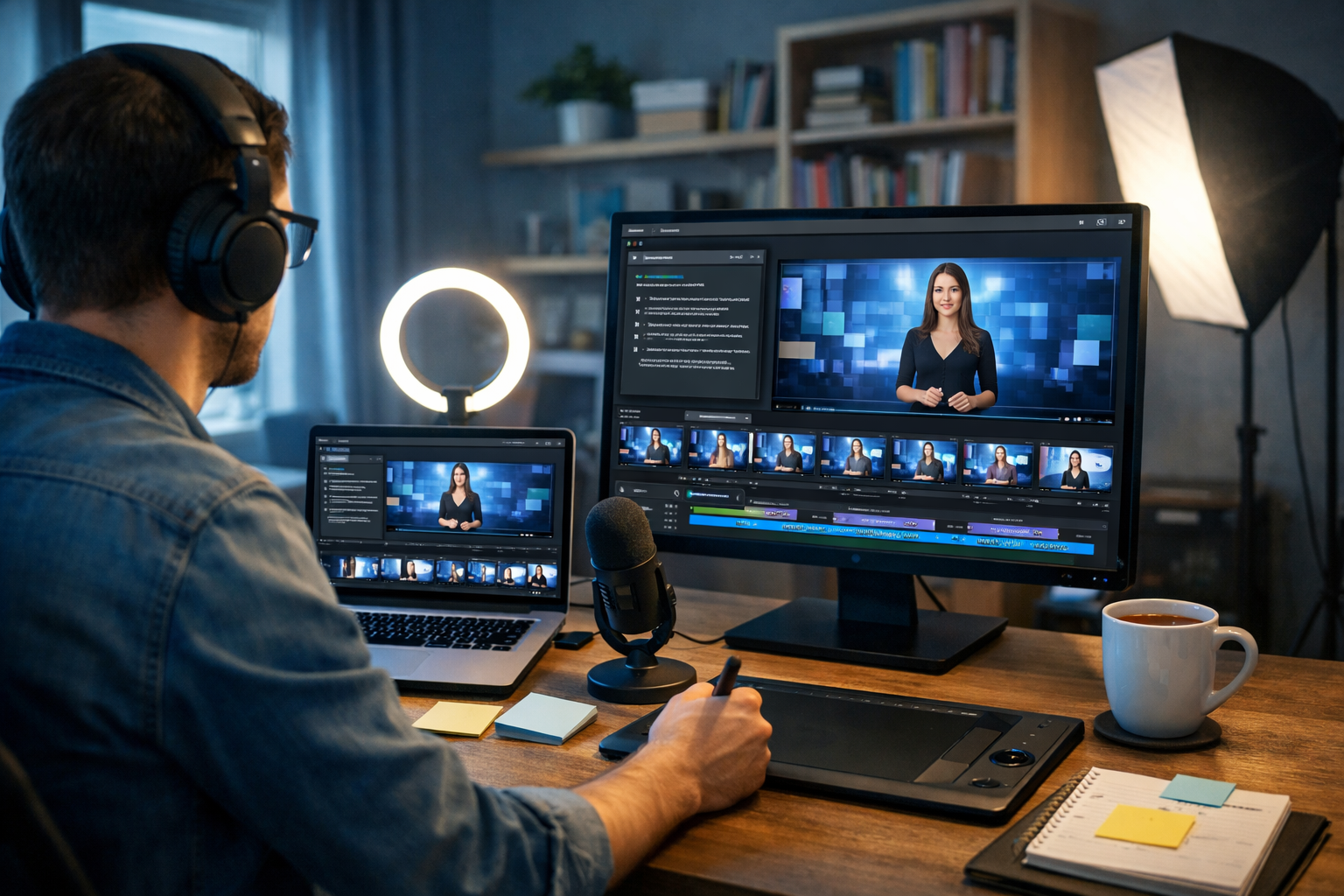
An ai course video generator for online educators can turn a rough lesson idea into a polished video package—script, visuals, voice-over, and export-ready clips—without needing a full production team. If you’re building a course library, updating lessons regularly, or launching cohort-based programmes, the right AI workflow can cut production time dramatically while keeping quality consistent.
What online educators actually need from an AI course video generator
Most “AI video tools” are designed for marketing snippets, not structured learning. For course creators, you need repeatable systems: clear explanations, accurate terminology, consistent pacing, and visuals that support learning outcomes (not distract from them). When evaluating an ai course video generator for online educators, focus on these essentials.
- A script workflow that supports outcomes, examples, and checks for clarity.
- Visual generation for diagrams, scenarios, and lesson imagery that match the module’s style.
- Voice-over audio that is clean, paced for learning, and easy to revise.
- Video creation that supports explainers, screen-style sequences, and short recap clips.
- A predictable revision loop so you can update a lesson in minutes, not days.
Gen AI Last is built for exactly this kind of end-to-end content pipeline: our AI content tools include text, image, audio, and video generation in one place, so you can keep your course production streamlined.
Why AI course video generation is different from “making videos faster”
Course video isn’t judged only by production quality—it’s judged by learning quality. AI helps most when it supports instructional design decisions: choosing the right example, using an analogy that fits your audience, adding checkpoints, and maintaining consistent structure across a series.
A practical way to think about it is to separate your course video into four layers:
- Instruction layer: objectives, key terms, misconceptions, practice.
- Script layer: what is said and how it’s paced.
- Visual layer: diagrams, b-roll, scenario images, on-screen emphasis.
- Delivery layer: voice, tone, background music (if appropriate), and edits.
An ai course video generator for online educators works best when it supports each layer, and when you can revise any layer independently (for example, updating a definition without re-recording your entire module).
A repeatable workflow: from lesson plan to finished course video
Below is a reliable, educator-friendly workflow you can reuse across modules. It assumes you’ll generate text, visuals, audio, and video in one platform to avoid constantly exporting and reformatting assets.
Step 1: Define the lesson outcomes (the AI should follow your teaching)
Before generating anything, write 2–4 outcomes using measurable verbs. This prevents AI from producing content that sounds good but teaches vaguely.
- By the end of this lesson, learners will be able to define…
- …compare two approaches and choose the right one for a scenario.
- …apply a method to complete a short task.
Tip: keep one outcome aligned to a short knowledge check you can include near the end.
Step 2: Generate a structured script (not a monologue)
Use AI text generation to produce a script with consistent sections: hook, definition, example, guided walkthrough, recap, and a mini-assignment. In Gen AI Last, your text generation can produce multiple versions quickly—use that to A/B test clarity and pacing before you ever generate audio or video.
Example prompt for script generation:
- “Write a 6–8 minute lesson script for online learners about [topic]. Audience: [beginner/intermediate]. Include: (1) 2 learning outcomes, (2) a short hook, (3) a worked example, (4) one common misconception and correction, (5) a 3-question knowledge check with answers, (6) a 30-second recap. Tone: supportive, concise, UK English.”
When you read the script, check for: overlong sentences, missing transitions, and any place where a diagram would help more than extra words.
Step 3: Generate lesson visuals that actually teach
For educators, visuals should reduce cognitive load. Use AI image generation to create consistent lesson imagery: scenario scenes, simplified conceptual diagrams, and “chapter marker” visuals for each section. The key is to standardise a visual style per course (palette, lighting, composition) so learners feel continuity.
Visual types that work well in course videos:
- Scenario images: a workplace, classroom, clinic, or home context that anchors an example.
- Concept visuals: clean, minimal “metaphor” imagery (e.g., pathways, building blocks) to introduce an abstract idea.
- Step visuals: one image per step of a process, consistent framing.
Practical tip: create 1 “style anchor prompt” for your course and reuse it for every module, swapping only the subject. That’s how you keep thumbnails and lesson visuals coherent.
Step 4: Create voice-over audio that fits learning pace
A course voice-over needs different pacing than an advert. Aim for clarity, short pauses after key definitions, and a calm tone. With AI audio generation you can iterate quickly: adjust tone, speed, and emphasis without re-recording in a noisy environment.
Voice-over checklist for online education:
- Pronounces specialist terms correctly (double-check names and acronyms).
- Uses pauses after definitions and before steps.
- Avoids overly “salesy” emphasis; sounds like teaching.
- Consistent volume and minimal background artefacts.
If your course includes accessibility needs, generate a second, slightly slower voice-over version for learners who benefit from reduced pace.
Step 5: Assemble with AI video generation (plus simple editing rules)
AI video generation is ideal for explainers, module intros, recap clips, and scenario-led segments. For screen-recorded demonstrations, you can still use AI to create the intro/outro, mid-lesson “reset” cards, and recap videos—this keeps the overall module professional even if the core demo is captured traditionally.
Editing rules that make course videos feel premium:
- Keep section segments short (45–120 seconds) and use consistent transitions.
- Match visuals to the exact sentence being spoken—avoid “generic b-roll” whenever a diagram would be clearer.
- Use a recap at the end that mirrors the outcomes stated at the start.
- Add subtle background music only for intros/outros; keep teaching segments clean.
Three course video formats AI handles especially well
If you’re unsure where to start, choose one of these formats and standardise it across your course. Consistency matters more than flashy effects.
1) The “Explainer + worked example” lesson
Best for theory, frameworks, and step-by-step methods. Use AI to generate the script, supporting visuals, and voice-over. Then generate a video sequence that alternates between concept visuals and a scenario image while you narrate the example.
- Hook (10–15s)
- Definition (30–45s)
- Worked example (2–4 min)
- Misconception (30–45s)
- Recap + knowledge check (60–90s)
2) The “Micro-lesson library” (for mobile learners)
Create 20–40 short clips (60–120 seconds) instead of 6 long videos. AI is particularly effective here because the scripts are small and revisions are cheap: if one micro-lesson isn’t clear, you regenerate only that clip.
This format also improves discoverability: you can repurpose micro-lessons as social reels to promote your full course.
3) The “Scenario-led” lesson (practice-focused)
Present a realistic situation, ask learners what they would do, then reveal the recommended approach. AI image generation helps you create consistent scenario scenes; AI audio and video bring it together quickly.
- Scenario setup: context + constraint
- Pause and prompt: “What would you do next?”
- Reveal: step-by-step decision process
- Transfer: “Try it on this new scenario…”
Quality and credibility: how to keep AI-generated course videos trustworthy
Using AI doesn’t remove your responsibility as the educator. To stay credible (and to reduce refunds), build a lightweight QA routine.
Run a “teaching accuracy” check
- Verify definitions against your preferred sources (standards, textbooks, official docs).
- Check numbers, thresholds, dates, and regulated claims.
- Confirm the example genuinely demonstrates the method (not a near-miss).
Optimise for learner attention (not maximum content)
AI can generate a lot—your job is to curate. If the script is dense, split it into two lessons. If the explanation needs three paragraphs, it probably needs a diagram instead.
Accessibility basics to include
- Add captions/subtitles where your platform supports them.
- Avoid relying on colour alone to convey meaning in visuals.
- Keep background music minimal and never competing with speech.
Prompt templates for educators (copy, customise, reuse)
The fastest way to improve results is to use templates. Here are educator-tested prompt patterns you can keep and reuse.
Template A: Module script with embedded visual cues
- “Create a lesson script on [topic] for [audience]. Duration: [X] minutes. Include timestamps every 20–30 seconds. After each segment, add a line: VISUAL SUGGESTION: [image/diagram/scenario]. Include one misconception and one mini-exercise. UK English.”
Template B: Consistent scenario image generation
- “Photorealistic scene for an online course lesson. Setting: [industry context]. Subject: [scenario]. Style: clean, modern, soft natural light, shallow depth of field. Keep composition consistent with previous images: eye-level camera, subject centred, neutral colour palette. No text, no logos.”
Template C: Voice-over direction for teaching tone
- “Generate a clear, calm educational voice-over in UK English. Pace: slightly slower than normal conversation. Add brief pauses after definitions and numbered steps. Tone: professional, supportive, not promotional.”
How Gen AI Last supports the full course video pipeline
Many educators patch together separate tools for scripts, images, narration, and video—then lose hours reformatting and keeping styles consistent. Gen AI Last is designed as an all-in-one creation platform, so you can generate and iterate within one workflow:
- AI Text Generation: lesson scripts, course outlines, email campaigns for launches, and supporting materials.
- AI Image Generation: lesson visuals, thumbnails, scenario scenes, banners, and social graphics.
- AI Audio Generation: voice-overs, narration, and background music for intros/outros.
- AI Video Generation: explainers, recap clips, promo trailers, and lesson segments.
The best part for independent educators and small teams is cost predictability: you get full access to text, image, audio, and video generation in every plan. You can view pricing from $10/month and scale your output without scaling a production budget.
Common mistakes to avoid (and what to do instead)
AI makes it easy to ship quickly—so it’s also easy to ship content that looks polished but teaches poorly. These fixes are simple and make an immediate difference.
- Mistake: Writing one long script and generating one long video. Do instead: break into short segments with mini-recaps and clear headings.
- Mistake: Using random visuals each lesson. Do instead: define a course style guide (lighting, palette, framing) and reuse it.
- Mistake: Voice-over that sounds like an advert. Do instead: specify teaching tone, slower pace, and pauses after key terms.
- Mistake: No knowledge checks. Do instead: add 3 quick questions per lesson (with answers) to reinforce learning.
- Mistake: Never updating content. Do instead: keep a “revision log” and regenerate only the segments that change.
A simple 60-minute production plan for one lesson
If you’re new to AI-assisted course production, this schedule keeps you moving while maintaining standards.
- 10 minutes: outcomes + lesson structure (sections and timing).
- 15 minutes: generate and edit the script (tighten wording, add an example).
- 10 minutes: generate 6–10 supporting visuals in a consistent style.
- 10 minutes: generate voice-over; correct any terms and re-generate if needed.
- 15 minutes: generate/assemble video segments + quick QA (pacing, alignment, recap).
Once you’ve done a few lessons, you’ll build reusable prompt templates and style anchors, which is where the speed gains compound.
FAQ: AI course video generators for online educators
Can AI replace me on camera?
It depends on your brand. Many educators keep a short on-camera intro for trust, then use AI-generated visuals and voice-over for the core teaching segments. Others go fully narrated with strong visuals and clear structure. The best choice is the one that keeps learners engaged and confident in your expertise.
Will learners notice the content is AI-assisted?
Learners notice inconsistency, vague explanations, and poor pacing more than the toolchain. If you use AI to support a clear teaching structure and you QA for accuracy, the result feels professional—especially when visuals and audio are consistent across modules.
How do I keep my course style consistent?
Create a “course kit”: one script template, one voice-over direction template, and one image style anchor prompt. Reuse them for every lesson, changing only the topic-specific details.
Next step: build your first AI-assisted lesson
If you want a practical starting point, choose one lesson you already teach well, convert it into a structured script with visual cues, generate 6–10 consistent images, add a calm voice-over, and produce a short explainer video plus a 30-second recap. That single workflow becomes your repeatable production system for an entire course.
To create scripts, visuals, narration, and course videos in one place, explore our AI content tools or start creating for free and test a lesson format that suits your learners.
Ready to Create with Generative AI?
Join thousands of creators using Gen AI Last to generate text, images, audio, and video — all from one platform. Start your 7-day free trial today.
Start Free — Try 7 DaysQuick Links
Create AI content from $10/month
View Plans