AI Social Media Graphics Generator for Non Designers
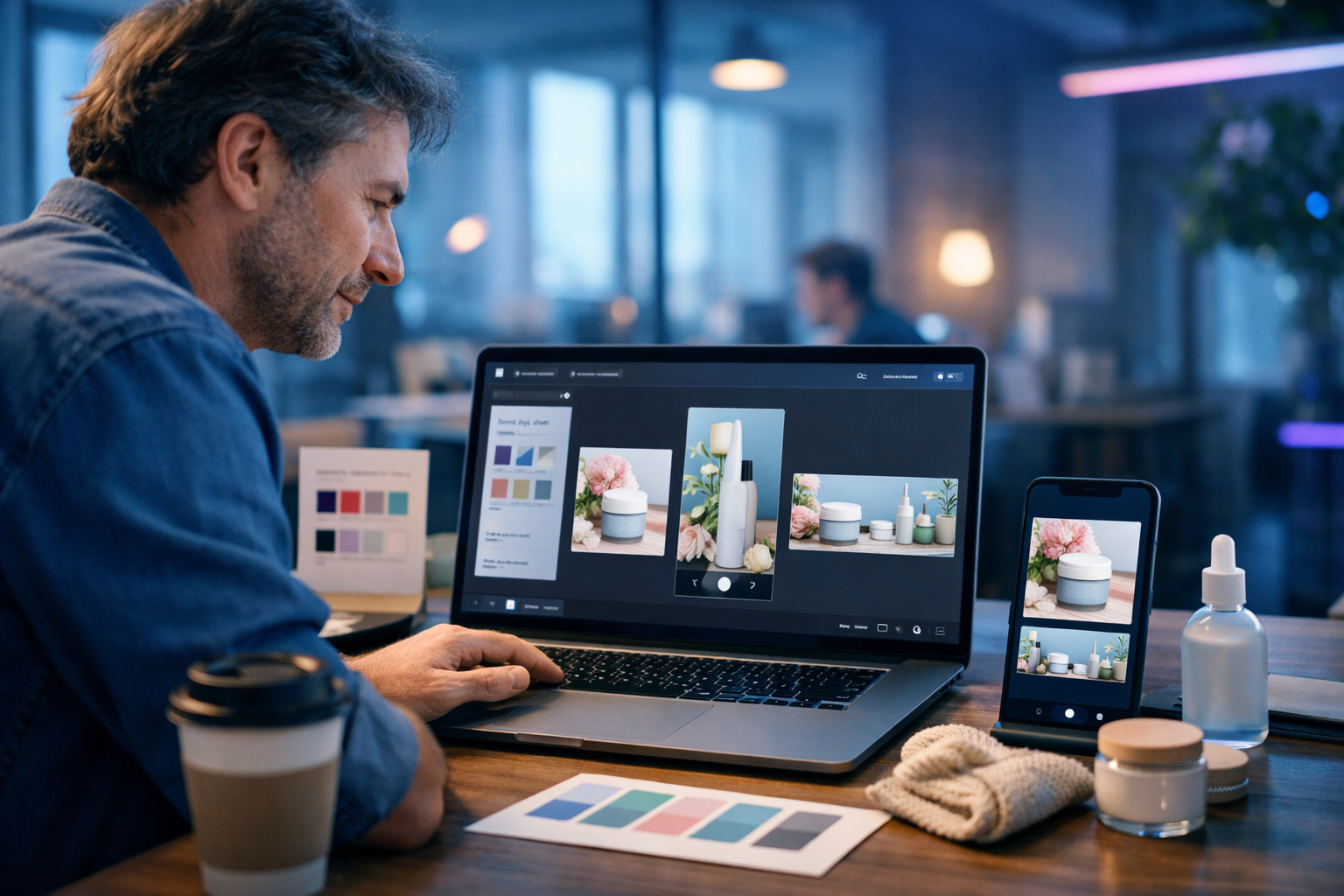
If you’re posting on social media but you’re not a designer, you’ve probably felt the trade-off: either publish something “good enough” quickly, or lose hours trying to make it look professional. An ai social media graphics generator for non designers changes that equation by turning simple prompts into polished, on-brand visuals—without needing Photoshop skills or a creative team.
What an AI social media graphics generator actually does (in plain English)
At its simplest, an AI graphics generator creates images from instructions you type. For social media, that means you can describe a post concept—product, mood, colours, composition, background style—and the AI produces multiple visual options in seconds.
For non-designers, the real value isn’t just “cool images”. It’s:
- A faster way to create consistent visuals across platforms
- Less reliance on templates that look like everyone else’s
- Quick experimentation with styles, colour palettes, and formats
- More content output without increasing headcount
Gen AI Last brings this together as an all-in-one platform: you can generate social graphics with AI images, then pair them with AI-written captions, scripts, and even voice-overs and videos—using one workflow and one subscription. Explore our AI content tools to see everything included.
Why non-designers struggle with social graphics (and how AI fixes it)
Most social media graphics problems aren’t about creativity—they’re about constraints. Non-designers typically face one (or more) of these issues:
- Inconsistent branding: colours and styles vary week to week
- Time pressure: you need content now, not “after you learn design basics”
- Template fatigue: your posts look generic because the layouts are overused
- Asset gaps: you don’t have good product photos, backgrounds, or illustrations
- Platform sprawl: one campaign needs multiple sizes and crops
An AI social media graphics generator helps by giving you a starting point that already looks professional. You can generate multiple options, pick the strongest, and iterate with small prompt edits—like “make it brighter”, “use a minimal studio background”, or “add warm golden-hour lighting”.
The non-designer’s workflow: create scroll-stopping graphics in 15–30 minutes
Here’s a simple, repeatable process that works for startups, freelancers, creators, and small teams. It’s designed for speed, consistency, and less second-guessing.
Step 1: Choose one clear post goal
Before you generate any visuals, decide what the post needs to do. Pick one:
- Promote a product or offer
- Educate (tips, how-to, myth vs fact)
- Build trust (testimonial, behind-the-scenes)
- Drive engagement (question, poll, carousel-style story)
One goal = one visual idea. If you try to sell, educate, and entertain in the same image, it usually looks messy.
Step 2: Set your brand “visual rules” (a 2-minute checklist)
Non-designers often skip this, then wonder why their feed looks inconsistent. Create a lightweight style reference:
- Colours: 2 primary + 1 accent (e.g., navy, off-white, coral)
- Look: minimal, playful, premium, bold, or “natural/handmade”
- Lighting: bright studio, warm lifestyle, or cool tech
- Background: plain gradient, desk scene, textured paper, city night
You’ll reuse these details inside prompts so your output stays recognisably “you”.
Step 3: Write a prompt that behaves like a design brief
The best prompts aren’t poetic—they’re specific. Use this structure:
- Subject: what’s in the image (product, person, object)
- Setting: where it is (home office, café, studio, outdoors)
- Mood: premium, cosy, energetic, calming
- Brand cues: colours, materials, styling
- Composition: negative space for copy, centred product, flat lay
- Output constraints: photorealistic, 4K, no text, no logos
Example prompt (product post): “Photorealistic skincare product on a clean marble counter in soft natural window light, minimal premium aesthetic, neutral palette with a coral accent, shallow depth of field, space on the left for overlay text, high detail, no logo, no text.”
In Gen AI Last, you can generate several variants quickly, then refine the prompt based on what you like (lighting, angle, background, colours).
Step 4: Generate multiple options, then edit by narrowing (not rewriting)
Non-designers waste time by changing everything at once. Instead, generate 4–8 images, choose the best 1–2, then adjust only one variable per iteration:
- Keep the composition, change the background
- Keep the colours, change the lighting (golden hour vs studio)
- Keep the subject, change the camera angle (top-down flat lay vs 45°)
This mirrors how designers work: iterate with constraints, not chaos.
Step 5: Pair the graphic with a strong caption (AI text helps)
A great visual stops the scroll; the caption converts. Use AI text generation to create:
- Hook options (first line) tailored to your audience
- Short vs long caption variants
- Call-to-action alternatives (comment, save, click, DM)
- Hashtag sets (broad + niche)
This is where an all-in-one platform matters. With Gen AI Last you can create the image and the caption in the same session, keeping your message consistent across visuals and copy. If you’re ready to test it, start creating for free.
Practical prompt recipes (copy, paste, customise)
Below are prompt “recipes” built for common social content types. Replace the bracketed parts with your details.
1) Promotional post (clean product hero)
Prompt: “Photorealistic hero image of [PRODUCT] on [SURFACE], minimal premium aesthetic, [BRAND COLOURS] accents, soft studio lighting, subtle shadows, shallow depth of field, negative space for copy on the right, high detail, 16:9 wide composition, no text, no logos, no watermark.”
2) Behind-the-scenes (founder / maker vibe)
Prompt: “Photorealistic behind-the-scenes scene of a small business owner preparing [PRODUCT/ORDER] at a home office desk, warm golden-hour light, candid lifestyle feel, natural materials, brand colour accents, stationery and packaging elements visible, shallow depth of field, 16:9 wide, no text, no logos.”
3) Educational tip post (background image with space)
Prompt: “Photorealistic minimal background for an educational social post: [THEME OBJECTS] neatly arranged, clean gradient background in [BRAND COLOURS], soft natural light, lots of negative space in the centre for overlay text, modern aesthetic, 16:9 wide, no text, no logos.”
4) Event / webinar announcement (professional tech look)
Prompt: “Photorealistic modern tech workspace scene: laptop and smartphone on a clean desk, abstract UI elements in the background (no readable text), cool blue lighting with subtle neon accents, professional corporate aesthetic, negative space on the left for overlay text, 16:9 wide, no logos, no watermark.”
How to keep your graphics consistent (the part most people miss)
Consistency is what makes a non-designer look like a brand with a design team. Use these tactics:
Create a “prompt footer” you reuse every time
Add a standard line to the end of most prompts, such as:
- “Photorealistic, clean minimal aesthetic, soft natural light, shallow depth of field, brand palette: navy, off-white, coral, no text, no logos.”
This small habit produces a recognisable visual signature across posts.
Use the same 3–5 recurring visual motifs
Pick motifs you can repeat in prompts:
- A consistent surface (marble, wood, textured paper)
- A consistent prop set (notebook, plant, coffee, packaging)
- A consistent lighting style (soft window light, cool tech, neon accent)
Your feed will look cohesive even when each post is unique.
Build a “format map” for each platform
Social platforms reward native formatting. Create a simple map:
- Instagram feed: square product hero, carousel tips
- Stories/Reels: vertical backgrounds + short headlines
- LinkedIn: clean, professional, more negative space
- Pinterest: vertical, lifestyle scenes, strong contrast
When you generate images, specify the framing: “vertical composition”, “square crop friendly”, or “wide banner with negative space”.
From static graphics to high-performing content: add video and audio (without extra tools)
Static posts are useful, but short-form video is often the fastest route to reach. The advantage of Gen AI Last is that your graphic can become the foundation for richer content:
- Turn a product graphic into a reel: generate a short product demo or explainer video
- Add a voice-over: create narration for your reel or story sequence
- Write the script and caption: generate a hook, talking points, and CTA
If you’re a small team, keeping everything in one platform reduces time spent exporting, reformatting, and switching tools. All plans include text, image, audio, and video generation—view pricing from $10/month.
Common mistakes non-designers make with AI graphics (and quick fixes)
AI is powerful, but it still needs direction. Avoid these common issues:
Mistake 1: Vague prompts (“make a nice post for my business”)
Fix: Add context: product type, setting, lighting, palette, and composition. Pretend you’re briefing a photographer.
Mistake 2: Trying to cram words into the image
Fix: Generate clean visuals with negative space and add copy later in your publishing workflow. Also include “no text” in the prompt to avoid messy typography.
Mistake 3: Inconsistent branding across posts
Fix: Use a prompt footer and fixed colour palette. Repeat the same lighting style and a small set of props.
Mistake 4: Over-editing and losing time
Fix: Work in iterations: change one thing at a time. Generate several variations, then refine.
Mistake 5: Ignoring the caption
Fix: Use AI text generation to produce 5–10 caption hooks, pick the best, then polish it to sound like you. The visual gets attention; the words create action.
A simple 7-day content plan using an AI social media graphics generator
If you want a practical way to start, try this one-week plan. It keeps variety high while staying on-brand.
- Day 1: Product hero graphic + “why it exists” caption
- Day 2: Tip post background + 3 quick tips in caption
- Day 3: Behind-the-scenes lifestyle image
- Day 4: Testimonial-style graphic background + story caption
- Day 5: Comparison graphic concept (before/after vibe, clean layout)
- Day 6: Founder/values post (workspace scene, candid feel)
- Day 7: Reel: convert your best image into a short explainer + AI voice-over
Batch this on one day: generate visuals first, then captions, then schedule. You’ll post more consistently without the daily scramble.
FAQ: AI social media graphics generator for non designers
Do I need design skills to get good results?
No—but you do need a clear goal and a prompt that includes brand cues (colours, mood, setting). Think “creative brief”, not “art project”.
Will my posts look generic?
They can if you rely on the same vague prompt each time. Use a consistent palette, recurring motifs, and specific settings. Generate variations and choose a signature style that suits your audience.
Can I create an entire campaign, not just a single image?
Yes. Create a “campaign prompt” that defines the look (lighting, background, props), then generate a set of images for different messages. Use AI text generation for captions and AI video/audio to turn the campaign into reels and story sequences.
What makes Gen AI Last useful for small teams?
It’s an all-in-one platform: generate the visuals (AI images), the copy (AI text), and then expand into reels (AI video) with voice-overs (AI audio), without paying for multiple tools. Plans start at $10/month with full access.
Next steps: create your first on-brand graphic in under 10 minutes
Pick one post goal, choose your brand palette, and use one of the prompt recipes above. Generate 4–8 options, select your favourite, and write three caption hooks to test. When you can repeat that process weekly, you’ll have a consistent feed that looks professionally designed—without being a designer.
To do it all in one place, explore our AI content tools or view pricing from $10/month. If you want to try it first, start creating for free.
Ready to Create with Generative AI?
Join thousands of creators using Gen AI Last to generate text, images, audio, and video — all from one platform. Start your 7-day free trial today.
Start Free — Try 7 DaysQuick Links
Create AI content from $10/month
View Plans