AI video editing tools that save hours of work (2026 guide)
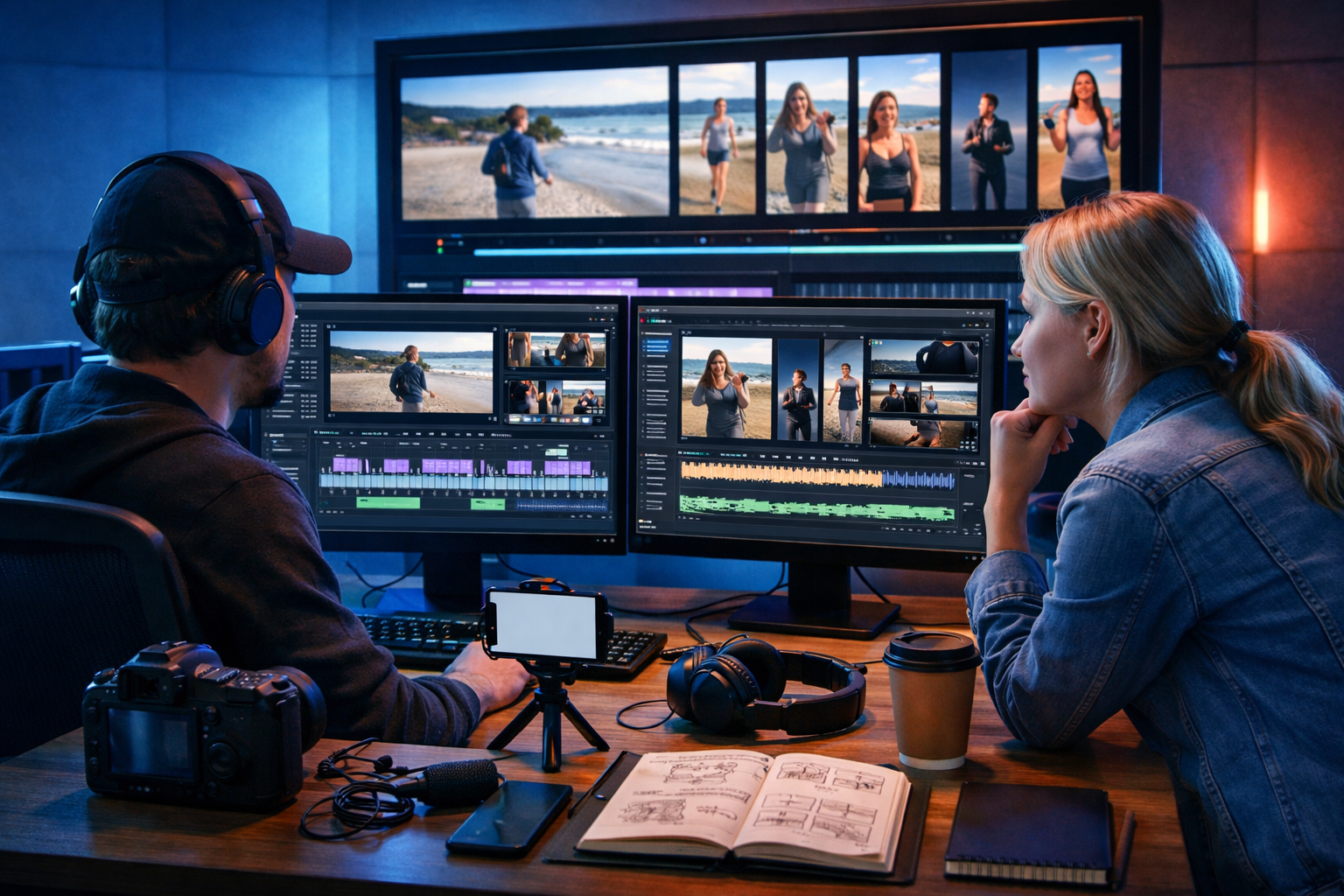
AI video editing tools that save hours of work do one thing exceptionally well: they remove the repetitive parts of editing—cutting silences, finding the best takes, adding captions, resizing for each platform, and producing multiple versions—so you can focus on story, clarity, and conversion. If you regularly publish social reels, product demos, training clips, or ads, the right AI features can turn a half-day edit into a polished output in under an hour.
Why video editing takes so long (and where AI saves time)
Traditional editing is slow because the work is granular. You’re not just “editing a video”—you’re making hundreds of tiny decisions: where to cut, which take is clearest, how to balance audio, how to make captions readable, how to keep pacing tight, and how to export in the right formats for each channel.
Most editing hours typically disappear into the same recurring tasks. AI can’t replace judgement, but it can automate the busywork and accelerate decision-making.
- Reviewing raw footage: AI can index and search your clips, detect faces/speakers, and highlight “good moments”.
- Rough cuts: Auto-cut silences, filler words, and false starts; create a first-pass edit from a script or transcript.
- Captions and subtitles: Automatic speech-to-text with styling, positioning, and burn-in options.
- Repurposing: Automatically create 9:16, 1:1, and 16:9 versions with smart reframing.
- Polish: One-click audio cleanup, music ducking, colour matching, and template-based branding.
What “AI video editing tools that save hours of work” actually means
The phrase gets thrown around, so it helps to define it. The tools that genuinely save hours have three traits:
- They reduce timeline labour: fewer manual cuts, fewer repetitive adjustments, fewer exports.
- They reduce decision fatigue: suggestions for hooks, highlights, b-roll, titles, and pacing based on your footage.
- They connect your workflow end-to-end: script → voice-over → visuals → edit → variations → publish.
If a tool claims “AI editing” but still requires you to manually caption, manually create multiple aspect ratios, and manually rebuild the same edit for every channel, it’s not saving hours—it’s just adding another interface.
The 10 AI features that deliver the biggest time savings
Below are the capabilities that consistently produce the largest time reductions for creators, marketers, and small teams.
1) Text-based editing (edit video by editing the transcript)
Text-based editing converts speech to a transcript and lets you delete words like you’re editing a document—then the video updates automatically. This is a major speed boost for talking-head content, webinars, interviews, and tutorials.
- Time saved: faster rough cuts and revisions (especially stakeholder feedback).
- Look for: accurate transcription, speaker labels, and easy “remove ums/ahs” options.
2) Auto-cut silences and filler words
Removing pauses manually is one of the most tedious editing jobs. AI can detect long silences and common filler words, shortening pacing in a click. The best tools allow intensity controls so your video doesn’t feel unnaturally rushed.
3) Smart highlight detection (turn long footage into short clips)
For podcasts, recorded calls, livestreams, or demos, highlight detection identifies moments with higher energy, key phrases, or audience questions. You still curate the final selects, but you don’t start from a blank slate.
Practical use: create 5–10 short clips from a 30–60 minute recording for weekly socials.
4) Automatic captions with styling and safe placement
Captions increase retention and watch time—especially on mobile. AI-generated captions that handle punctuation, line breaks, and timing properly can save hours every week. Bonus points if you can apply brand styles (font, colour, background, emphasis) as a reusable preset.
5) Smart reframing for multiple aspect ratios
If you publish on TikTok/Shorts/Reels and also need YouTube or LinkedIn, resizing manually is painful. Smart reframing follows the speaker’s face or the most relevant action to keep the subject centred across 9:16, 1:1, and 16:9.
- Time saved: no rebuilding edits for each format.
- Look for: keyframe overrides when the AI guesses wrong.
6) B-roll and visual suggestions (contextual inserts)
Strong AI editors can recommend b-roll moments based on your script/transcript (e.g., when you say “dashboard”, “pricing”, or “before and after”). Some tools can even generate visuals to match your narration. This reduces the scavenger hunt for stock footage and keeps videos visually engaging.
If you’re creating marketing content, pairing b-roll suggestions with on-brand image generation can be a major multiplier—especially for product features, UI callouts, and abstract concepts.
7) Audio cleanup and voice enhancement
Bad audio ruins good video. AI noise reduction, de-essing, room echo reduction, and levelling can rescue imperfect recordings and reduce time spent in audio plug-ins. For teams without an audio specialist, this alone can pay for the tool.
8) Auto music selection and ducking
Music should support the message, not fight it. AI can auto-duck music under speech, hit beat markers for cuts, and suggest tracks by mood. The time savings come from avoiding endless track auditioning and manual keyframing.
9) Templates for brand consistency
For businesses, the fastest workflow is repeatable: intro/outro, lower thirds, caption styles, colours, and logo placement. AI helps by turning a “best example video” into a replicable template and applying it across exports.
10) One-click versions (A/B hooks, CTAs, and lengths)
The most efficient teams create variations: a 15-second hook cut, a 30-second version, a 60-second explainer, and a longer YouTube edit. AI can help produce multiple versions while keeping captions and framing correct—saving hours of duplicate work.
A time-saving workflow you can copy (from script to publish)
Here’s a practical workflow designed for small teams producing marketing videos, product demos, or educational content. The goal is to eliminate rework by making decisions in the right order.
Step 1: Write a tight script (or talking points)
Good editing starts before the camera. A 60–90 second script with a clear hook, 2–3 key points, and one CTA is easier to cut, caption, and repurpose.
If you need to move quickly, generate a first draft with our AI content tools and refine it for your brand voice. Create multiple hook options, then pick the strongest.
Step 2: Record clean audio (it reduces editing time)
Even with AI cleanup, you’ll save time by recording closer to the mic, reducing background noise, and doing a short test. Clean source audio means faster captions, fewer corrections, and less “fix it in post”.
Step 3: Generate voice-over when you don’t want to record
For product walkthroughs, ads, and explainer videos, voice-over can be faster than filming yourself. Use AI audio generation to produce narration, then pair it with product visuals or screen recordings. This keeps output consistent and avoids reshoots.
Step 4: Let AI create the rough cut
Import your footage (or voice-over + assets) and run text-based editing, silence removal, and basic pacing improvements. Don’t obsess over perfection yet—the goal is a strong structure in minutes.
Step 5: Add captions and apply brand styling
Generate captions, then correct key nouns (product names, locations, technical terms). Save a preset for font, position, emphasis, and safe margins so every future edit is consistent.
Step 6: Repurpose into multiple formats
Create 9:16 (Reels/Shorts/TikTok), 1:1 (feed ads), and 16:9 (YouTube/website) versions with smart reframing. Export each with platform-appropriate bitrate and loudness if your tool supports it.
Step 7: Produce multiple variants (hooks + CTAs)
Generate two hooks and two CTAs and publish variations over a week. In many cases, editing time stays almost the same while results improve substantially.
With Gen AI Last, teams can produce scripts, thumbnails/visuals, voice-overs, and video outputs inside one platform—helpful when you want fewer tools and faster handoffs. If you’re budgeting carefully, view pricing from $10/month to get full access to text, image, audio, and video generation.
How to choose the right AI video editing tool (a practical checklist)
Not every “AI editor” fits every workflow. Use this checklist to avoid wasting time on the wrong tool.
- Primary content type: talking-head, podcast clips, screen recordings, product demos, ads, or UGC-style reels?
- Captions quality: does it handle punctuation, line breaks, and speaker labels properly?
- Repurposing speed: can you create multiple aspect ratios without rebuilding the edit?
- Brand controls: templates, caption presets, fonts/colours, intros/outros.
- Asset support: can you combine footage with generated images, stock, or screen grabs easily?
- Audio tools: noise reduction, levelling, music ducking, voice enhancement.
- Export options: correct formats for YouTube, TikTok, Instagram, LinkedIn; batch exports are a bonus.
- Collaboration: comments, versioning, and review links if more than one person touches the video.
- Cost predictability: especially important for startups—watch out for usage-based pricing surprises.
Realistic examples: where hours disappear (and how AI gives them back)
Example 1: Turning a 45-minute webinar into 10 social clips
Old way: watch the full webinar, note timestamps, rough cut each clip, add captions, resize for vertical, export individually.
AI-assisted way: auto-transcribe → highlight suggestions → text-based edits → caption preset → smart reframe to 9:16 → batch export.
- Typical time saved: 3–6 hours per webinar, depending on how caption-heavy the output is.
Example 2: Weekly product demo updates for a SaaS startup
Pain point: the product changes weekly; reshoots and re-edits create constant backlog.
AI-assisted way: generate a fresh script and new CTAs with AI text → record a quick screen capture → auto-cut pauses → auto captions → swap in updated feature callouts (generated images or overlays) → export variants for landing page and socials.
This is where an all-in-one platform helps: Gen AI Last can generate the script, visuals, voice-over, and video outputs in one place—reducing tool-switching and keeping turnaround tight.
Example 3: A small agency producing paid social ads at scale
Old way: each new client means new brand assets, new caption styles, new intro/outro, and repeated formatting work.
AI-assisted way: build reusable templates, auto-generate variations (hook + CTA), and create matched visuals for each campaign angle. The hours saved come from standardisation plus automation.
Common mistakes that stop AI tools saving time
AI can speed you up, but a few habits will erase the gains.
- Skipping the brief: if you don’t define audience, offer, and CTA, you’ll keep re-editing for “messaging”.
- Over-trusting auto edits: AI rough cuts are a starting point; always review pacing, emphasis, and meaning.
- Not saving presets: caption styles, colour looks, and export settings should be reusable.
- Creating one perfect version only: you often get better results faster by shipping two solid variants and letting performance data guide the next round.
- Using too many tools: exporting/importing between apps introduces friction, mistakes, and version confusion.
How Gen AI Last fits into a time-saving video workflow
Many teams lose hours not in editing itself, but in the steps around it: scripting, voice-over, finding visuals, creating thumbnails, and reformatting content for different platforms. Gen AI Last is designed to reduce that overhead by giving you one place to generate:
- Text: video scripts, hooks, titles, descriptions, email campaigns, and social captions.
- Images: marketing visuals, banners, social graphics, product-style shots, and supporting imagery for b-roll moments.
- Audio: voice-overs, narration, and background music to speed up production without booking studio time.
- Video: marketing videos, explainers, product demos, and social reels generated from prompts.
Because all plans include full access to text, image, audio, and video generation, it’s particularly useful for startups and small teams that need speed without stacking multiple subscriptions. If you want to test a faster creation loop, start creating for free and build a repeatable process for your weekly content.
Quick-start: a 60-minute AI-assisted edit plan
Need a simple plan you can run today? Try this for a single short marketing video (30–60 seconds):
- Minutes 0–10: generate 3 hook options + one CTA; pick one and finalise the script.
- Minutes 10–20: record (or generate) voice-over; collect 3–5 key visuals (product shots, UI screens, or generated images).
- Minutes 20–40: create rough cut using auto-cuts and transcript edits; trim to target length.
- Minutes 40–50: generate captions; apply preset styling; correct proper nouns.
- Minutes 50–60: export 9:16 and 16:9 versions; create a second hook variant.
FAQs about AI video editing tools that save hours of work
Do AI video editing tools reduce quality?
They can, if you accept automatic edits without review. Used correctly, AI speeds up the first draft and repetitive tasks while you keep creative control over pacing, tone, and final polish.
What’s the fastest win for beginners?
Automatic captions plus smart resizing for different platforms. These are high-effort tasks manually and easy to standardise once you have presets.
Can AI replace an editor for a small business?
For straightforward marketing clips, product demos, and explainers, AI can reduce the need for specialist editing—especially when paired with strong scripts and templates. For complex storytelling, high-end brand films, or advanced motion graphics, a skilled editor still matters.
Conclusion: save hours by automating the boring bits
The best AI video editing tools that save hours of work focus on the repeatable tasks: transcript-based cuts, silence removal, captions, smart reframing, audio cleanup, and versioning. Combine those with a clear script and reusable templates, and your production time drops dramatically—without sacrificing quality.
If your workflow also involves scripting, voice-overs, and generating visuals, an all-in-one platform can remove even more friction. Explore our AI content tools and streamline how you plan, produce, and repurpose video content.
Ready to Create with Generative AI?
Join thousands of creators using Gen AI Last to generate text, images, audio, and video — all from one platform. Start your 7-day free trial today.
Start Free — Try 7 DaysQuick Links
Create AI content from $10/month
View Plans