AI Video Editing Tools That Save Hours of Work (2026 Guide)
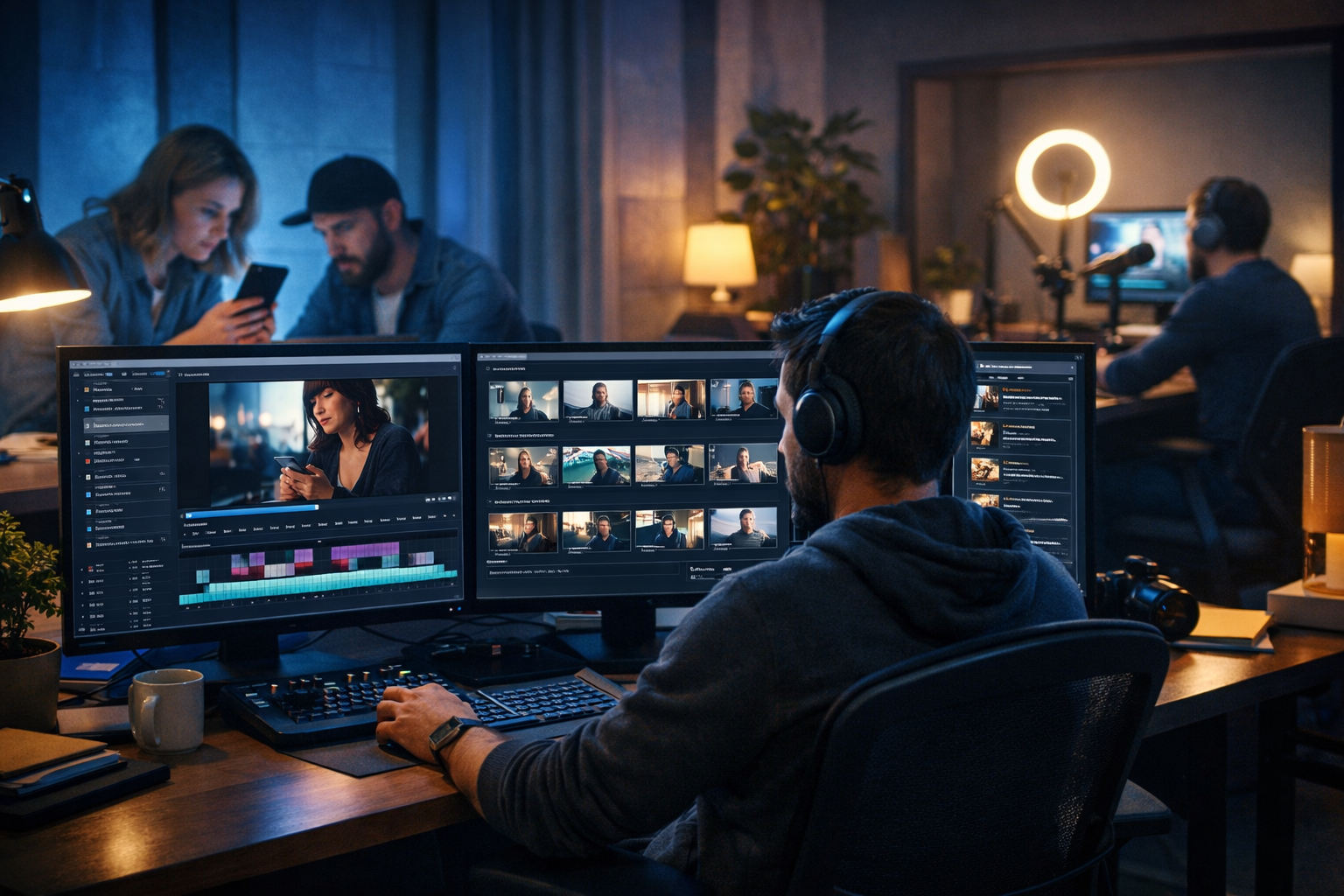
If video editing feels like an endless loop of trimming, captioning, resizing, and exporting, you’re not alone. The best AI video editing tools that save hours of work don’t just add flashy effects—they remove the repetitive steps that slow teams down: rough cuts, silence removal, captions, formatting for every platform, and even generating B-roll and voice-overs. This guide breaks down the AI features that actually save time, plus a practical workflow you can copy for marketing videos, product demos, and social reels.
Why video editing takes so long (and where AI helps most)
Most editing time isn’t spent on “creative genius” moments. It’s spent on tasks that are predictable and repeatable: sifting through footage, cutting out mistakes, levelling audio, adding captions, creating multiple versions, and exporting with the right settings. AI shines when the task can be inferred from patterns—speech, silence, scene changes, repeated branding rules, and common social formats.
To choose the right tools, think in terms of time sinks rather than tool categories. If you can identify the three steps that consume the most hours in your workflow, you’ll know exactly what to automate first.
The 9 AI capabilities that save the most editing time
Below are the AI features that consistently deliver the biggest time savings for creators, marketers, founders, and small teams. Not every platform offers all of them—so use this as your checklist when comparing options.
1) Text-based editing (edit video like a document)
Text-based editing turns your video into a transcript you can edit like a Google Doc: delete a sentence in text, and the corresponding clip is removed automatically. For talking-head, tutorials, webinars, and podcasts, this can cut hours from rough cutting.
- Best for: interviews, screen recordings, training videos, founder updates.
- Biggest win: faster rough cut and easier approvals (reviewers comment on text).
- Watch-outs: transcription accuracy, speaker labelling, handling overlapping speech.
2) Auto silence removal and filler-word cleanup
Silence removal shortens rambling takes instantly, while filler-word detection can help you tighten delivery. Used carefully, this can make videos feel more polished without re-recording.
- Best for: creators recording solo, teams with lots of takes, podcast-style edits.
- Biggest win: saves manual “hunt-and-cut” time across long clips.
- Watch-outs: overly aggressive settings can make pacing unnatural—always preview.
3) Auto captions and animated subtitles
Captions aren’t optional on social. AI-generated captions, speaker identification, and auto highlighting can compress a 60–90 minute caption workflow into minutes—especially when you’re producing multiple short clips per week.
- Best for: TikTok, Reels, Shorts, LinkedIn videos, webinars repurposed into clips.
- Biggest win: consistent subtitle styling at scale.
- Watch-outs: brand compliance (fonts/colours), punctuation and proper nouns.
4) Auto reframing and smart resizing for every platform
One horizontal video often needs three or more versions: 16:9 for YouTube, 1:1 for feeds, 9:16 for Shorts/Reels/TikTok. AI reframing tracks faces or subjects and keeps them in frame—saving you from manually keyframing crops.
- Best for: talking-head clips, product demos with a clear focal point, event footage.
- Biggest win: quick multi-platform distribution without re-editing each format.
- Watch-outs: busy scenes can confuse tracking; check key moments.
5) Scene detection and auto highlights
Scene detection splits long recordings into logical chunks. Highlight detection finds moments with high energy, key phrases, or changes in tone—useful for making short clips from long-form content.
- Best for: webinars, podcasts, livestreams, interviews, conference recordings.
- Biggest win: faster clip selection and less “scrolling through footage”.
- Watch-outs: highlight suggestions are a starting point—human judgement still matters.
6) AI voice-overs and clean audio in one pass
If you regularly create explainers, product walkthroughs, or ads, voice-over is often the bottleneck. AI voice generation can produce narration quickly, and AI audio cleanup (noise reduction, levelling) can reduce reshoots and re-records.
- Best for: explainer videos, onboarding, product updates, internal training.
- Biggest win: rapid iterations when messaging changes (no studio booking needed).
- Watch-outs: ensure rights and consent; choose natural pacing and pronunciation.
7) Generating B-roll, overlays, and cutaways
Many editors lose hours hunting stock footage that matches the script. AI image and video generation can create on-brand cutaways, backgrounds, and simple product-style shots—especially useful for startups without big asset libraries.
- Best for: marketing videos, landing-page videos, feature explainers, social ads.
- Biggest win: less time spent searching stock libraries and negotiating licences.
- Watch-outs: keep visuals accurate and avoid misleading representations.
8) Templates, brand kits, and style matching
AI speeds up editing most when paired with repeatable systems: templates for intros/outros, caption styles, lower thirds, and consistent colour and typography. Some tools can suggest layouts or apply a style across a batch of videos.
- Best for: agencies, in-house marketing, teams producing weekly content.
- Biggest win: fewer micro-decisions and faster batching.
- Watch-outs: avoid making every video look identical—vary rhythm and visuals.
9) Script-to-video generation for fast drafts
Sometimes the quickest “edit” is not editing at all—it's generating a strong first cut from a script. AI video generation can produce a draft explainer or promo in minutes, which you then refine rather than building from scratch.
- Best for: MVP marketing, rapid A/B messaging tests, early-stage campaigns.
- Biggest win: drastically reduced time-to-first-version.
- Watch-outs: confirm factual accuracy and ensure visuals match your brand.
A practical 60-minute workflow: from idea to multi-platform video
Here’s a repeatable workflow designed for small teams. The goal is to produce one “master” video and three platform versions without spending a full day editing.
Step 1: Generate a tight script and hook (10 minutes)
Start with the outcome you want (trial sign-ups, demo requests, feature awareness). Use an AI text generator to create three hooks and one 45–60 second script, then pick the strongest.
- Prompt example: “Write three 8-second hooks and a 60-second script for a video explaining {feature}. Audience: {role}. Tone: clear, practical. Include one CTA.”
- Editing tip: remove anything that isn’t essential—shorter scripts reduce editing time later.
Gen AI Last supports AI text generation for blog posts, product descriptions, email campaigns, and social copy—so you can keep the messaging consistent across channels while you build the video. Explore our AI content tools to draft scripts and variations quickly.
Step 2: Create narration and supporting audio (10 minutes)
If you’re not recording yourself, generate a voice-over from the final script. Choose a voice style that fits your brand (friendly, authoritative, upbeat) and keep the pacing slightly slower than you think—captions read best with breathing room.
- Create two versions: one energetic for social, one calmer for product pages.
- Add subtle background music only if it won’t compete with speech.
With Gen AI Last, you can generate voice-overs, podcast-style audio, background music, and narration—useful when you need fast iterations without re-recording every time messaging changes.
Step 3: Generate or gather visuals (15 minutes)
Match each line of your script with a visual: a screen recording, a simple product shot, a before/after graphic, or B-roll. If you don’t have footage, create marketing visuals and simple cutaways using AI image generation, then assemble them into a video sequence.
- For product demos: record 1–2 clean flows, then rely on captions and zooms to maintain attention.
- For service businesses: generate a few scene-setting visuals (office, customer call, dashboard outcomes).
- For social reels: keep shots changing every 1.5–3 seconds.
Step 4: Build a first-cut video with AI assistance (15 minutes)
This is where AI video tools save the most hours: auto-assemble scenes, cut dead air, align visuals to narration, and insert captions. Aim for “good enough to review”, not perfection.
- Use auto silence removal to tighten pacing.
- Apply your caption style once and reuse it across videos.
- Keep transitions minimal—clarity beats complexity.
Gen AI Last’s AI video generation is ideal for producing quick drafts for marketing videos, product demos, social reels, and explainer videos—so you can focus on the message and the offer, not the mechanics of cutting clips.
Step 5: Export three formats and schedule distribution (10 minutes)
Export a 16:9 master, plus 9:16 and 1:1 versions. Use auto reframing if available, then manually check the first 3 seconds, any on-screen text, and your CTA screen.
- YouTube/website: 16:9, slightly slower pacing, clearer explanation.
- Reels/Shorts/TikTok: 9:16, faster hook, big captions, hard cuts.
- LinkedIn: 1:1 or 4:5 often performs well, strong first line on captions.
How to choose AI video editing tools that actually save hours
Many tools claim to be “AI-powered”, but the time savings depend on whether they fit your exact workflow. Use these criteria to evaluate options quickly.
Prioritise time saved per week (not number of features)
List your recurring tasks and assign a rough weekly time cost. Then map each task to an AI feature:
- Rough cut from long footage → text-based editing, silence removal.
- Captions for every clip → auto captions + saved styles.
- Multiple platform sizes → auto reframing + batch exports.
- Need visuals quickly → AI image/video generation.
- Voice-over bottleneck → AI audio generation.
Check output quality where it matters most
The fastest workflow is pointless if output needs heavy correction. Before committing, test:
- Caption accuracy on your accents, product names, and industry terms.
- Audio clarity and loudness consistency (especially if used for ads).
- Reframe accuracy during fast movement or screen recordings.
- Export settings and file sizes for your posting platforms.
Make sure it supports your team’s reality
Small teams need speed, affordability, and flexibility. If you’re a startup or agency producing mixed content (blogs, landing pages, ads, social posts, visuals), an all-in-one platform can remove tool switching and help keep messaging consistent.
Gen AI Last is built for that all-in-one workflow: generate scripts (text), create visuals (images), produce videos (video), and add narration or music (audio) from simple prompts—starting at a price point that makes sense for lean teams. You can view pricing from $10/month for full access to all generation features.
Real-world examples: where AI cuts editing time dramatically
Example 1: Turning a webinar into 10 short clips
Traditional approach: watch the full recording, mark timestamps, cut clips, add captions, resize for vertical, export one by one. AI-assisted approach: transcribe, search the transcript for key topics, generate highlight suggestions, auto caption, auto reframe, batch export.
- Time saved: often 4–8 hours per webinar depending on length and number of clips.
- Pro tip: standardise clip length ranges (e.g., 20–35s, 45–60s) to speed approvals.
Example 2: A weekly product update video for customers
Record a quick screen capture, then use AI to remove mistakes and pauses, generate captions, and add a consistent intro/outro template. Keep a reusable structure: “What changed / Why it matters / How to use it / CTA”.
- Time saved: 1–3 hours per week, plus fewer re-records.
- Pro tip: maintain a small library of AI-generated B-roll (dashboards, abstract tech visuals) for cutaways.
Example 3: Social ad variations without starting over
Create one base script and produce multiple variations of the hook and CTA. Use AI to generate alternate voice-overs, swap the first 5 seconds, and export multiple versions sized for each platform.
- Time saved: 2–6 hours per campaign cycle, while enabling more testing.
- Pro tip: keep the body identical and only change the hook/CTA to isolate what improves performance.
Common mistakes that stop AI from saving you time
AI accelerates a good process; it doesn’t fix a chaotic one. Avoid these traps if your goal is to save hours.
- No templates: if every video starts from zero, you’ll keep making the same decisions repeatedly.
- Over-editing captions: minor punctuation tweaks can consume time—focus on names, key terms, and clarity.
- Ignoring pre-production: a tighter script and better audio reduce editing exponentially.
- Chasing features: pick one workflow and master it before switching tools.
- No version control: label files clearly (platform + date + variant) to prevent rework.
A simple checklist for faster AI-assisted editing
Use this checklist each time you start a new video. It keeps your workflow consistent and prevents the “one more tweak” spiral.
- Define the goal and CTA (one sentence).
- Draft a short script with a strong hook (under 120 words for a 60s video).
- Record or generate clean narration.
- Collect 6–10 supporting visuals (screen captures, B-roll, AI images).
- Create a first cut with AI assistance (silence removal + captions).
- Resize to 9:16 and 1:1 with smart reframing; check the hook and CTA.
- Export and publish; track retention and save a template for next time.
Why an all-in-one platform can save even more time than a standalone editor
A standalone editor may speed up cuts, but teams often lose hours switching between tools for scripting, thumbnails, voice-overs, and social copy. When text, image, audio, and video creation live in one place, you can move from idea to publishable assets faster—without duplicating brand guidelines and prompts across multiple services.
Gen AI Last brings those parts together: generate your script and captions (text), your thumbnails and social graphics (images), your narration and music (audio), and your video drafts (video). For startups and small teams, that means fewer subscriptions and fewer workflow gaps—while keeping output consistent.
If you want to test a faster creation workflow, you can start creating for free and build your first draft from a simple prompt.
FAQ: AI video editing tools that save hours of work
Do AI video editing tools replace human editors?
They replace repetitive tasks, not taste. AI can accelerate rough cuts, captions, resizing, and first drafts. Human judgement is still essential for storytelling, brand nuance, compliance, and final polish—especially for high-stakes campaigns.
What’s the quickest win for beginners?
Auto captions and smart resizing. Most teams feel immediate time savings because these tasks recur on every single video, and doing them manually is slow.
How do I keep quality high while editing faster?
Standardise your process: use a script template, record clean audio, keep a brand caption style, and limit revisions to two rounds. Speed comes from consistency and batching—AI simply makes the steps quicker.
Next steps: build your hour-saving workflow
The best AI video editing tools that save hours of work focus on the boring parts: trimming, captions, resizing, and first drafts. Start by automating one bottleneck (usually captions or rough cuts), then add multi-format exports and reusable templates. If you want an all-in-one approach that covers scripting, visuals, video, and narration at a price designed for small teams, explore our AI content tools and view pricing from $10/month.
Ready to Create with Generative AI?
Join thousands of creators using Gen AI Last to generate text, images, audio, and video — all from one platform. Start your 7-day free trial today.
Start Free — Try 7 DaysQuick Links
Create AI content from $10/month
View Plans