How to Create AI Product Demo Videos (Step-by-Step)
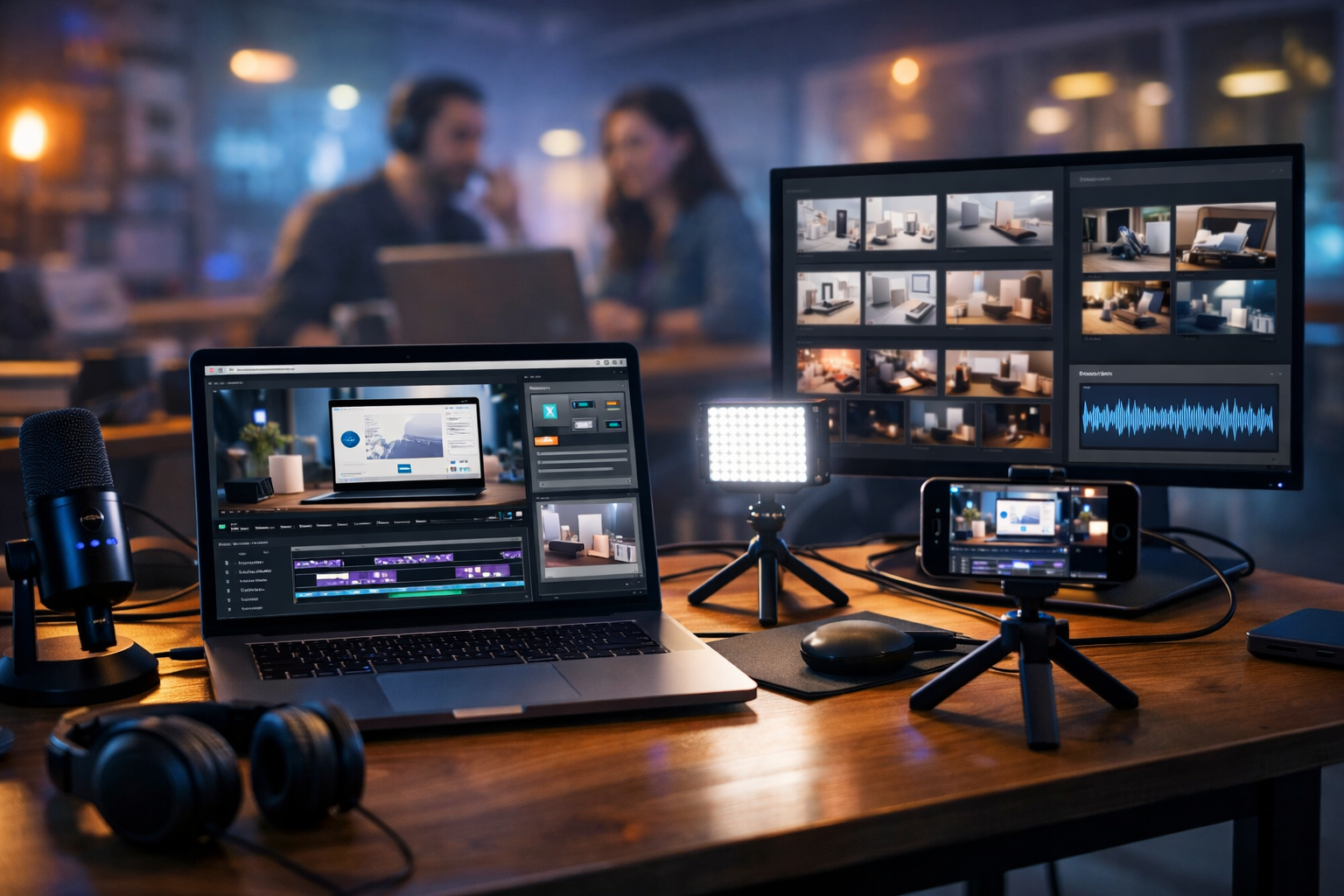
If you’re wondering how to create AI product demo videos that look professional and actually drive sign-ups, the key is a repeatable workflow: clear messaging, a tight script, on-brand visuals, clean voice-over, and edits tailored to each channel. With Gen AI Last, you can generate the script, visuals, voice, and video from simple prompts—so startups and small teams can ship demos fast without a full production crew.
What makes a product demo video “work” (and why AI helps)
A product demo video is not just a screen recording. The best demos do three things in under two minutes:
- Show the problem in the viewer’s words (pain, friction, cost, risk).
- Prove the product solves it (the “aha” moment) with a simple story.
- Tell the viewer what to do next (CTA that matches their intent).
AI helps because the slow parts of production—writing, storyboarding, creating supporting visuals, generating voice-over, and iterating variations—can be done in minutes. You can also personalise versions by audience (e.g., “for agencies”, “for e-commerce”, “for finance teams”) without starting from scratch.
Before you generate anything: define one goal and one audience
Most demo videos underperform because they try to do everything. Pick a single primary viewer and a single next step.
- Audience: Who is watching? (Founder, marketer, ops lead, designer, developer.)
- Stage: Awareness, consideration, or decision?
- Goal: Trial sign-up, book a demo, install extension, request quote, or upgrade?
- One promise: The main outcome you’ll prove in the video (e.g., “Publish a week of content in 30 minutes”).
Once that is fixed, everything else gets easier—especially scripting and editing.
Step-by-step: how to create AI product demo videos
Step 1: Choose the demo format that matches your product
Different products need different “proof”. Select one of these formats (or combine two):
- UI walkthrough (screen-led): Best for SaaS, dashboards, apps. Shows where to click and what changes.
- Outcome-led explainer: Best when the product is complex. Start with outcomes, then show only the steps needed.
- Use-case story: “Meet Alex…” narrative. Best for broad products with multiple audiences.
- Before/after: Strong for productivity tools. Compare manual vs automated workflow.
- Feature spotlight (micro demo): 15–30 seconds, ideal for social and onboarding.
Tip: if you need conversions, choose outcome-led. If you need activation (helping users do the first key action), choose UI walkthrough.
Step 2: Write a tight script (60–120 seconds) with a proven structure
Use this structure for most AI product demo videos:
- Hook (0–5s): Call out the pain and the outcome.
- Context (5–15s): Who it’s for and what it replaces.
- Demo (15–75s): Show the core workflow and the “aha”.
- Proof (75–95s): Results, time saved, reduction in errors, or a mini case claim.
- CTA (last 5–10s): One clear next step.
You can generate the first draft in seconds using our AI content tools (text generation). Start with a prompt like this:
Example prompt (script): “Write a 90-second product demo video script for [product], aimed at [audience]. The viewer’s pain is [pain]. The promised outcome is [outcome]. Include a 5-second hook, a simple 3-step demo flow, and a clear CTA to [CTA]. Keep language plain and confident. Add on-screen text cues and suggested visuals per scene.”
Then refine for clarity: remove jargon, shorten sentences, and keep each scene to one idea. If you’re using voice-over, aim for ~130–160 words per minute.
Step 3: Turn the script into a storyboard and shot list
A storyboard prevents “wandering demos” that drift into secondary features. Your shot list should include:
- Scene title (e.g., “Create a project in 10 seconds”).
- Visual type (screen recording, animated overlay, B-roll, static graphic).
- On-screen text (one short line max).
- Voice-over line (what’s said).
- Success cue (what change proves it worked).
If you sell multiple features, build one video per job-to-be-done. You’ll get better retention and more usable clips for ads, onboarding, and sales.
Step 4: Generate supporting visuals (instead of hunting stock endlessly)
Many product demos feel flat because the only visuals are UI clicks. Break up the rhythm with supporting shots:
- B-roll moments: A person working, team reviewing dashboards, customer support scenario.
- Abstract brand visuals: Gradients, 3D shapes, device mockups.
- Problem visuals: Messy spreadsheets, notification overload, long turnaround times.
Use Gen AI Last image generation to create on-brand visuals that match your palette and tone. For example:
Example prompt (images): “Photorealistic B-roll of a startup marketer in a home office reviewing campaign performance on a laptop, soft natural light, shallow depth of field, modern desk, no logos, 16:9. Colour mood: cool blues with warm highlights.”
This gives you consistent cutaways without relying on generic stock that looks like everyone else.
Step 5: Create or capture the product footage (clean UI, clean story)
If you’re doing a screen-led demo, capture footage in a way that’s easy to edit:
- Use a dedicated demo workspace: a fresh account, tidy dashboard, realistic sample data.
- Increase interface scale: make text readable on mobile feeds.
- Slow down clicks: pause 0.5–1.0 seconds on key UI states so the viewer can follow.
- Record at high resolution: 1080p minimum; 1440p is great for cropping into vertical.
- Hide distractions: turn off notifications and remove personal browser extensions.
If your product isn’t UI-driven (physical product, service, or marketplace), use AI-generated visuals plus a few real clips to anchor authenticity (hands using product, packaging, a real environment shot).
Step 6: Generate a professional voice-over (and match it to your brand)
Voice-over quality is one of the biggest perceived-quality signals. With Gen AI Last audio generation, you can create narration quickly, then iterate tone and pacing (friendly, authoritative, energetic, calm).
- Use shorter sentences than you would in writing.
- Read it aloud once before generating audio to catch awkward phrasing.
- Leave breathing room for UI actions and on-screen text.
Example prompt (voice-over): “Generate a clear British English voice-over, confident and helpful, medium pace, for this 90-second product demo script. Slight emphasis on benefits, not hype. Deliver in clean studio style.”
Add subtle background music only if it doesn’t compete with the voice. Keep it consistent across your demo library so your brand sounds familiar.
Step 7: Assemble the video with AI (then polish the human bits)
AI video generation is ideal for creating a cohesive first cut: matching scenes to the script, adding transitions, and producing variations. Use Gen AI Last video generation to turn your storyboard into a structured demo, then refine:
- Timing: trim pauses; speed up repetitive parts.
- Emphasis: add zooms/pans on key UI areas and cursor highlights.
- Clarity: add short on-screen labels for the most important moments.
- Consistency: keep colours, fonts, and transitions uniform across scenes.
A useful rule: if a scene doesn’t advance the story or prove the promise, cut it.
Step 8: Add captions and on-screen text (non-negotiable for conversion)
Most social and in-app viewers watch with the sound off at first. Captions and on-screen text make your demo accessible and improve retention.
- Caption the voice-over with proper punctuation.
- Use one-line callouts for key benefits (e.g., “Auto-generate proposals in minutes”).
- Avoid walls of text: if you need detail, use follow-up content (help docs, blog post).
When you create multiple versions (e.g., for ads), swap only the hook, one proof point, and the CTA. Keep the core demo footage consistent.
Step 9: Export versions for each channel (one demo, many outputs)
Plan exports from the start so you don’t re-edit later:
- Website hero: 60–120s, 16:9, high clarity, stronger proof, less hype.
- Landing page section: 30–60s, 16:9 or 1:1, straight to the “aha”.
- Paid social: 15–30s, 9:16, bold hook in first 2 seconds, captions.
- Onboarding: 45–90s, focused on the first success action.
- Sales enablement: 90–180s, includes objections and setup steps.
If you’re a small team, this “one-to-many” approach is where AI saves the most time.
A practical template you can copy: 90-second AI demo storyboard
Use this as a starting point (swap in your product specifics):
- Hook (0–5s): “Still [pain]? Here’s how to [outcome] in minutes.” (B-roll + bold caption)
- Who it’s for (5–10s): “Built for [audience] who need [job].” (simple graphic)
- Step 1 (10–30s): Show setup in one action (screen capture, zoom on key field)
- Step 2 (30–55s): Show the automation/feature that creates the “aha” (before/after)
- Step 3 (55–75s): Show export/share/collaboration (proof of usefulness)
- Proof (75–85s): “Teams typically reduce [metric] by [range].” (keep credible)
- CTA (85–90s): “Try it now / Book a demo / Start free.”
Common mistakes when creating AI product demo videos (and how to avoid them)
- Starting with your company: lead with the viewer’s problem instead. Logos can wait.
- Showing every feature: focus on one workflow and one promise.
- Rushing the “aha”: give the key moment time on screen, add a zoom and a caption.
- Overusing effects: transitions should be invisible; clarity beats style.
- Generic AI voice: adjust pacing, pronunciation, and tone until it fits your brand.
- No CTA or weak CTA: match CTA to intent (trial for high intent, guide for lower intent).
How Gen AI Last helps you produce demos faster (without extra tools)
Gen AI Last is designed for end-to-end content creation, which is ideal for product demo production:
- AI text generation: scripts, hooks, CTAs, and multiple versions for different audiences.
- AI image generation: on-brand B-roll alternatives, cutaways, device mockups, and supporting visuals.
- AI audio generation: voice-overs, narration, and optional background audio.
- AI video generation: assemble scenes and create variations quickly for web and social.
Better still, every plan includes full access to text, image, audio, and video—so you’re not forced into separate subscriptions just to publish one demo. If you want to see what that looks like in practice, explore view pricing from $10/month or jump straight in and start creating for free.
Optimisation checklist: make your demo video rank, convert, and get reused
A great demo is an asset you can deploy everywhere. Use this checklist before publishing:
- Title: include the outcome (e.g., “Create proposals in 3 minutes”).
- Thumbnail: one focal image + 3–5 word value cue (if you add text in platform tools).
- First 10 seconds: show the end result early (don’t hide it).
- Captions: accurate, readable, not covering key UI areas.
- Chapters (YouTube): break into steps so viewers can skip and still stay.
- Landing page placement: above the fold for high-intent pages, mid-page for longer pages.
- Track performance: drop-off point, click-through to CTA, activation after watching.
If you notice drop-off before the “aha”, shorten your intro, increase pacing, and move the most impressive moment earlier.
Example: a full prompt pack for an AI product demo video
To make this actionable, here’s a prompt pack you can adapt inside our AI content tools:
- Hook variations: “Give me 10 hook lines (max 12 words) for a product demo video for [product] aimed at [audience]. Focus on [pain] and [outcome]. Avoid hype.”
- Script: “Write a 75-second demo script with scene-by-scene visuals, on-screen text, and voice-over. Show a 3-step workflow and end with a CTA to [CTA].”
- Storyboard table: “Convert this script into a storyboard with columns: timecode, visual, on-screen text, voice-over, editing note.”
- Image cutaways: “Generate 6 photorealistic cutaway image prompts matching this brand mood: [mood], colours: [palette], settings: home office + modern agency. 16:9, no logos.”
- Voice-over: “Generate a British English voice-over, friendly and confident, medium pace. Provide two takes: energetic and calm.”
This process is also perfect for creating a demo library: one core script, then variants by industry, role, and feature.
Final takeaway
Learning how to create AI product demo videos is mostly about discipline, not fancy production: one audience, one promise, one workflow, then clear visuals and a confident voice-over. With Gen AI Last, you can generate the script, imagery, narration, and video variations in one place—so you can ship demos faster, test more messages, and keep improving conversion without inflating your budget.
Next step: If you want to build your first demo today, start creating for free and turn your product’s core workflow into a 60–90 second video you can use on your website, ads, and onboarding.
Ready to Create with Generative AI?
Join thousands of creators using Gen AI Last to generate text, images, audio, and video — all from one platform. Start your 7-day free trial today.
Start Free — Try 7 DaysQuick Links
Create AI content from $10/month
View Plans