How to Create AI Product Demo Videos (Step-by-Step Guide)
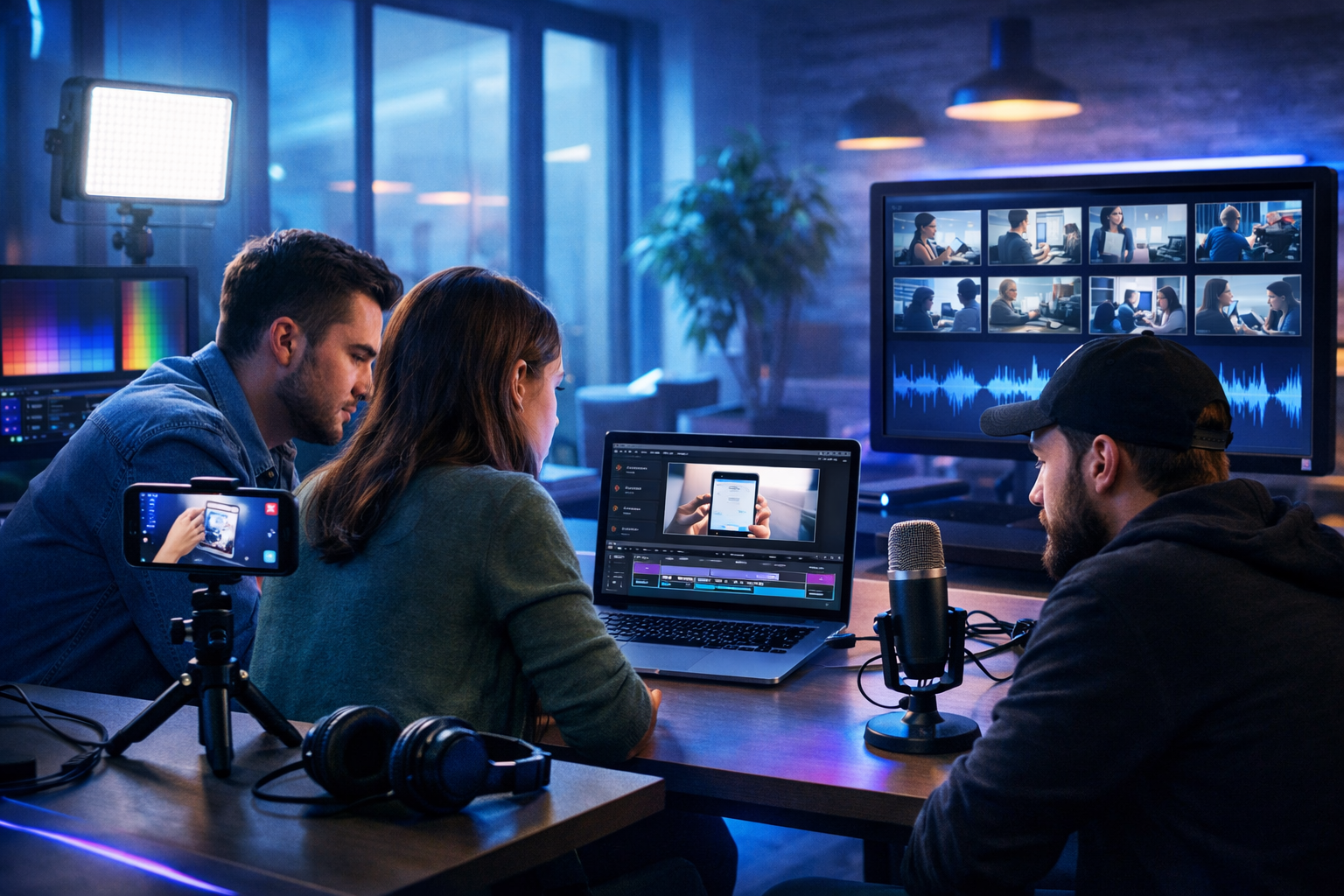
If you’re trying to sell a product online, few assets work harder than a clear, fast product demo video. The good news: you don’t need a studio, a presenter, or a large budget. This guide shows exactly how to create AI product demo videos—from planning and scripting to visuals, voice-over and editing—using an efficient workflow that small teams can repeat every week.
What is an AI product demo video (and what it isn’t)
An AI product demo video is a short, structured video that explains how your product works and why it matters, built using AI to speed up scripting, visual creation, voice-over, and assembly. It can include screen recordings, generated b-roll, animated sequences, captions, and AI narration.
It isn’t a replacement for product truth. Your demo must still reflect the real UI, real capabilities, and real outcomes. AI helps you create faster and more consistently—especially when you need multiple versions for different audiences, platforms, or languages.
Why AI product demo videos convert (when done properly)
Product demo videos reduce uncertainty. They show prospects what happens after they click “Sign up”, what the interface looks like, and how quickly they can get value. AI makes it easier to produce demos that are:
- Short and focused (no rambling presenter sections).
- Consistently branded (reusable voice, tone, visuals, colour style).
- Highly targeted (different demos for different industries or roles).
- Frequently updated (crucial if your UI ships changes every sprint).
The repeatable 7-step workflow to create AI product demo videos
Use this workflow whether you’re building a 30-second social reel or a 3-minute website demo. If you want an all-in-one setup for script + visuals + voice + video, you can do the entire process with our AI content tools.
Step 1: Define the goal, audience, and “one promise”
Before you generate anything, write one sentence that anchors the entire demo:
- Audience: Who is watching? (e.g., founders, marketers, operations managers, educators)
- Use case: What job are they hiring your product to do?
- One promise: The specific outcome they’ll get (not a feature list)
Example: “For small e-commerce teams, our tool turns a spreadsheet of products into optimised listings in under 10 minutes—without hiring a copywriter.”
Step 2: Choose the demo type and ideal length
Different placements need different pacing. Pick one primary format so your script and visuals stay tight.
- Landing page demo (60–120s): show “before → after” plus 3–5 key steps.
- Social demo/reel (20–45s): hook in 2 seconds, one workflow, one CTA.
- Sales enablement demo (2–4 mins): include objections, integrations, proof.
- Feature micro-demo (10–25s): one feature, one result, caption-led.
If you’re unsure, start with 60–90 seconds. It’s long enough to demonstrate value, short enough to keep attention.
Step 3: Generate a tight script (hook → problem → solution → proof → CTA)
A great demo script reads like a guided tour, not a brochure. Use AI text generation to draft quickly, then edit for accuracy and clarity.
Script structure you can reuse:
- Hook (0–5s): call out the pain and the outcome.
- Context (5–15s): what’s broken about the current way.
- Demo steps (15–70s): 3–5 steps max; show the UI doing the work.
- Proof (optional, 5–15s): metric, testimonial snippet, or concrete result.
- CTA (last 5–10s): what to do next.
Practical script example (60–75 seconds):
- Hook: “Stop rewriting product descriptions by hand. Generate conversion-ready copy in minutes.”
- Context: “Most teams lose hours per week editing listings, and consistency suffers.”
- Step 1: “Paste your product features or import a list.”
- Step 2: “Choose your tone—premium, playful, or technical—and your target platform.”
- Step 3: “Generate, review, then export in bulk.”
- Proof: “Teams typically cut listing time by 50%+.”
- CTA: “Try it today and publish your first batch in under 10 minutes.”
In Gen AI Last, you can create the narration script, on-screen captions, and even multiple variants (e.g., “for agencies” vs “for founders”) using AI Text Generation—then carry the best version into production.
Step 4: Build a storyboard and shot list (so production stays fast)
AI can generate content quickly, but you still need a plan for what appears on-screen second by second. Create a simple two-column storyboard:
- Left column: narration/captions
- Right column: visuals (UI screen, b-roll, icon animation, before/after graphic)
Shot list tips that make demos look premium:
- Use zoom-ins on important UI actions (don’t make viewers hunt for the cursor).
- Alternate between UI capture and supporting b-roll every 5–10 seconds to maintain pace.
- Show inputs and outputs (what you entered, what the product produced).
- End with the result screen (export, dashboard metric, published page) rather than settings panels.
Step 5: Create visuals with a mix of real UI + AI-generated scenes
The most trustworthy product demos usually combine:
- Real screen recording for the product interface (accuracy and credibility).
- AI-generated b-roll to illustrate context (teams working, devices, industry scenes).
- Simple motion graphics to emphasise benefits (before/after, checkmarks, callouts).
With Gen AI Last, you can generate supporting visuals using AI Image Generation (for thumbnails, b-roll style frames, backgrounds, banner-like scenes) and then assemble the full demo using AI Video Generation. This is particularly useful when you don’t have time to source stock footage or schedule shoots.
Best practice: keep AI visuals realistic and on-brand—consistent lighting, colour palette, and camera style. Avoid “too perfect” imagery that makes the demo feel generic.
Step 6: Generate voice-over and audio that doesn’t sound cheap
Audio quality often matters more than video quality. AI audio lets you create clean narration quickly, test different voices, and update lines without re-recording in a studio.
- Write for speech: short sentences, simple words, active voice.
- Control pacing: add line breaks where you want natural pauses.
- Use subtle background music: keep it lower than the voice; avoid busy tracks.
Gen AI Last’s AI Audio Generation can create voice-overs and background music, so you can keep everything in one toolchain—from the script draft to the final mix.
Step 7: Assemble, caption, and export platform-specific versions
Once you have script, UI capture, b-roll, and voice-over, assemble the video and produce multiple exports. This is where many teams lose time—so standardise outputs.
Export checklist:
- Aspect ratios: 16:9 (website/YouTube), 1:1 (feeds), 9:16 (Reels/TikTok/Shorts).
- Captions: always on for social; keep to 1–2 lines.
- Hook: ensure the first 2 seconds show the outcome or the “after”.
- CTA: match the platform (website demo: “Start free trial”; social: “Get the template”; sales: “Book a call”).
If you’re starting from scratch, start creating for free and build your first demo as a template project you can duplicate for every feature release.
Prompts you can reuse to create AI product demo videos faster
Reusable prompts save hours. Here are practical examples you can paste into your workflow and adapt.
1) Script prompt (website demo, 75 seconds)
Prompt: “Write a 75-second product demo narration for [PRODUCT] aimed at [AUDIENCE]. Focus on the use case: [USE CASE]. Structure: hook, problem, 3-step walkthrough, proof point, CTA. Keep sentences under 14 words. Avoid hype. Mention the end result: [RESULT].”
2) Storyboard prompt (timestamped scenes)
Prompt: “Turn this demo script into a storyboard with timestamps every 5 seconds. For each timestamp, specify: on-screen visual (UI/b-roll/graphic), motion/camera (zoom/pan/cut), and on-screen caption (max 8 words). Script: [PASTE SCRIPT].”
3) AI image prompt (supporting b-roll frames)
Prompt: “Generate photorealistic b-roll frames to support a SaaS product demo about [TOPIC]. Scenes: [LIST 3–5 SCENES]. Consistent lighting and colour palette. Modern office, realistic devices, no text or logos, 16:9.”
4) Voice-over prompt (tone and pacing)
Prompt: “Create a calm, confident voice-over for this script. Pace: medium, clear pauses between sections. Tone: helpful and practical. Emphasise these phrases slightly: [KEY PHRASES]. Script: [PASTE].”
What to include in an AI demo video (must-haves)
If you want your demo to drive sign-ups rather than just views, include these elements.
- Outcome first: show the final result early (dashboard, export, published page).
- One workflow: demonstrate one complete job-to-be-done, not every feature.
- Guided attention: zoom/callouts on key buttons and fields.
- Proof: one number, one quote, or one mini case study line.
- Next step: a clear CTA and where clicking takes them.
Common mistakes (and how to fix them)
AI makes production easier, but it can also make demos feel generic if you’re not careful.
- Mistake: The script is feature-heavy. Fix: rewrite around one user story and one result.
- Mistake: Too long before the UI appears. Fix: show the product within 5 seconds.
- Mistake: Tiny interface elements. Fix: crop in, zoom, and keep cursor movement deliberate.
- Mistake: AI visuals don’t match brand. Fix: standardise lighting/style prompts and reuse them.
- Mistake: No captions. Fix: add always-on captions, especially for social placements.
How to optimise AI product demo videos for SEO and distribution
A strong demo can rank and drive qualified traffic when packaged correctly.
On YouTube
- Title: combine the product + use case (e.g., “How to generate product descriptions in minutes”).
- Description: add a 2–3 sentence summary, key steps, and your CTA link.
- Chapters: mirror your 3–5 demo steps.
- Thumbnail: show the outcome (export/result screen), not a generic icon.
On landing pages
- Place the video near the hero section, with a supporting headline that matches the hook.
- Add a short transcript below (improves accessibility and SEO relevance).
- Test autoplay muted vs click-to-play depending on audience and page speed.
On social (Reels/TikTok/Shorts)
- Cut a 20–30 second version focusing on one “wow moment”.
- Use caption-led editing: the captions should tell the story even with sound off.
- End with a single action: “Try it” or “Get the template”, not multiple links.
A simple production plan for small teams (1–2 hours per demo)
Here’s a realistic weekly cadence for startups:
- 15 mins: define one promise + choose format and length.
- 20 mins: generate and polish script + captions using AI text.
- 15 mins: record UI walkthrough (clean clicks, slow cursor, no distractions).
- 15 mins: generate b-roll images and any extra visuals.
- 15 mins: generate voice-over + background music.
- 20–40 mins: assemble, caption, and export 16:9 + 9:16.
Because Gen AI Last includes text, image, audio, and video generation in every plan, it’s straightforward to keep this workflow centralised and cost-effective for small teams. You can view pricing from $10/month and scale your output without scaling headcount.
Quick checklist: your AI product demo is ready when…
- The first 5 seconds show the outcome or biggest pain solved.
- The video demonstrates one complete workflow with 3–5 steps.
- Text is readable on mobile and key actions are zoomed/called out.
- Captions are present and match the narration.
- You have exports for 16:9 and 9:16, plus a clean thumbnail.
- The CTA is specific and matches the viewer’s next step.
Create your first AI product demo video with Gen AI Last
If you want a single platform to generate the script, visuals, voice-over, and the final video, Gen AI Last is built for exactly this type of workflow. Start with a demo template, duplicate it for each feature or audience, and keep your product marketing library fresh without a big budget.
Start creating for free or explore our AI content tools to build a demo that’s accurate, on-brand, and ready to publish.
Ready to Create with Generative AI?
Join thousands of creators using Gen AI Last to generate text, images, audio, and video — all from one platform. Start your 7-day free trial today.
Start Free — Try 7 DaysQuick Links
Create AI content from $10/month
View Plans