How to Create YouTube Thumbnails With AI (Fast & Clickable)
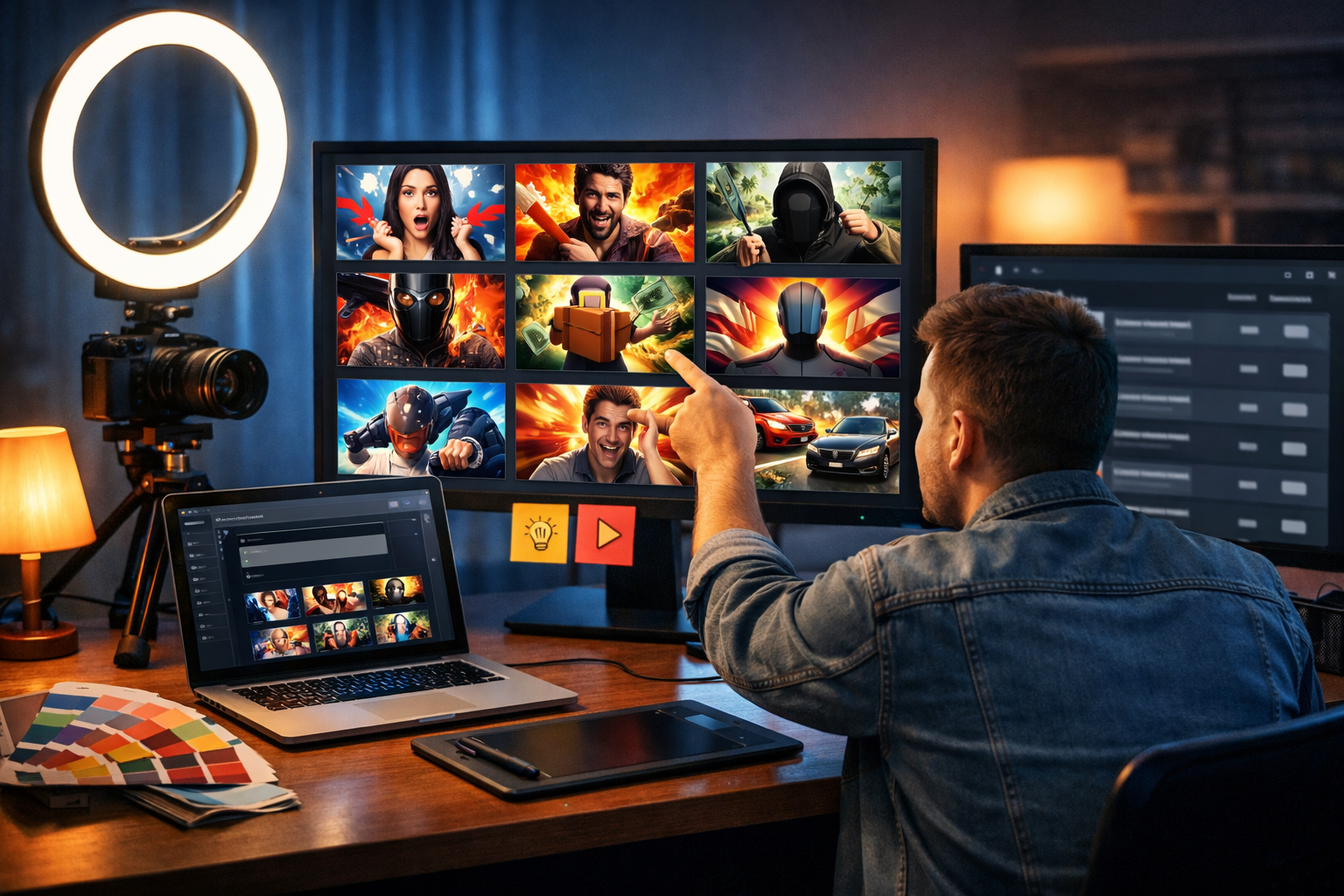
Learning how to create YouTube thumbnails with AI is one of the quickest ways to make your videos look more professional and win more clicks—without spending hours in design tools. With the right prompt, a consistent style, and a simple testing process, you can generate eye-catching thumbnail options in minutes and keep your channel branding consistent across every upload.
Why AI thumbnails matter on YouTube
Your thumbnail is often the first thing a viewer sees, and it strongly influences click-through rate (CTR). Even if your video is excellent, a confusing or low-contrast thumbnail can prevent people from giving it a chance. AI image generation helps because it can:
- Create multiple visual concepts quickly (so you can test rather than guess).
- Maintain a consistent style across a channel (colours, framing, mood).
- Reduce design bottlenecks for solo creators and small teams.
- Generate backgrounds, props, scenes, and composites you would otherwise need stock photos for.
Gen AI Last is built for exactly this kind of workflow: you can use AI image generation for the thumbnail visuals, AI text generation for punchy title options, and even AI video/audio features for the rest of your production. If you want everything in one place, explore our AI content tools.
YouTube thumbnail requirements (size, format, and safe areas)
Before you generate anything, lock down the technical basics. You can make stunning images and still lose quality if they’re the wrong size.
- Recommended size: 1280 × 720 pixels
- Aspect ratio: 16:9
- File size: under 2MB
- Formats: JPG, PNG
Design tip: Remember that most people see thumbnails on mobile. Prioritise one clear subject, large facial expression (if you use faces), and high contrast. Avoid tiny details that disappear when the thumbnail is small.
What makes a “clickable” thumbnail (AI won’t fix weak fundamentals)
AI can generate visuals fast, but it can’t choose your strategy for you. The best-performing thumbnails usually follow a few consistent rules:
- One idea per thumbnail: The image should communicate the video topic instantly.
- High contrast: Separate subject from background with lighting, colour, or blur.
- Clear focal point: A face, a product, a “before/after”, or a strong object silhouette.
- Emotion or curiosity: Surprise, delight, urgency, confusion—something that makes viewers pause.
- Consistent brand style: Repeated colours, framing, and mood improve recognition.
If you rely on text in thumbnails, keep it minimal. Many successful creators use 0–4 words max. But you can also design thumbnails that work without text at all, especially in crowded niches.
How to create YouTube thumbnails with AI: a repeatable workflow
Here’s a practical, creator-friendly process you can repeat for every upload. The goal is to generate several strong options quickly, then choose the best one based on clarity and consistency.
Step 1: Define the “thumbnail promise” in one sentence
Before you open an AI tool, write a single sentence that captures what the thumbnail should communicate. Examples:
- “This video shows a quick way to edit videos on a phone.”
- “This tutorial reveals how to fix a common YouTube audio problem.”
- “This is a comparison between two tools with an obvious winner.”
This sentence becomes the backbone of your prompt and prevents random AI images that look nice but don’t sell the topic.
Step 2: Choose a thumbnail format (pick one and standardise)
Pick a format you can reuse so your channel looks consistent. Here are proven formats that work well with AI generation:
- Face + object: your face reacting + the key object (tool, product, result).
- Before/after split: messy vs clean, slow vs fast, low vs high quality.
- Single hero object: one dramatic subject with cinematic lighting.
- Big result screenshot concept: stylised dashboard, graph, or outcome (use generic UI shapes to avoid brand issues).
When you standardise format, AI becomes dramatically more reliable because your prompts stay consistent.
Step 3: Generate 6–12 image options with Gen AI Last
In Gen AI Last, use the AI Image Generation tool to create variations quickly. The trick is to prompt for composition and lighting, not just “make a YouTube thumbnail”. Include:
- Subject: who/what is the focal point?
- Scene: home office, studio, coffee shop, co-working space.
- Camera framing: close-up, waist-up, product macro.
- Lighting style: golden hour warmth, cool tech blues, neon accents.
- Background: clean gradient, blurred setup, bokeh lights.
- Negative constraints: “no text, no watermark, no logos”.
If your channel uses your face, you can still use AI to generate backgrounds, props, or scene concepts, then combine them with your own photos later. This keeps it authentic while speeding up design.
Step 4: Add minimal text (optional) and ensure mobile readability
Even when you’re using AI for the main visual, keep the “readability test” simple:
- Zoom out to thumbnail size (very small). Can you still tell what it is?
- If you use words, keep them short and bold. One phrase is enough.
- Use colour contrast: light text on dark area or dark text on light area.
- Avoid clutter: one subject, one emotion, one outcome.
You can use Gen AI Last’s AI text generation to brainstorm short thumbnail phrases and YouTube titles that match the visual angle. This keeps your packaging (title + thumbnail) aligned.
Step 5: Create 2–3 final candidates and test over time
Instead of endlessly tweaking one design, select 2–3 strong candidates. Over time, you’ll learn what your audience responds to: faces vs no faces, brighter colours vs muted, minimal vs busy. Keep a simple notes file with:
- Video topic
- Thumbnail style used
- CTR after 24–72 hours
- Any comments mentioning the thumbnail/title
AI thumbnail prompt templates (copy/paste and customise)
Use these templates inside an AI image generator and swap the bracketed parts. Each template is designed for a 16:9 YouTube thumbnail and emphasises composition and clarity.
Template 1: Face + result object (high CTR style)
Prompt: “Photorealistic 16:9 YouTube thumbnail image. Close-up of a [creator/person] with a clear [emotion: shocked/excited/confident], looking at a large [object/result: laptop screen with generic chart / camera / microphone / app interface shapes]. Clean background with soft blur, high contrast lighting, vibrant colour grading, sharp focus on face and object, cinematic rim light. No text, no watermark, no logos.”
Template 2: Before/after split (great for tutorials)
Prompt: “16:9 split-screen before-and-after concept. Left side shows [problem state] with dull colours and messy environment; right side shows [solution state] with bright colours and clean setup. Same subject centred for easy comparison, strong lighting difference, crisp details, realistic photography style. No text, no logos, no watermark.”
Template 3: Hero product with dramatic lighting (for reviews)
Prompt: “Photorealistic 16:9 hero shot of [product/tool] on a desk in a modern studio, dramatic lighting with neon accents, shallow depth of field, clean background gradient, high contrast, crisp edges, premium commercial photography style. Add subtle props related to [topic] (e.g., tripod, keyboard, notebook). No text, no branding, no watermark.”
Template 4: Conceptual story scene (for documentaries/storytime)
Prompt: “Photorealistic 16:9 cinematic scene representing [story topic]. Subject in the foreground with strong silhouette, background hints at [setting: city at night / home office / co-working space]. Moody lighting, visible practical lights, high contrast, shallow depth of field, film still style. No text, no logos, no watermark.”
Practical examples: prompts for popular YouTube niches
Below are niche-specific prompt ideas you can adapt. The key is specificity: what the viewer will get, visually, in a single glance.
Example: Tech tutorial thumbnail
“Photorealistic 16:9 thumbnail. Close-up of a creator in a home office, confident expression, pointing at a laptop showing a generic settings panel with a highlighted toggle (no readable text). Cool blue tech lighting with warm desk lamp accent, clean background, strong contrast, sharp focus on face and laptop. No text, no logos, no watermark.”
Example: Fitness transformation thumbnail
“16:9 before/after split image. Same person standing in a gym: left side tired posture and dim lighting; right side upright posture and bright lighting. Clear difference in colour grading and contrast, clean composition, photorealistic, shallow depth of field. No text, no logos, no watermark.”
Example: Cooking recipe thumbnail
“Photorealistic 16:9 overhead kitchen counter shot. Hands holding a finished [dish] with visible steam, vibrant ingredients around, warm natural light, high contrast, glossy food photography style, clean background blur. No text, no logos, no watermark.”
Example: Business/marketing thumbnail
“Photorealistic 16:9 thumbnail. Modern agency desk with laptop and external monitor showing a generic upward graph and dashboard shapes (no brand, no text). Person in foreground with surprised expression, pointing at the graph. Clean composition, cool tech lighting, crisp focus. No text, no logos, no watermark.”
Common mistakes when creating YouTube thumbnails with AI (and how to fix them)
AI thumbnails fail for predictable reasons. Here’s what to watch for:
Mistake 1: The image looks great but says nothing
Fix: Start with the one-sentence “thumbnail promise”, then prompt for a specific action (pointing at X, holding Y, reacting to Z) and a single clear object that represents the video outcome.
Mistake 2: Too many elements (mobile chaos)
Fix: Limit to one subject + one object + simple background. Ask for “clean background”, “shallow depth of field”, and “clear focal point”.
Mistake 3: Unnatural hands, faces, or confusing details
Fix: Avoid prompts that require complex hand poses. Consider “hands out of frame” or “holding object with both hands near chest” (simpler geometry). Generate multiple variations and pick the most natural-looking option.
Mistake 4: Inconsistent branding across the channel
Fix: Create a simple style guide you reuse in prompts: the same lighting mood, lens look, background type, and colour palette. Save 2–3 proven prompt “base recipes” and swap only the topic objects.
Mistake 5: Using copyrighted brands or misleading visuals
Fix: Prompt for “generic interface shapes” instead of real brand UIs. Make sure the thumbnail matches what your video genuinely delivers—misleading thumbnails may increase clicks briefly but harm retention and trust.
Speed up your whole YouTube workflow with Gen AI Last
Thumbnails are part of a bigger system: idea → script → video → packaging → distribution. Gen AI Last can support each stage:
- AI Text Generation: draft titles, descriptions, pinned comments, and short thumbnail phrases.
- AI Image Generation: produce thumbnail concepts, backgrounds, props, and scene variations fast.
- AI Video Generation: create short promo clips, social reels, or explainer segments to drive traffic to your main upload.
- AI Audio Generation: create voice-overs, narration, and background music for consistent production quality.
If you’re building on a budget, all features are available from a single low-cost plan—see view pricing from $10/month. If you’d rather try the workflow first, start creating for free.
A simple thumbnail checklist (use this every upload)
Before you publish, run through this quick checklist to avoid the most common thumbnail problems:
- Clarity: Can someone understand the topic in under 1 second?
- Focus: Is there one obvious focal point?
- Contrast: Does the subject stand out from the background?
- Consistency: Does it match your channel’s look and your video title?
- Mobile test: Does it still work when tiny?
- Honesty: Is the visual a fair representation of the content?
FAQ: how to create YouTube thumbnails with AI
Can AI generate a complete thumbnail automatically?
AI can generate the main visual (scene, background, subject concept) extremely quickly. Many creators still add final text, colour tweaks, and cropping manually to ensure perfect readability on mobile.
Should I put text on AI thumbnails?
Only if it improves clarity. If the image already communicates the idea, keep it text-free. If you do use text, keep it short, bold, and high-contrast.
How many AI thumbnail versions should I generate?
Aim for 6–12 quick variations per video, then narrow to 2–3 final candidates. Over time, track which formats and colours produce higher CTR for your audience.
Is it safe to use “generic UI” in thumbnails?
Yes—prompting for generic dashboard shapes avoids using real brand screens and helps keep your visuals clean and legally safer. Make sure your thumbnail remains truthful and not misleading.
Final thoughts
If you want to master how to create YouTube thumbnails with AI, focus on repeatable systems: one clear promise, one consistent format, and rapid variation testing. With Gen AI Last, you can generate professional thumbnail concepts in minutes and support the rest of your channel production with text, image, video, and audio tools—all in one affordable platform.
Ready to Create with Generative AI?
Join thousands of creators using Gen AI Last to generate text, images, audio, and video — all from one platform. Start your 7-day free trial today.
Start Free — Try 7 DaysQuick Links
Create AI content from $10/month
View Plans