How to Create YouTube Thumbnails with AI (Step-by-Step)
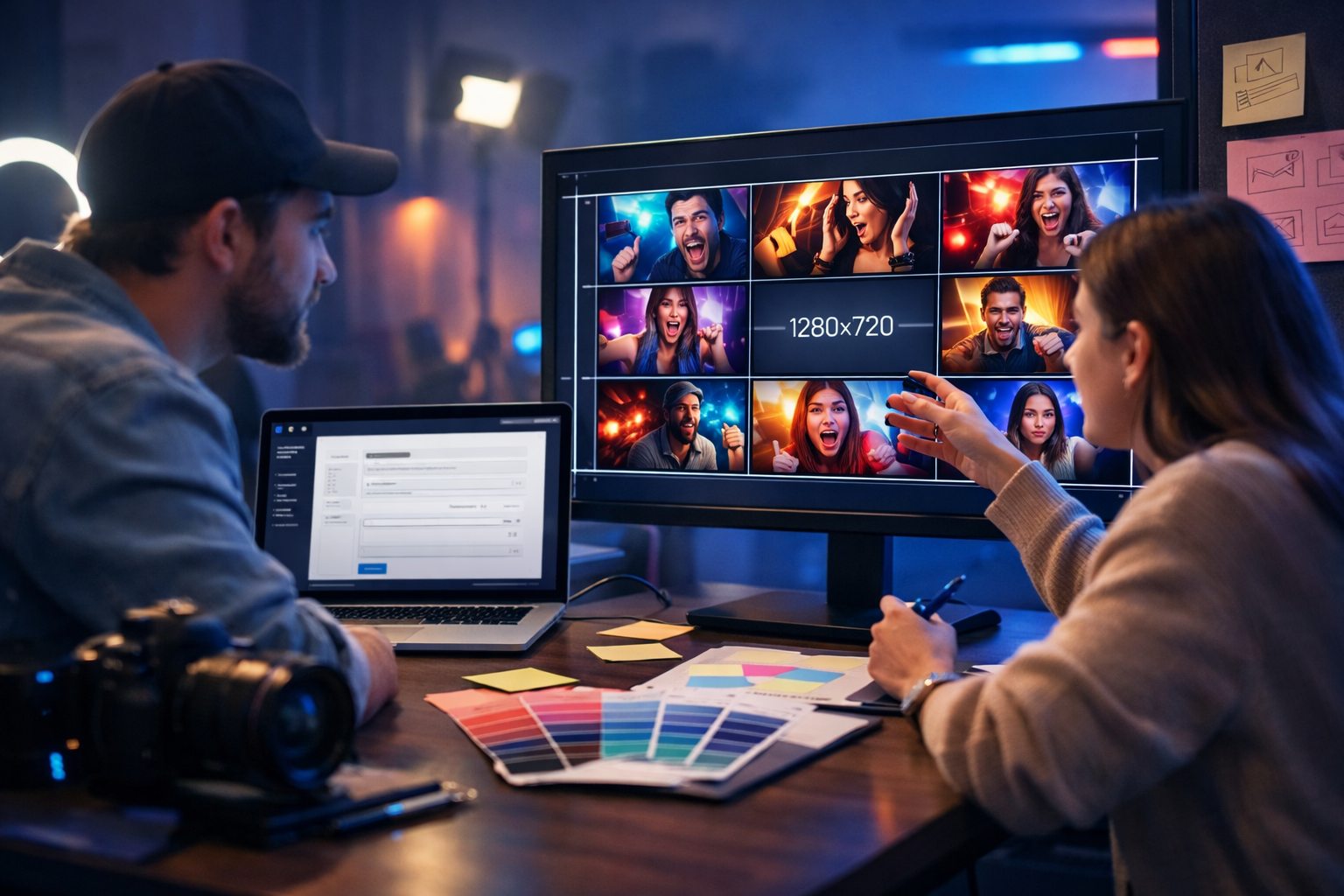
If your videos are solid but views are inconsistent, your thumbnail is often the bottleneck. The good news: you can now create YouTube thumbnails with AI that look professional, match your brand, and are optimised for clicks—without spending hours in design software. This guide walks you through a repeatable, creator-friendly workflow using AI image generation (plus optional AI text, video, and audio support) so every upload launches with a high-performing thumbnail.
Why thumbnails still decide your YouTube results
YouTube is a packaging game: title + thumbnail + topic. Even when your content is excellent, viewers only click what looks clear, relevant, and emotionally compelling in a split second. AI helps because it can produce multiple strong concepts quickly, letting you test styles, compositions, and hooks rather than betting on a single design.
The aim is not “prettiest” artwork. The aim is a thumbnail that communicates one idea instantly on mobile, aligns with the title, and creates curiosity without being misleading.
YouTube thumbnail basics (specs you must get right)
Before generating anything, lock the technical constraints. AI images can look great but fail if they’re the wrong size, too detailed, or illegible at small scale.
- Recommended size: 1280 × 720 px (16:9).
- Minimum width: 640 px.
- File size: under 2MB.
- Formats: JPG, PNG, GIF.
- Mobile-first: assume most viewers see it small—prioritise bold shapes and simple focal points.
AI works best when you treat these as non-negotiables and design for clarity rather than detail.
The AI thumbnail workflow (fast, repeatable, and brand-safe)
Here’s a workflow you can reuse for every video. It’s designed for speed: generate 6–12 options, shortlist 2–3, then refine and test.
Step 1: Define the “one idea” your thumbnail must communicate
A strong thumbnail communicates one main idea in under a second. Write a single sentence that captures the promise of the video.
- Bad: “My productivity system” (too broad).
- Better: “I planned a whole week in 10 minutes.”
- Even better: “10-minute plan → 7 days done” (clear transformation).
This sentence becomes the backbone of your AI prompt and your composition choices.
Step 2: Choose a thumbnail pattern that fits your niche
Most high-performing channels repeat a few proven thumbnail patterns. Pick one so your AI generations are consistent and recognisable.
- Face + big object: reaction + the main item (tech, gadgets, reviews).
- Before/after split: transformation (fitness, editing, makeovers, home projects).
- One bold subject + simple background: clean and premium (business, tutorials).
- “Problem → solution” symbols: broken vs fixed icons (how-to content).
- Screenshot + highlight: UI with arrows/frames (software, AI tools, walkthroughs).
AI thrives when you give it a pattern and a role for each visual element.
Step 3: Generate thumbnail concepts with AI (using Gen AI Last)
With Gen AI Last’s AI Image Generation, you can create multiple thumbnail concepts from simple text prompts—ideal for rapid iteration. If you also want help with titles, hooks, and on-image micro-copy ideas, use AI Text Generation alongside the images via our AI content tools.
Start with 6–12 variations. Your goal at this stage is not perfection—it’s discovering the strongest concept.
Prompt formula for YouTube thumbnails (copy and adapt)
A reliable prompt includes: subject, setting, composition, lighting, style, colour palette, and constraints. Here’s a template you can reuse:
- Subject: who/what is the focus?
- Action/emotion: surprised, confident, frustrated, excited.
- Main prop: laptop, phone, camera, product, chart, meal.
- Background: simple gradient, studio, desk, blurred city.
- Composition: close-up, rule of thirds, negative space for text.
- Lighting: high-contrast, soft natural light, cinematic rim light.
- Constraints: 16:9, no text, no logos, clean background.
Example prompts for AI thumbnail generation
Use these as starting points, then swap in your niche topic and brand colours.
- Tech review: “Photorealistic YouTube thumbnail, close-up of a creator holding a new smartphone with an excited expression, high-contrast studio lighting, clean blurred background, bold colour accents in teal and orange, shallow depth of field, strong rim light, subject on left third with negative space on right, 16:9, no text, no logos.”
- Business/tutorial: “Photorealistic thumbnail, confident presenter in a modern home office pointing at a large laptop screen showing an abstract upward chart (no readable text), minimal background, soft natural light, premium look, subject on right third with negative space on left, 16:9, no text, no logos.”
- Before/after transformation: “Split-screen thumbnail, left side messy desk and stressed person, right side organised desk and calm smiling person, consistent lighting, vibrant but clean colours, sharp subject separation, 16:9, no text, no logos.”
Tip: ask for “negative space” where you may later add 1–3 words in your editor. Even if you keep the final thumbnail text-free, negative space increases clarity.
How to make AI thumbnails look like a real channel brand (not generic)
AI thumbnails often fail because they look like stock art: random colours, inconsistent faces, and no recognisable style. Fix that by setting brand rules you repeat in every prompt and edit.
Create a simple thumbnail style guide
- Palette: choose 2 primary colours + 1 accent (e.g., navy, white, neon green).
- Lighting style: “high-contrast studio”, “soft natural”, or “cinematic cool blue”.
- Background style: blurred studio, solid gradient, minimal office.
- Framing: consistent close-up or mid-shot.
- One signature element: a coloured border, a shape, or a consistent glow (keep it subtle).
Once you have this, your AI generations become variations of a recognisable brand instead of random experiments.
Use your real face (or a consistent character) strategically
Faces can improve click-through rate in many niches, but only when the emotion matches the topic and the face is clear on mobile. If you don’t want to use your face, a consistent on-brand character or hands holding an object can also work.
- Do: one strong emotion (surprise, confidence, frustration) and clear eye direction towards the subject.
- Don’t: tiny face, multiple people, busy background, or mismatched expressions.
If your niche is more serious (finance, law, B2B), test cleaner thumbnails with less emotion and more clarity. AI makes these tests quick.
Editing: turn a good AI image into a high-click thumbnail
AI generation gets you 70–90% of the way. The last 10–30%—cropping, contrast, separation, and focus—is what makes it “YouTube-ready”.
A checklist for thumbnail polish
- Crop for mobile: zoom in until the subject is unmistakable.
- Boost separation: add a subtle background blur or darken the background slightly.
- Increase contrast: lift highlights and deepen shadows so it pops in the feed.
- Limit elements: remove anything that doesn’t support the main idea.
- Optional micro-text: if you use text, keep it to 1–3 words, huge, and high-contrast.
If you do add words, make sure they don’t repeat the title. Complement it with a “hook phrase” (e.g., “DON’T DO THIS”, “FIX THIS”, “IN 10 MIN”). Gen AI Last’s AI Text Generation can help brainstorm these quickly based on your video topic.
Common mistakes when creating YouTube thumbnails with AI (and how to avoid them)
- Too much detail: AI loves detail; YouTube thumbnails need clarity. Prompt “simple background, minimal elements, clean composition”.
- Unclear focal point: specify “close-up, single subject, centred or rule of thirds”.
- Inconsistent style across videos: reuse a style guide and repeat palette/lighting keywords.
- Misleading imagery: don’t show results your video can’t deliver. It hurts trust and retention.
- Illegible UI or tiny objects: if your topic is software, use simplified UI cues and large highlights rather than full screens.
- Faces that feel “off”: try fewer variations, more specific lighting, and a cleaner background; or use object-led thumbnails.
A/B testing thumbnails: the fastest way to improve CTR
AI is powerful because it makes testing easy. Instead of redesigning from scratch, generate controlled variations: keep the idea the same and change just one variable at a time.
What to test (one variable at a time)
- Emotion: neutral vs excited vs shocked.
- Background: gradient vs studio vs blurred environment.
- Zoom: tighter crop vs wider context.
- Colour accent: your brand accent colour applied to shapes/glow/border.
- Text: no text vs 1–3 words.
Track click-through rate (CTR) and watch time. A thumbnail that drives clicks but causes immediate drop-off is a mismatch; adjust to better represent the video’s real value.
End-to-end creator workflow: script, thumbnail, and promotion with Gen AI Last
Thumbnails don’t exist in isolation. The best-performing channels align thumbnail, title, opening hook, and even Shorts promotion. Gen AI Last helps you cover the whole pipeline in one place—text, images, video, and audio—without stacking multiple subscriptions.
- AI Text Generation: generate title ideas, thumbnail hook phrases, descriptions, chapters, and community posts.
- AI Image Generation: produce thumbnail concepts, background plates, and social graphics.
- AI Video Generation: create teaser clips, promo reels, or quick explainer segments to support the main upload.
- AI Audio Generation: add voice-overs for promos, or generate background music beds for Shorts where appropriate.
If you’re building a consistent publishing schedule, it’s often cheaper and simpler to use one platform that handles everything. You can view pricing from $10/month for full access to text, image, audio, and video generation.
Practical thumbnail recipes you can use today
Below are three “recipes” that work across most channels. Use the structure, then swap the subject to match your video.
Recipe 1: “The mistake” thumbnail
- Visual idea: person reacting to a clearly wrong choice.
- Elements: one object, a warning colour accent, simple background.
- Optional text: “STOP” / “DON’T”.
Prompt: “Photorealistic YouTube thumbnail, close-up of a creator with concerned expression pointing at a single object that looks ‘wrong’ for the topic, clean minimal background, dramatic high-contrast lighting, bold red accent shape, negative space on right, 16:9, no text, no logos.”
Recipe 2: “The upgrade” before/after
- Visual idea: two states with a strong difference.
- Elements: split screen, consistent framing, strong contrast.
- Optional text: “BEFORE” / “AFTER”.
Prompt: “Split-screen photorealistic thumbnail, left side low-quality messy version of the scene, right side clean upgraded version, same camera angle, crisp lighting on the right, muted lighting on the left, minimal background detail, 16:9, no text, no logos.”
Recipe 3: “The proof” thumbnail
- Visual idea: a believable result shown simply (not exaggerated).
- Elements: chart-like cue, result object, confident face.
- Optional text: “IN 7 DAYS”.
Prompt: “Photorealistic thumbnail, confident presenter holding a simple result object related to the topic, subtle abstract upward chart graphic in background (no readable text), premium studio lighting, clean composition, subject large in frame, 16:9, no text, no logos.”
FAQ: how to create YouTube thumbnails with AI
Can AI generate thumbnails that YouTube accepts?
Yes—if you export to 1280×720 (16:9) and keep the file under 2MB in JPG or PNG. Make sure the design is clear on mobile and not misleading.
Should I put text on AI thumbnails?
Sometimes. Many strong thumbnails are text-free, especially when the image itself communicates the idea. If you do use text, keep it to 1–3 words and make it extremely large and high-contrast.
How many AI variations should I generate?
Start with 6–12. Shortlist the best 2–3, then generate refinements of those rather than endlessly prompting random new ideas.
What’s the fastest way to improve my thumbnails?
Adopt one consistent thumbnail pattern, simplify your compositions, and A/B test one variable at a time. AI speeds this up because you can produce controlled variants in minutes.
Next steps: build a thumbnail system you can repeat every week
To create YouTube thumbnails with AI that actually improve performance, treat thumbnails like a system: one clear idea, one proven pattern, consistent brand styling, and quick testing. With Gen AI Last, you can generate thumbnail images, supporting titles and descriptions, and even promo assets—all from one platform.
If you want to experiment quickly, start creating for free. When you’re ready to scale, you can unlock full access to text, image, audio, and video tools—ideal for creators and small teams—by checking view pricing from $10/month.
Ready to Create with Generative AI?
Join thousands of creators using Gen AI Last to generate text, images, audio, and video — all from one platform. Start your 7-day free trial today.
Start Free — Try 7 DaysQuick Links
Create AI content from $10/month
View Plans