How to Create YouTube Thumbnails With AI (Step-by-Step)
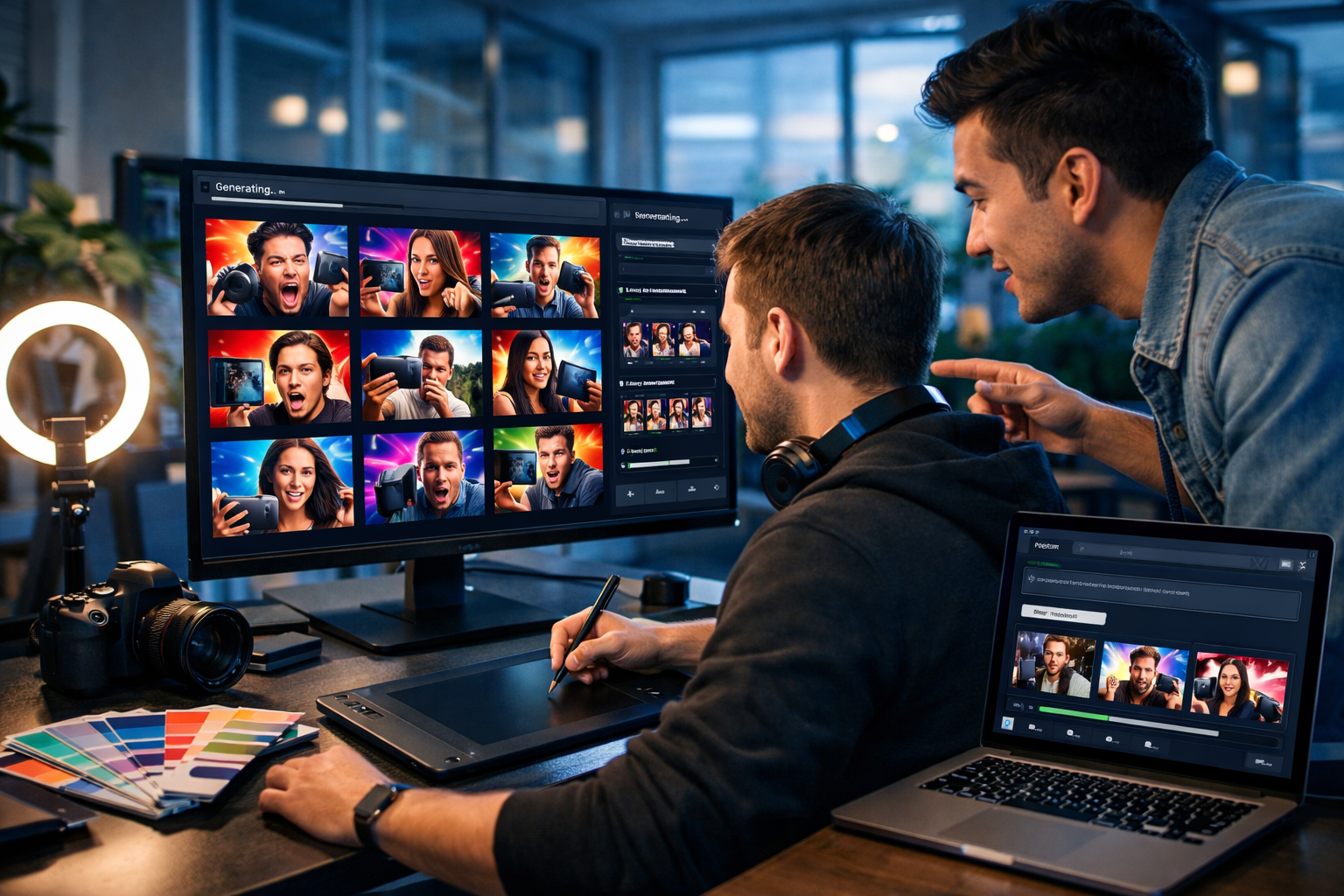
YouTube thumbnails are often the difference between a video that gets ignored and one that earns clicks—yet many creators still spend hours in design tools trying to “make it pop”. If you want a faster, more consistent approach, AI can help you generate strong concepts, backgrounds, hero images, and variations in minutes. This guide shows exactly how to create YouTube thumbnails with AI, including sizes, prompt formulas, design rules, and a practical workflow you can repeat for every upload.
Why AI thumbnails work (and where they can go wrong)
AI is best at rapid iteration: you can explore dozens of composition ideas, lighting styles, backgrounds, and product scenes quickly. That matters because thumbnails are a game of small margins—often a tiny change in colour contrast or facial expression increases click-through rate (CTR).
Where creators struggle is consistency and clarity. AI can produce visuals that look impressive but confusing at small sizes (especially on mobile). The goal is not “the prettiest picture”—it’s instant comprehension: one clear subject, one clear emotion or promise, and strong contrast.
YouTube thumbnail basics (specs you must get right)
Before you generate anything, lock in the technical requirements. This prevents blurry exports and unnecessary rework.
- Recommended size: 1280 × 720 (16:9)
- Minimum width: 640 px
- File formats: JPG, PNG, GIF
- Max file size: 2 MB
- Design for mobile: your thumbnail is often viewed at ~10–15% of its full size
Tip: even if you generate images elsewhere, keep a reusable 1280×720 thumbnail template so your layout stays consistent across the channel.
A repeatable AI workflow for high-CTR thumbnails
The fastest way to improve thumbnails is to turn them into a system. Here’s a workflow you can use for every video, powered by Gen AI Last’s text + image generation in one place.
Step 1: Define the “one-idea” thumbnail concept
Write a single sentence that your thumbnail must communicate. If you can’t summarise it, viewers won’t understand it in half a second.
- Bad: “A tutorial about camera settings.”
- Good: “This one setting makes your video look cinematic.”
- Bad: “We analysed Instagram growth.”
- Good: “Stop doing this if you want followers.”
If you use Gen AI Last, start by generating 10 thumbnail concepts from your video title and hook using our AI content tools. You’re looking for punchy, visual ideas (e.g., “before/after”, “mistake vs fix”, “shock reveal”, “simple checklist”).
Step 2: Choose a proven thumbnail layout
AI works best when you constrain it. Pick a layout that fits your channel, then reuse it.
- Face + object: expressive face on one side, key object on the other (tool, product, chart, result).
- Before vs after: split screen, left “problem”, right “solution”.
- Single hero object: one strong visual (e.g., gadget, meal, dashboard) with bold background contrast.
- Zoomed detail: close-up of a mistake, setting, or feature with a clear focal point.
Consistency builds brand recognition. Your audience should recognise your thumbnails as yours—even without reading the title.
Step 3: Generate the hero image with AI (backgrounds, scenes, props)
Now use AI image generation to produce the visual assets: background scenes, product shots, and stylised hero images. If your thumbnail needs a human face, you can either use a real photo of yourself (best for trust and recognition) or generate a model-style portrait (useful for faceless channels, but test for audience trust).
In Gen AI Last, you can generate multiple image variations quickly and keep the best. This is ideal for exploring lighting and composition—warm studio lighting for lifestyle videos, cool “tech” lighting for software tutorials, or bright high-key lighting for product demos.
Step 4: Add text sparingly (or skip it entirely)
Many top channels use very little text on the thumbnail—often 0–4 words. If the image already communicates the promise, text can clutter the design.
- Use 2–4 words max (“EDIT THIS”, “DON’T DO THIS”, “FREE TOOL”).
- Make it readable at small sizes: thick font, high contrast, subtle stroke/shadow.
- Avoid repeating the title word-for-word; add a hook instead.
If you need help with thumbnail copy, generate options in Gen AI Last using the video title + audience + emotion (curiosity, urgency, surprise). Then pick the shortest option that still feels specific.
Step 5: Create 3–5 variations and test
AI makes variation creation cheap—use that advantage. The first thumbnail is rarely the best. Create multiple versions that change only one element at a time:
- Background colour (blue vs orange)
- Subject size (tight close-up vs mid-shot)
- One prop/object (microphone vs waveform)
- Facial expression (neutral vs shocked vs confident)
- Text present vs no text
If your CTR is low but watch time is strong, the thumbnail is likely the bottleneck. If CTR is high but retention is low, your thumbnail may be overselling the promise.
Prompt formula: how to prompt AI for thumbnail-worthy images
A good thumbnail prompt is specific about composition and lighting, and it avoids details that won’t read at small size. Use this simple formula:
- Subject: who/what is the hero?
- Action/emotion: what are they doing/feeling?
- Context/props: what objects signal the topic instantly?
- Composition: close-up, centred, negative space for text, rule of thirds
- Lighting/colour: high contrast, bold palette
- Style constraints: photorealistic, sharp focus, 16:9, no text/logos
Prompt examples you can copy
Example 1 (creator tutorial thumbnail):
“Photorealistic close-up of a YouTube creator at a desk, surprised expression, pointing at a computer monitor showing blurred video editing timeline (no readable text), strong teal-and-orange lighting, high contrast, shallow depth of field, clean background with ring light and camera visible, negative space on right side for title, 16:9 wide, ultra sharp, no logos, no watermark.”
Example 2 (product review thumbnail):
“High-detail product hero shot of a compact wireless microphone on a desk, dramatic studio lighting, neon accents, crisp reflections, blurred laptop in background, bold dark backdrop, composition with product large in frame, negative space at top left for text, 16:9 wide, photorealistic, no text, no branding.”
Example 3 (before/after concept):
“Split-screen scene: left side messy dimly lit desk and dull colours, right side clean bright desk setup with vibrant colours, same camera angle, clear contrast, photorealistic, high clarity, minimal objects, 16:9 wide, no text, no logos.”
Design rules for thumbnails that actually get clicked
AI can generate endless images, but click performance comes down to a few fundamentals. Use these rules as a checklist.
1) Make one subject huge
If everything is small, nothing is clear. Crop tighter than feels comfortable. In many niches, the best-performing thumbnails are essentially a face and one object.
2) Prioritise contrast over detail
Fine detail disappears on mobile. What survives is contrast: light vs dark, warm vs cool, subject vs background. When generating images, ask for “high contrast lighting” and “clean background”.
3) Use colour intentionally (and consistently)
Pick 2–3 brand colours you reuse. If your niche is crowded, choose a palette that stands out in search results. For example: tech channels often lean blue; you might use orange highlights to compete.
4) Avoid visual lies
Thumbnails that promise something the video doesn’t deliver might boost CTR briefly, but they harm retention and long-term distribution. Use AI to amplify clarity, not to fabricate outcomes you don’t show.
Using Gen AI Last to build a full thumbnail pipeline (text + image)
A common problem is switching between five tools: one for ideas, one for prompts, one for images, and another for scripts. Gen AI Last keeps your workflow tight: generate thumbnail concepts (text) and thumbnail visuals (images) in one platform, then reuse your best prompts as a repeatable template.
- Generate concepts: ask for 10 thumbnail angles for your title (curiosity, mistake, transformation, quick win).
- Generate visuals:
- Generate supporting assets: banners, social graphics, or channel art with the same style.
Because Gen AI Last includes text, image, audio, and video tools from the same subscription, it’s especially useful for small teams that want to move fast without stacking multiple subscriptions. If you want to try it, you can start creating for free and then view pricing from $10/month when you’re ready to scale.
Common mistakes when creating YouTube thumbnails with AI
Avoid these pitfalls to keep your thumbnails clean, credible, and high-performing.
- Too much going on: AI loves adding detail—tell it “minimal background” and “single focal point”.
- Unnatural hands/props: if hands look odd, crop tighter or switch to a different composition (face + object, object-only).
- Text baked into the image: avoid generating readable text inside images; add text later so it’s crisp and consistent.
- Inconsistent style: if every thumbnail has different lighting and colour, your channel looks chaotic. Reuse prompts and palettes.
- Ignoring mobile: always zoom out to “phone size” before publishing. If it’s not obvious, it won’t get clicked.
Practical checklist: publish-ready AI thumbnail in 15 minutes
Use this as your final pre-publish check.
- Thumbnail communicates one idea in under a second.
- Subject takes up ~60–80% of the frame.
- High contrast between subject and background.
- No tiny details that matter to the story.
- Optional text is 2–4 words and readable at small size.
- Export at 1280×720, file under 2 MB.
- Create at least 3 variations to test over time.
FAQ: how to create YouTube thumbnails with AI
Is it allowed to use AI-generated thumbnails on YouTube?
In most cases, yes—YouTube allows AI-generated visuals. The key is avoiding misleading imagery that misrepresents what your video contains. Keep your thumbnail honest to protect retention and channel trust.
Should I use my real face or an AI-generated face?
If you’re the on-camera creator, your real face usually performs best over time because it builds recognition and trust. AI faces can work for faceless channels, but test carefully—some audiences respond better to authentic creator imagery.
How many thumbnail versions should I make?
Aim for 3–5 strong variants. Change one element at a time (background colour, crop, expression, prop) so you can learn what actually increases CTR for your niche.
What’s the fastest way to get consistent results?
Use a template layout and a saved prompt formula. In Gen AI Last, you can reuse the same prompt structure for every video and swap only the subject, prop, and colour palette using our AI content tools.
Next steps: turn thumbnails into a system, not a struggle
If you treat thumbnails as a repeatable process—concept, layout, hero image, minimal text, and testing—you’ll improve faster than by “designing from scratch” every time. AI gives you speed; your job is to apply constraints and clarity.
When you’re ready to streamline your workflow, Gen AI Last helps you generate thumbnail ideas and images in one place, alongside the scripts, titles, and social posts that promote the video. You can start creating for free, and if it fits your workflow, view pricing from $10/month for full access to text, image, audio, and video generation.
Ready to Create with Generative AI?
Join thousands of creators using Gen AI Last to generate text, images, audio, and video — all from one platform. Start your 7-day free trial today.
Start Free — Try 7 DaysQuick Links
Create AI content from $10/month
View Plans