How to Generate AI Images for Presentations (Step-by-Step)
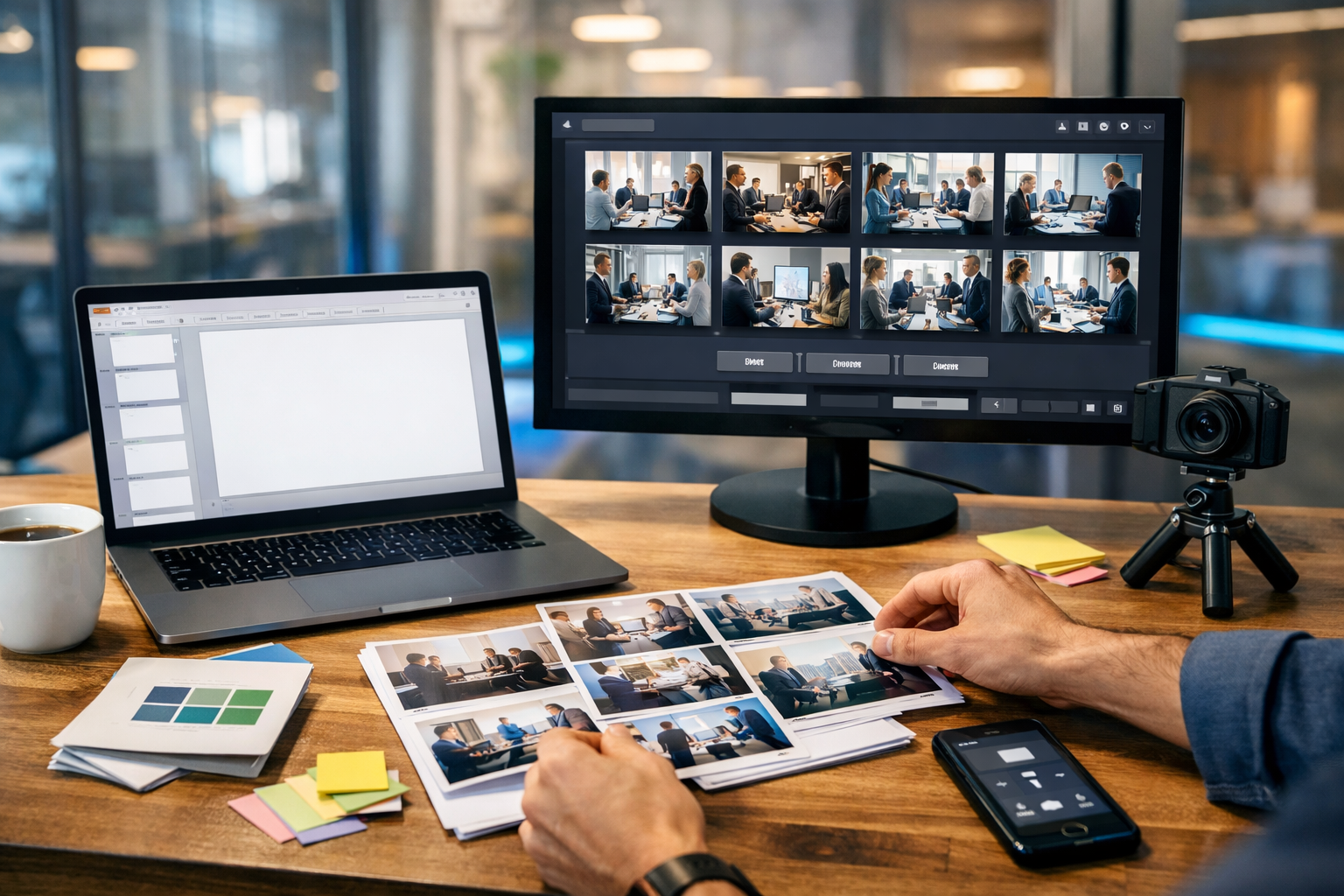
Strong slides are visual. If you’re still hunting through stock libraries or screenshotting icons, you’re wasting time and often compromising your message. This guide shows exactly how to generate AI images for presentations—so your decks look consistent, on-brand, and clear—using practical prompt templates, sizing rules, and export settings you can apply immediately.
Why use AI images in presentations?
AI image generation is ideal for slides because it can produce visuals tailored to your topic, audience, and brand style—without relying on generic stock photos. When used well, AI images help you:
- Explain complex ideas with custom diagrams, scenes, or metaphors.
- Maintain consistent visual style across the entire deck.
- Create multiple variations quickly for A/B testing messaging and tone.
- Reduce cost and turnaround time for internal and client presentations.
With Gen AI Last, you can generate images for slides and also produce the supporting content—speaker notes, slide copy, voice-overs, and even short explainer clips—using our AI content tools in one place.
Step 1: Define the job of each slide image
Before you write any prompt, decide what the image must do. Presentation images typically fall into five categories:
- Hook images (title slides): create emotion, curiosity, or a clear theme.
- Concept images: visual metaphors (e.g., “growth”, “risk”, “alignment”).
- Process images: step-by-step scenes that mirror a workflow.
- Product or UI mock visuals: contextual imagery around a product (without faking logos or trademarked UI).
- Data companion images: subtle backgrounds or icons that support charts without distracting.
This decision will drive style, complexity, and how much “negative space” you need for text overlays.
Step 2: Choose a consistent style (so your deck looks intentional)
The fastest way to make a deck look amateur is mixing random illustration styles and photo aesthetics. Pick one primary style and stick to it for 80–90% of your slides.
Reliable presentation-friendly styles:
- Photorealistic: great for leadership decks, case studies, real-world scenarios.
- Clean 3D render: modern SaaS/product decks, with simple shapes and depth.
- Flat vector illustration: training slides, internal comms, consistent iconography.
- Editorial/brand illustration: thought leadership, storytelling, campaigns.
Tip: if your slides already use a brand palette, bake that into your prompts (e.g., “navy and teal accents”, “warm neutral palette”, “high-contrast monochrome”).
Step 3: Use the right dimensions for slides (and avoid blurry results)
Most modern decks are 16:9. Generate your images at a 16:9 aspect ratio so they fit full-bleed slides without cropping faces, objects, or key details.
- Recommended aspect ratio: 16:9 (widescreen)
- Good working resolutions: 1920×1080 (fast), 2560×1440 (crisper), 3840×2160 (best for large screens)
- File format: PNG for sharp edges and overlays; JPG for photos if file size matters
If you plan to place text on top of an image, generate with extra “negative space” (empty area) on the left or right. This is one of the most important prompt details for slide usability.
Step 4: Write prompts that produce slide-ready images
A slide prompt is not the same as a social media prompt. Slides need clarity at a glance, visual hierarchy, and clean composition. Use this structure:
A simple prompt formula for presentation images
- Subject: what the image shows (scene, objects, characters)
- Context: setting (office, lab, retail, factory, classroom)
- Style: photorealistic / 3D / vector / editorial
- Composition: “wide shot”, “rule of thirds”, “negative space on right”
- Lighting & colour: “soft natural light”, “cool blue tech vibes”, brand palette cues
- Constraints: “no text”, “no logos”, “no watermark”, “no UI text”
Prompt templates you can copy
1) Title slide (metaphor + negative space)
“Photorealistic 16:9 wide image of a modern glass compass on a desk pointing towards a sunrise over a city skyline, minimal objects, clean premium look, warm golden hour lighting, shallow depth of field, large negative space on the left for headline, no text, no logos, no watermark.”
2) Problem slide (visualising friction)
“16:9 wide shot of a small team in a meeting room facing a wall of messy sticky notes and tangled cables, stressed but realistic expressions, cool muted colours with subtle teal accents, documentary-style photography, clean background, no text, no brand logos.”
3) Process slide (clear steps without text)
“Minimal 3D render, 16:9, three connected platforms arranged left-to-right with arrows as simple shapes (no words), representing ‘input → processing → output’, white background with navy and teal accents, soft studio lighting, lots of negative space above, no text, no logos.”
4) Customer story slide (relatable scenario)
“Photorealistic 16:9 scene of an independent retailer in a small shop using a laptop to prepare a presentation, product shelves softly blurred in the background, calm confident mood, natural window light, warm neutral palette, negative space on the right, no visible text, no logos.”
5) Data slide background (subtle and non-distracting)
“Abstract gradient background, 16:9, subtle geometric shapes and soft light reflections, very low contrast, modern tech feel, dark navy base with teal highlights, clean and minimal, no text, no watermark.”
Step 5: Control layout for text overlays (headline-safe images)
If your image will sit behind a title or bullet list, composition matters more than detail. Ask for:
- Negative space: “large empty area on the left/right/top”.
- Simple backgrounds: avoid busy textures behind text.
- Lower contrast in text area: “smooth gradient on the left”.
- Clear focal point: one main subject, not a collage of items.
Practical trick: generate two variants of the same image—one with negative space on the left, one on the right—so you can swap layouts without redesigning slides.
Step 6: Keep characters and visuals consistent across slides
Consistency is the difference between “a set of images” and “a designed deck”. To keep a coherent look:
- Repeat a style phrase in every prompt (e.g., “clean editorial illustration with soft shading”).
- Lock the palette: mention 2–3 colours consistently (e.g., “navy, teal, warm grey”).
- Standardise camera language: “wide shot, 35mm lens look” or “isometric 3D”.
- Limit scene complexity: fewer objects = easier continuity.
If you need a recurring persona (for training decks, onboarding, customer journey slides), describe them consistently: approximate age range, clothing style, hair, and environment. Avoid real public figures and do not attempt to replicate a recognisable person.
Step 7: Avoid common AI image mistakes in decks
AI images can fail in predictable ways—especially when you project them on a large screen. Watch for these issues:
- Accidental text and gibberish: always specify “no text” and avoid scenes where text would naturally appear (posters, screens, signage).
- Odd hands or props: choose compositions where hands are not the focal point, or request “hands not visible”.
- Overly busy visuals: slide images should read in 2–3 seconds. Ask for “minimal, uncluttered”.
- Brand and legal risk: avoid generating logos, trademarked products, or imitating a protected character style too closely.
- Inconsistent lighting: keep lighting direction and mood similar across key slides.
Step 8: Build a repeatable workflow with Gen AI Last
A fast way to produce a full deck is to treat images as a system, not one-off assets. Here’s a practical workflow you can repeat for every presentation using Gen AI Last:
- Outline the deck (10–15 slides) and label each slide image type: hook, concept, process, background, or scenario.
- Set a style guide: choose palette, style keywords, lighting, and “no text/no logos” constraints.
- Generate 3–6 variants per slide image using consistent prompt structure, then select the cleanest composition.
- Generate slide copy and speaker notes with AI Text Generation so visuals and messaging match.
- Add optional narration with AI Audio Generation for self-running decks, product walkthroughs, or training.
- Create short supporting clips with AI Video Generation (e.g., a 15-second problem/solution reel) for hybrid presentations.
All of these tools are included in one platform—use our AI content tools to keep your deck production fast and consistent.
Practical examples: prompts for common presentation topics
Use these as starting points and swap the nouns to fit your industry.
Example A: Sales pitch deck (B2B SaaS)
- Problem visual: “Photorealistic 16:9 wide shot of a project manager in a modern office looking at scattered paper forms and multiple mismatched dashboards on monitors (no readable text), frustrated mood, cool blue lighting, minimal scene, negative space on the right, no logos, no watermark.”
- Solution visual: “Clean 3D render, 16:9, a single streamlined dashboard-like panel as a blank shape (no UI text) floating above organised documents, navy and teal accents, soft studio lighting, minimal, premium.”
Example B: Training / onboarding deck
- Module divider: “Flat vector illustration, 16:9, friendly diverse team in a classroom setting with a large blank whiteboard (no text), simple shapes, consistent line weight, warm neutral palette with teal accents, large negative space for module title.”
- Do/Don’t slide background: “Minimal abstract background, 16:9, two soft panels side-by-side in light grey and pale teal (no icons, no text), clean and subtle.”
Example C: Investor deck
- Market opportunity: “Photorealistic aerial view of a modern city at dawn with subtle network-like light trails connecting buildings (no text), premium cinematic colour grade, dark navy shadows, teal highlights, wide 16:9.”
- Team slide: “Photorealistic 16:9 image of four professionals collaborating around a table with laptops and a printed roadmap (no readable text), confident mood, soft natural light, clean background, negative space at top.”
Export and placement tips for PowerPoint and Google Slides
Once you’ve generated an image you like, small technical choices can make it look significantly more professional on screen.
- Prefer PNG when the image includes gradients, shapes, or needs to stay crisp under text overlays.
- Use full-bleed carefully: if the image is busy, add a semi-transparent dark overlay behind text (20–40%) rather than brightening the image.
- Don’t upscale inside slide software: scaling up a small image causes softness. Generate at (or above) your slide resolution.
- Keep a consistent crop: if you crop one image to focus on a subject, apply a similar crop logic to others in the same section.
A quick checklist: “presentation-ready” AI images
- 16:9 aspect ratio with safe margins for cropping
- One clear focal point, minimal clutter
- Negative space where slide text will sit
- Consistent palette and style across the deck
- No accidental text, no logos, no watermarks
Create your next deck faster with Gen AI Last
If you want a simple way to generate slide visuals, write the accompanying copy, and optionally add narration or short video segments, Gen AI Last is built for that all-in-one workflow. You get full access to text, image, audio, and video generation from $10/month—ideal for startups and small teams that need professional output without agency overhead.
- view pricing from $10/month to see which plan fits your team.
- start creating for free and generate your first slide-ready images today.
Once you’ve got a few strong prompts saved, you’ll be able to generate AI images for presentations in minutes—consistent, on-message, and designed to work on real slides.
Ready to Create with Generative AI?
Join thousands of creators using Gen AI Last to generate text, images, audio, and video — all from one platform. Start your 7-day free trial today.
Start Free — Try 7 DaysQuick Links
Create AI content from $10/month
View Plans