How to Generate AI Images for Presentations (Step-by-Step)
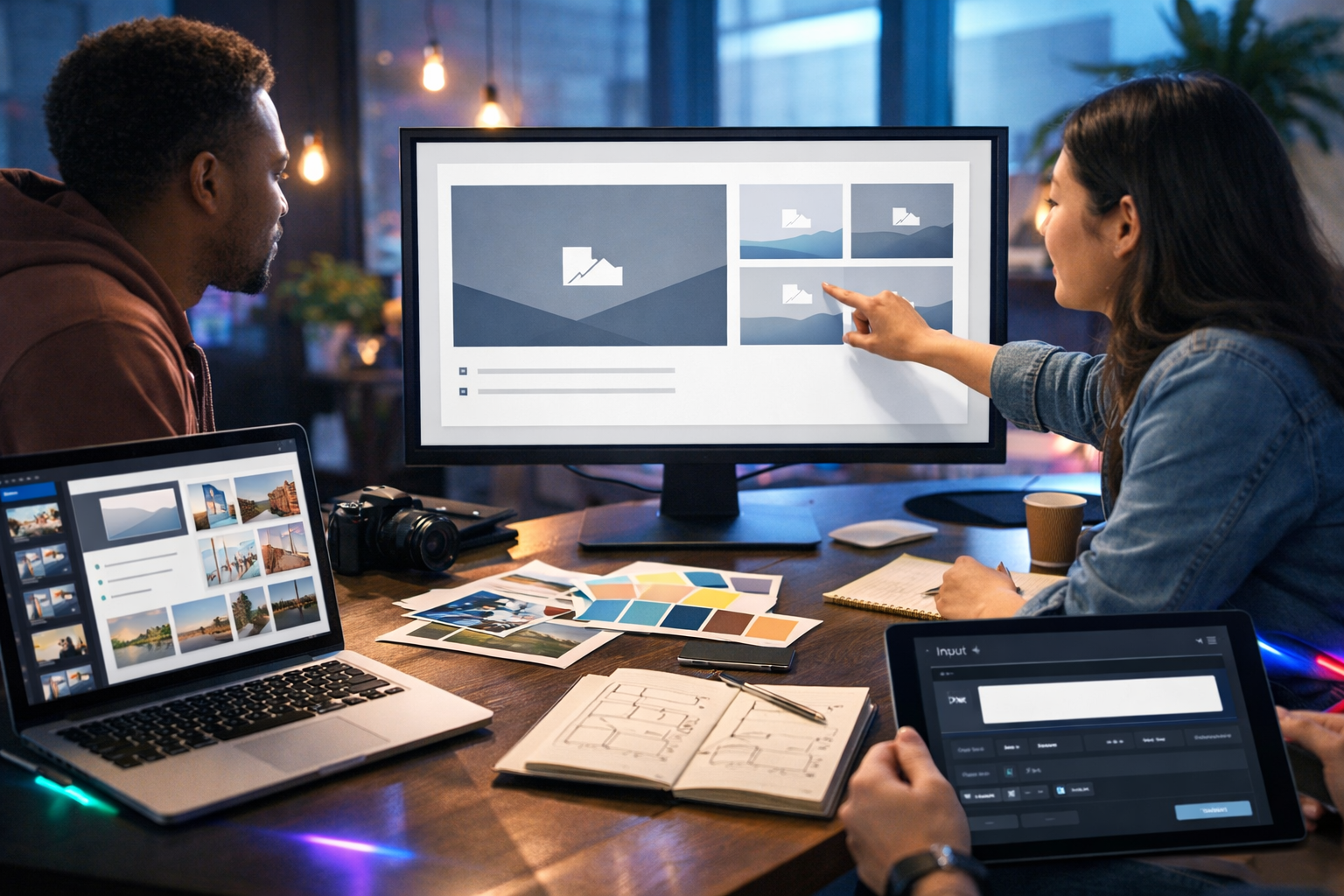
Strong presentations don’t just tell a story — they show it. If you’ve ever searched for the “perfect” stock image and still ended up with visuals that feel generic, AI image generation is a practical alternative: you can create slide-specific visuals that match your message, your brand style, and your audience. This guide explains exactly how to generate AI images for presentations, from planning and prompting to exporting assets that look sharp on screen.
Why use AI images in presentations?
Presentation visuals typically fall into three buckets: (1) explanatory diagrams, (2) conceptual imagery, and (3) realistic scenarios (customers, workplaces, products). Stock libraries can cover the basics, but they often miss your exact context — your industry, your product setup, your process, or your unique scenario. AI-generated images help you bridge that gap.
- Create visuals that match your specific slide narrative (not generic “business handshake” clichés).
- Maintain consistency across a deck (same lighting, camera angle, colour palette, character style).
- Iterate quickly: generate variations for A/B testing and stakeholder feedback.
- Reduce time spent searching, editing, and compromising on visuals.
With Gen AI Last, you can generate presentation-ready images alongside supporting copy, voice-overs, and even short explainer clips using our AI content tools — useful when your deck needs more than just still images.
Step 1: Plan your slides before you generate images
AI images work best when each image has a job to do. Before you open any generator, map the deck and decide what each visual must communicate. A simple planning table (even in a notes app) makes prompting easier and results more consistent.
- Slide goal: What should the audience understand or feel?
- Visual type: photo-real, illustration, isometric, 3D render, diagram-like.
- Key objects: product, people, environment, props.
- Composition: where the empty space should be for headings/bullets.
- Brand cues: colour palette, tone, style.
If you’re presenting a product strategy, for example, you may need a consistent series: “problem”, “solution”, “how it works”, “results”, “roadmap”. Planning helps you keep visuals coherent rather than randomly styled.
Step 2: Choose the right image style for presentations
The best style depends on your topic and audience. Presentations are scanned quickly, so clarity beats complexity. These are reliable options:
Photo-realistic scenarios
Ideal for case studies, customer stories, workplace scenes, and “day in the life” narratives. Ask for realistic lighting, a specific environment, and camera lens cues to avoid uncanny results.
Clean illustrations (flat or semi-flat)
Great for explainers, internal training, and product overviews. Illustrated scenes often feel more “brandable” and reduce issues with faces and realism.
Isometric and 3D renders
Excellent for tech, dashboards, workflows, and systems. They can look polished in pitch decks, especially if you keep consistent colours and angles.
Diagram-like visuals
If you need arrows and labels, you’ll often add those in PowerPoint/Keynote/Google Slides. Generate the “base” visual with clear negative space and simple shapes, then overlay text manually (more control and fewer legibility issues).
Step 3: Use a prompt formula that works for slide images
When people ask how to generate AI images for presentations, the biggest issue is prompting like you’re making art — rather than designing a communication asset. A presentation prompt should specify subject, context, composition, style, and constraints.
Use this prompt formula:
- Subject: what the image is of (people/objects/action).
- Context: where it happens (industry setting, environment, time of day).
- Purpose: what the slide is trying to communicate (problem, benefit, process).
- Composition: wide 16:9, space for headline, centre-left subject, etc.
- Style: photorealistic / flat illustration / isometric, lighting, colour mood.
- Quality constraints: sharp focus, no text, no logos, no watermark.
If your slides have a consistent layout, bake it into prompts (for example, “leave clean negative space on the right third for slide text”).
Step 4: Prompt examples you can reuse (with presentation intent)
Below are practical prompt templates you can adapt inside Gen AI Last’s image generation. Keep them consistent across a deck by reusing the same style line (lighting, lens, palette) and only changing the subject.
Example 1: Title slide hero image (conceptual)
Prompt: “Photorealistic 16:9 wide hero image showing a modern office desk with a laptop displaying abstract analytics charts (no readable text), a notebook, and a coffee cup; warm golden hour light, soft shadows, clean minimal composition, large negative space on the left for slide title, shallow depth of field, high detail, no logos, no watermarks.”
Example 2: Problem slide (before state)
Prompt: “Photorealistic 16:9 scene in a busy warehouse office: a manager looking stressed at messy paperwork and multiple screens, cool blue fluorescent lighting, slightly cluttered environment to convey inefficiency, subject on the left, clear negative space on the right for bullet points, realistic skin tones, no text, no logos, no watermark.”
Example 3: Solution slide (after state)
Prompt: “Photorealistic 16:9 scene in the same warehouse office, now organised and calm: the manager smiling while viewing a clean dashboard interface (no readable text), warm neutral lighting, tidy desk, subject on the left, negative space on the right for slide copy, consistent camera angle and lens, no logos, no watermark.”
Example 4: Process slide (illustration)
Prompt: “Clean flat illustration, 16:9 wide, showing a 4-step workflow across the slide: icons representing ‘collect’, ‘analyse’, ‘automate’, ‘report’; pastel palette with two accent colours, simple shapes, lots of white/neutral space for labels to be added later in PowerPoint, no text, no logos, crisp vector style.”
Example 5: Product mock scene (marketing visual)
Prompt: “Photorealistic 16:9 wide scene of a smartphone on a desk showing an app interface with generic blocks and charts (no readable text), modern co-working background, soft natural window light, clean brand-like palette, space above the phone for headline text, high resolution, no logos, no watermark.”
Step 5: Generate images in the correct size for slide decks
Most presentations are 16:9. If you generate square images, you’ll end up cropping aggressively and losing key details. Use wide composition from the start.
- Standard widescreen slides: 1920×1080 is a strong baseline for crisp on-screen display.
- If you expect large venue projection: consider generating higher-resolution variants where possible, then downscale in your slide tool for sharper results.
- For backgrounds: include “soft focus background” in prompts so overlaid text remains readable.
Also decide whether an image is a full-bleed background or a contained element. Full-bleed needs extra negative space; contained elements can be more detailed.
Step 6: Keep a consistent visual system across the deck
Inconsistent AI images are the fastest way to make a deck look stitched together. Treat your images like a design system. Create a “style line” you paste into every prompt, such as:
- “photorealistic, soft natural light, 35mm lens, shallow depth of field, modern minimalist aesthetic, muted neutrals with teal accent, high detail, no text, no logo, no watermark, 16:9”
Then vary only the subject and context per slide. For illustrated decks, standardise line thickness, palette, and shape language.
Step 7: Design for readability (negative space, contrast, and overlays)
Slides must be readable from the back of the room and on small laptop screens. Build readability into your generation prompts.
- Negative space: ask for “clean empty area on the right third” (or wherever your text sits).
- Low-detail backgrounds: “soft bokeh background” reduces visual noise behind text.
- Contrast: use “dark background with subtle gradient” if you use light text, or “bright minimal background” for dark text.
- Safe areas: keep key subjects away from edges so they don’t get clipped in different display setups.
A practical trick: generate slightly “simpler” images than you think you need. Slides are not posters; your voice and headings do part of the work.
Step 8: Avoid common AI image pitfalls (and how to fix them)
AI images can fail in predictable ways. Here’s how to avoid the most common issues when generating images for presentations.
Unclear subject or busy scenes
Fix: specify one subject, one action, and a simple environment. Add “minimal composition” or “clean background”.
Weird hands/faces in photorealistic images
Fix: choose illustration style for people-heavy slides, or prompt for “hands not visible” / “people in background out of focus”. For product or concept slides, you can avoid faces entirely.
Accidental text, brand marks, or watermark-like artefacts
Fix: include “no text, no logos, no watermarks” in every prompt. Add “generic interface blocks” for screens.
Inconsistent characters across multiple slides
Fix: reuse the same detailed description (age, clothing style, setting, lighting, lens). If you only need the idea, consider consistent illustration instead of photoreal people.
Images that don’t match your brand
Fix: define your palette and tone in the prompt: “muted neutral palette with one teal accent”, “premium minimal aesthetic”, “playful pastel illustration”. Save a reusable “brand style line” and paste it into each prompt.
Step 9: Build a fast workflow with Gen AI Last (images + supporting content)
A deck is rarely just images. You typically need titles, bullets, speaker notes, and sometimes a narrated version or a short teaser video. Gen AI Last is designed as an all-in-one platform so you can produce all these assets in one place.
- Generate slide-by-slide images using consistent 16:9 prompts for backgrounds, hero visuals, and section dividers.
- Create the slide copy with AI Text Generation: concise headings, benefit-led bullets, and speaker notes (useful for rehearsing).
- Add narration with AI Audio Generation for self-running decks or training material.
- Repurpose the deck into a short explainer using AI Video Generation (for social teasers or internal updates).
If you want everything under one affordable subscription, you can view pricing from $10/month — all plans include full access to text, image, audio, and video generation.
Step 10: Export and insert images without losing quality
Even great images can look soft if you export or insert them incorrectly. Use these rules of thumb:
- Prefer PNG for sharp graphics and UI-like visuals; use JPG for photo-heavy backgrounds if file size becomes a problem.
- Don’t stretch small images to full-screen. Generate at (or above) your slide resolution to begin with.
- Disable aggressive compression in your slide software where possible (PowerPoint has settings for this).
- Use subtle overlays (dark gradient rectangle at 10–30% opacity) to make text readable on busy images.
If an image is a background, consider lightly blurring it in your slide tool, not in the generator, so you can fine-tune readability slide by slide.
Mini checklist: “presentation-ready” AI image criteria
Before you finalise a deck, check each AI image against this list:
- Matches slide goal (not just decorative).
- Consistent style with the rest of the deck (lighting, palette, illustration type).
- Has deliberate negative space for text.
- No accidental text/logos/watermarks.
- Looks sharp at 100% zoom on a 16:9 slide.
- Doesn’t introduce sensitive or misleading claims (especially in regulated industries).
Frequently asked questions
What’s the best aspect ratio for AI images in presentations?
For modern slide decks, 16:9 is the safest default. Generate wide images from the start so you don’t have to crop key details.
How do I keep AI images consistent across multiple slides?
Reuse a “style line” in every prompt (lighting, palette, lens, illustration type) and change only the subject. Plan your deck first so you’re not generating random one-offs.
Can I use AI images in client presentations?
In most cases, yes — but you should follow your organisation’s policies and check licensing/usage terms for the specific tool and assets. Avoid generating recognisable brand marks or public figures without permission.
Create your next deck faster
If you want to generate AI images for presentations without juggling multiple tools, Gen AI Last lets you create slide visuals and the supporting content in one workflow — from punchy slide copy to narrated audio and short explainer clips. You can start creating for free and build a complete, consistent deck in a fraction of the usual time.
Ready to Create with Generative AI?
Join thousands of creators using Gen AI Last to generate text, images, audio, and video — all from one platform. Start your 7-day free trial today.
Start Free — Try 7 DaysQuick Links
Create AI content from $10/month
View Plans