How to Generate AI Images for Presentations (Step-by-Step)
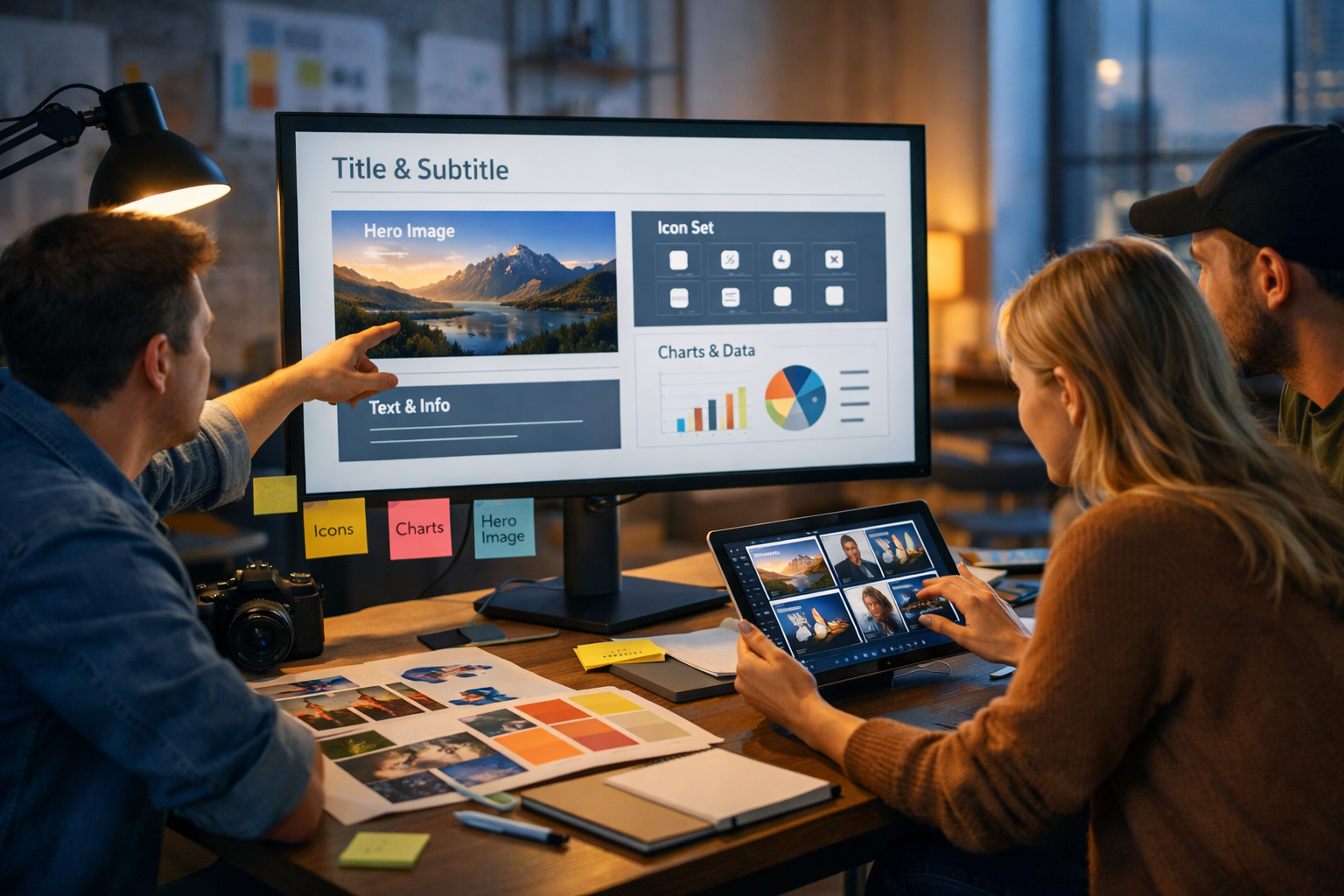
High-quality visuals can make or break a slide deck, but sourcing the right images is often slow, expensive, and limited by stock libraries. This guide shows you exactly how to generate AI images for presentations—so you can create on-brand, slide-ready visuals in minutes, not days—using a repeatable workflow and practical prompt templates.
Why use AI-generated images in presentations?
Presentations succeed when they communicate quickly. AI image generation helps you create visuals that match your story precisely: the exact setting, subject, mood, and composition you need—without spending hours hunting for “close enough” stock photos.
- Faster concept-to-slide: iterate in minutes and test multiple directions.
- More consistency: keep a coherent visual style across the whole deck.
- Better specificity: create niche scenes that rarely exist in stock libraries.
- Lower cost: generate professional visuals without expensive shoots.
With Gen AI Last, you can generate the images, then also generate supporting slide copy (titles, speaker notes), voice-overs, or even short explainer videos from the same platform. Explore our AI content tools to keep your entire presentation workflow in one place.
Step 1: Define the job of each image (before you write prompts)
The quickest way to get disappointing results is to prompt for “a nice image” without a clear purpose. Instead, decide what each image must do on the slide. In most decks, visuals fall into a few common roles:
- Hero image: sets the tone for a section (big, simple, high impact).
- Concept illustration: makes an abstract idea concrete (metaphor, scenario, diagram-style image).
- Process visual: supports a step-by-step explanation (stages, journey, workflow).
- Product/context mock: shows a product in use (realistic environment, credible lighting).
- Background texture: subtle, low-contrast, leaves space for text.
Write one sentence for each slide image: “This image should help the audience understand X in 3 seconds.” That sentence becomes the backbone of your prompt.
Step 2: Collect brand and style constraints (so your deck looks cohesive)
A deck looks “professional” when its visuals feel like they belong together. Before generating anything, decide on a consistent style guide for your AI images:
- Visual style: photorealistic, 3D render, flat illustration, editorial photography, minimalist, etc.
- Palette: 2–4 key colours plus neutrals. (Tip: align with slide theme colours.)
- Lighting: soft natural, studio, cool tech, warm golden hour.
- Composition: leave negative space for titles; avoid busy backgrounds.
- People: include or exclude? If included, aim for diversity and professional context.
If you’re presenting to executives, keep visuals simple, credible, and low-noise. If you’re pitching creative work, you can push stylisation more boldly—just stay consistent across slides.
Step 3: Use a slide-first prompt formula that actually works
When learning how to generate AI images for presentations, the single most important skill is prompting for slide usability, not just aesthetics. A slide-friendly image usually needs: a clear subject, clean framing, and space for text.
Use this reliable prompt structure:
- Subject (what the image is of)
- Context (where/when, what’s happening)
- Composition (wide shot, copy space, rule of thirds)
- Style (photorealistic, illustration, 3D, etc.)
- Lighting & mood (soft natural, dramatic, clean studio)
- Quality cues (high detail, sharp focus, professional)
- Constraints (no text, no logos, uncluttered background)
You’ll get better results if you specify a “presentation-friendly” layout explicitly (for example, “wide 16:9, negative space on the left for headline”).
Prompt template: hero slide image
Copy/paste template: “Wide 16:9 hero image of [SUBJECT] in [CONTEXT], composed with [NEGATIVE SPACE POSITION] for slide text, minimal background, [STYLE], [LIGHTING], [COLOUR PALETTE], professional, high detail, no text, no logos, no watermarks.”
Example: “Wide 16:9 hero image of a founder presenting a growth strategy to a small team in a modern meeting room, composed with generous negative space on the right for slide text, minimal background, photorealistic, soft natural window light, navy and teal accents, professional, high detail, no text, no logos, no watermarks.”
Prompt template: concept/metaphor slide
Copy/paste template: “Conceptual image representing [IDEA] as [METAPHOR], clean composition, simple shapes, strong contrast, [STYLE], limited colours, wide 16:9, copy space, no text, no logos.”
Example: “Conceptual image representing ‘operational efficiency’ as a smooth conveyor belt neatly sorting coloured packages into labelled lanes (no readable text), clean composition, simple shapes, flat vector illustration style, limited palette of charcoal, white and lime accent, wide 16:9, copy space on top, no logos.”
Step 4: Generate images in Gen AI Last (fast workflow)
Gen AI Last is designed as an all-in-one platform, so you can create your slide visuals and your supporting content without switching tools. The practical workflow looks like this:
- Start with your slide outline: list slide titles and the job of each image (hero, concept, process, background).
- Write prompts using the slide-first structure: include composition notes like “negative space on the left”.
- Generate 4–8 variations per key slide: pick the most on-message option, then refine.
- Keep a “style anchor” prompt: reuse your best-performing prompt and only change the subject/context.
- Export and place into slides: crop for layout, add subtle overlays if needed, and keep margins consistent.
If you want to keep your costs predictable, you can view pricing from $10/month—all plans include full access to text, image, audio, and video generation, which is particularly helpful when you’re producing decks regularly for sales, product updates, or investor meetings.
Step 5: Make images “presentation-safe” (layout, legibility, and cropping)
An image that looks great on its own can fail on a slide if it fights with your text. Use these slide-safe checks before you commit:
- Text legibility: ensure the background behind headings is calm. If not, add a subtle dark overlay (10–25%).
- Clear focal point: the audience should instantly understand what to look at.
- Leave breathing room: include intentional negative space for title and key message.
- Consistent crops: keep similar horizon lines and framing across a section.
- Avoid tiny details: audiences view slides from a distance; micro-detail is often wasted.
Practical trick: if you consistently place headings on the left, generate images with “negative space on the left” to reduce the need for heavy overlays.
Prompt packs: ready-to-use AI image prompts for common presentation slides
Use the following prompts as starting points. Replace bracketed sections with your topic, industry, and brand colours.
1) Title slide (credible, professional)
“Wide 16:9 photorealistic hero image of a modern office environment related to [INDUSTRY], subtle premium feel, soft natural light, minimal background, shallow depth of field, generous negative space on the left for title, muted [BRAND COLOURS] accents, no text, no logos, no watermarks.”
2) Problem slide (tension without being cheesy)
“Photorealistic scene of a busy team struggling with [PROBLEM] in a realistic workplace setting, slightly moody lighting, clean composition, negative space at top for headline, wide 16:9, documentary-style photography, no text, no logos, no watermarks.”
3) Solution slide (clarity and calm)
“Photorealistic scene showing a calm, organised workflow for [SOLUTION], clean desk, neat screens and tools, soft daylight, minimal clutter, confident mood, negative space on right for bullet points, wide 16:9, no text, no logos, no watermarks.”
4) Process slide (simple staged visual)
“Minimalist 3D render of a four-step process for [PROCESS], four connected platforms or stations progressing left to right, high contrast, [BRAND COLOURS] accents, wide 16:9, clean background, no text, no logos, no watermarks.”
5) Data/story slide background (subtle and readable)
“Abstract background texture inspired by [THEME], soft gradient, very low detail, minimal noise, wide 16:9, designed for presentation slides with clear space for charts and text, [BRAND COLOURS] palette, no text, no logos, no watermarks.”
Common mistakes (and how to fix them)
If your generated visuals don’t look “slide-ready”, it’s usually one of these issues:
- Too busy: add “minimal background”, “uncluttered”, and specify negative space.
- Unclear subject: move the subject to the start of the prompt and remove extra elements.
- Style mismatch across slides: reuse a single style anchor prompt and only swap the subject/context.
- Unrealistic details: request “photorealistic, natural proportions, realistic hands, accurate lighting” (especially when including people).
- Accidental text/logos: explicitly add “no text, no logos, no watermarks” and regenerate if artefacts appear.
Brand consistency: how to keep AI images aligned with your deck
Consistency is the difference between “AI experiments” and a deck that feels designed. Here’s a practical method that works well for small teams:
- Create a mini style guide: 3 adjectives (e.g., “clean, optimistic, premium”), 3 colours, and 1 preferred style (photorealistic or illustration).
- Build a style anchor prompt: a single prompt paragraph you paste into every image request.
- Standardise composition: decide where titles sit (left/top) and ask for negative space there.
- Limit variety: it’s better to have 12 coherent images than 12 different art styles.
If you also need slide copy, Gen AI Last’s text generation can create consistent headings, speaker notes, and call-to-action slides to match your chosen tone. That’s especially useful when multiple people contribute to one deck.
Ethics, accuracy, and usage rights: what to consider
AI images can be powerful, but presentations often influence decisions—so be careful with authenticity and attribution.
- Don’t imply real events: avoid using AI images that could be mistaken for documentary evidence (e.g., “a real customer site incident”) unless clearly illustrative.
- Avoid sensitive or misleading visuals: particularly in healthcare, finance, or legal contexts.
- Use realistic data visuals: don’t generate “charts” inside images when you need accuracy—build charts in your slide tool and use AI images as backgrounds or supporting visuals.
- Follow your organisation’s policy: especially for brand representation and public-facing decks.
When in doubt, keep AI images conceptual and use real numbers and sources for charts and claims.
Advanced workflow: turn one deck into a full content kit
A smart way to maximise the value of your presentation is to repurpose it into multiple assets. Because Gen AI Last includes text, image, audio, and video generation, you can convert a deck into a complete campaign without adding new tools:
- From slides to blog post: generate an article draft from your slide outline and speaker notes.
- From slides to social graphics: generate square and vertical companion visuals in the same style.
- From slides to voice-over: create narration for a recorded deck or webinar recap.
- From slides to video: produce short explainer clips or reels highlighting key points.
For startups and small teams, this “one idea, many outputs” approach is often the fastest route to consistent marketing without hiring a full production crew.
Quick checklist: AI images that look great on slides
Before you export your final deck, check each AI image against this list:
- 16:9 wide composition (or intentionally crop-friendly)
- Clear focal point and minimal distractions
- Negative space where your headline and bullets sit
- Consistent style, lighting, and palette across slides
- No accidental text, logos, or watermark-like artefacts
- Doesn’t mislead (especially for real-world claims)
Create presentation-ready AI visuals with Gen AI Last
Now you know how to generate AI images for presentations in a way that’s structured, consistent, and designed for slide layouts. If you want a single platform where you can generate the visuals, write the slide copy, and produce supporting audio/video assets, Gen AI Last keeps it simple and affordable for small teams.
Start creating for free, experiment with the prompt templates above, and build a style anchor you can reuse for every deck. When you’re ready to scale, view pricing from $10/month for full access to text, image, audio, and video generation.
Ready to Create with Generative AI?
Join thousands of creators using Gen AI Last to generate text, images, audio, and video — all from one platform. Start your 7-day free trial today.
Start Free — Try 7 DaysQuick Links
Create AI content from $10/month
View Plans