How to Generate Commerically Safe AI Art (Guide)
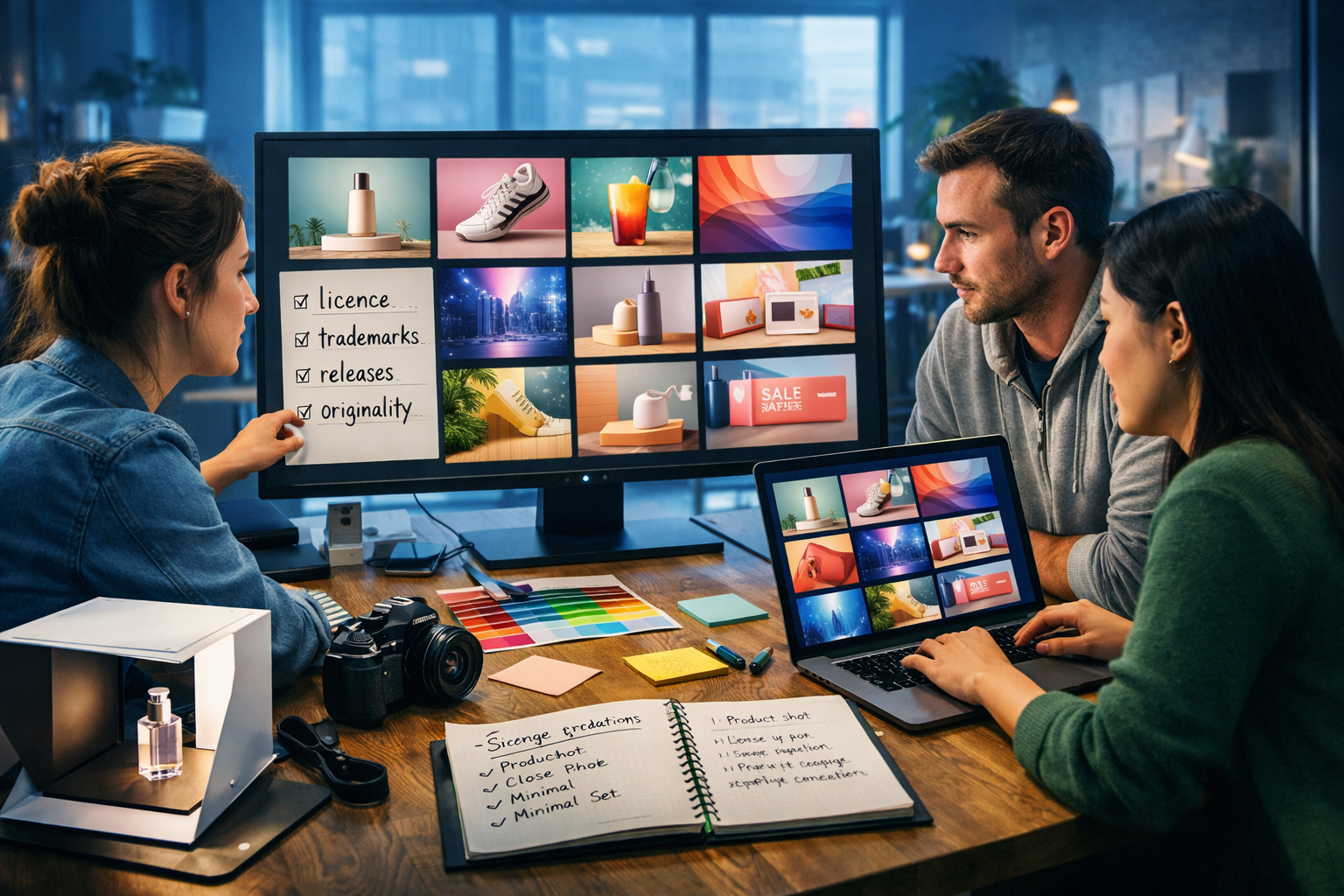
If you want to use AI-generated images in ads, websites, packaging, or client work, the goal isn’t just “good-looking” art — it’s commerically safe art you can publish without inviting takedowns, disputes, or awkward client conversations. This guide gives you a clear, repeatable workflow to generate AI art that’s suitable for commercial use, plus the practical checks and prompt tactics that reduce copyright and trademark risk.
What “commerically safe AI art” actually means
Commercially safe (often written “commercially safe”, but we’ll stick with your keyword wording) means an image is unlikely to infringe someone else’s rights and is suitable for use in business contexts: marketing, product listings, brand assets, client deliverables, and monetised content.
In practice, “safe” is a risk-management standard, not a guarantee. AI outputs can accidentally resemble copyrighted characters, replicate distinctive styles too closely, or include logos and brand identifiers. Your job is to reduce risk through smart prompting, careful selection, and good documentation.
The main risks you’re trying to avoid
- Copyright infringement: copying protected expression (e.g., a recognisable character design or an illustration composition from a known work).
- Trademark infringement: using brand names, logos, or trade dress (e.g., a swoosh-like mark, recognisable packaging, or a distinctive product silhouette).
- Personality/publicity rights: using a real person’s likeness without permission (particularly for ads).
- Licensing/terms issues: using an AI tool with unclear commercial rights or restrictions that conflict with your use case.
- Client/marketplace compliance: stock sites, ad networks, and e-commerce platforms often have their own AI-image rules.
Step 1: Start with the end use (your “commercial brief”)
Before you write a single prompt, define how the image will be used. The safest prompts and the safest outputs depend heavily on context.
- Marketing (ads, landing pages): avoid celebrity lookalikes, avoid anything that implies brand affiliation, and prefer original product scenes or abstract/illustrative backgrounds.
- E-commerce listings: minimise “fantasy” details, keep backgrounds clean, and avoid imitating recognisable product designs from established brands.
- Print (packaging, posters): be strict about trademark checks because print assets travel widely and get scrutinised.
- Client work: document your generation process and provide usage notes, especially if the client operates in regulated industries.
If you’re producing multi-format assets (a hero image, social cut-downs, and a short reel), it can help to generate a consistent set of visuals plus supporting copy and voice-over in one place. Gen AI Last combines text, image, audio, and video generation in our AI content tools, which makes it easier to keep your campaign cohesive and properly documented.
Step 2: Choose a safe creative direction (what to make)
The safest commercial AI art usually falls into one of these buckets:
- Original product scenes: generic products, clean compositions, your own brand colours.
- Abstract backgrounds: gradients, geometric shapes, textures, paper grain, bokeh, light leaks.
- Conceptual illustrations: non-derivative, not tied to a known franchise or artist style.
- Custom mascots: designed from scratch with distinct features, not “inspired by” famous characters.
- Own-IP worlds: build a consistent, original setting rather than referencing existing universes.
What to avoid for commercial work: “make it like Disney/Pixar/Studio Ghibli”, named artists, named brands, sports team marks, luxury patterns, and “make a photo of [celebrity]”. Even if the tool allows it, those prompts increase risk and can cause client rejection.
Step 3: Prompt like a professional (to reduce legal and brand risk)
A commercially safe prompt is specific about the scene and craft, and intentionally generic about anything that could be protected. Here’s a practical framework you can copy:
The “SAFE” prompt framework
- Subject: describe what’s present in plain terms (object, person type, environment).
- Aesthetic: describe lighting, lens, material, colour palette, mood — not a named artist.
- Factual constraints: “no logos”, “no text”, “no brand names”, “no celebrity likeness”, “original design”.
- Export intent: describe format and use (e.g., “hero banner with negative space on the right”).
Example prompts (commercial-friendly)
Example 1: SaaS website hero background
“Photorealistic abstract 3D scene of translucent geometric shapes floating above a soft gradient background, cool blue and violet palette, subtle grain texture, cinematic rim lighting, shallow depth of field, lots of negative space on the right for headline, 16:9 wide. No text, no logos, no symbols, original design.”
Example 2: Generic skincare product lifestyle image
“Minimal studio product photo of a plain white cosmetic jar with an unlabelled lid on a light beige stone surface, soft natural window light, gentle shadows, realistic reflections, warm clean aesthetic, 16:9. No text, no branding, no distinctive luxury patterns, original packaging design.”
Example 3: Custom mascot (not derivative)
“Original cartoon mascot: a friendly otter barista wearing a simple apron, holding a steaming cup, modern flat illustration style, clean linework, muted teal and cream palette, simple background shapes, 16:9. No resemblance to any existing character, no logos, no brand marks.”
Negative prompts and constraints you should use more often
If your tool supports negative prompts, use them. Even if it doesn’t, include constraints in the prompt itself. Common “commercial safety” constraints:
- No logos, no brand names, no watermarks, no signatures.
- No recognisable celebrities or public figures; no lookalikes.
- No copyrighted characters; no franchise references.
- No distinctive brand packaging; generic product design.
- No text (prevents accidental trademark words and messy typography).
Step 4: Run a “copyright & trademark smell test” before you publish
Most problems are visible if you know what to look for. Build a quick review habit before shipping assets.
Visual red flags
- Accidental logos: swooshes, three stripes, bitten-fruit shapes, stylised initials, emblems on clothing.
- Famous character silhouettes: ears, masks, costume shapes, signature props.
- Trade dress: a layout or packaging style strongly tied to a specific brand category leader.
- Lookalike faces: a model who resembles a known actor/influencer, even if unintended.
- Readable text: AI sometimes invents pseudo-words that accidentally match real marks.
Fast checks you can do in minutes
- Reverse image search (Google Images / Lens): if near-identical images show up, reconsider.
- Trademark search: if you see a mark, search it. In the UK, start with the UK IPO database; in the US, use USPTO TESS.
- Zoom to 200%: scan clothing, background signage, device backs, product labels.
- Ask: “Would a reasonable person think this is affiliated?” If yes, change it.
Step 5: Use a “clean-room” creation workflow for higher-stakes projects
For packaging, paid ads, or client brand work, treat AI generation like a mini production process with records. This is less about bureaucracy and more about being able to explain what you did if questions come up.
A simple documentation checklist
- Save prompt versions and dates (final + 2–3 iterations).
- Save the raw outputs you considered and the one you selected.
- Note any edits you made (crop, colour grading, retouching, inpainting).
- Record where the asset was used (ad set, landing page, product page).
If you’re producing a whole campaign, you can generate the supporting assets in one platform: create the image, then generate compliant ad copy and landing page copy with AI text generation, and even produce a short product video and voice-over. Gen AI Last is designed for that full workflow in one place — view pricing from $10/month.
Step 6: Editing matters — but don’t “edit in” infringement
Post-production can make an AI image more usable (and often safer), especially when you remove questionable details. However, editing can also create new problems if you add protected marks or imitate a distinctive brand aesthetic too closely.
Safe edits that usually help
- Remove accidental logos/symbols and unreadable text artefacts.
- Simplify backgrounds to avoid signage, posters, or brand-like elements.
- Adjust colours to match your brand palette (originality improves).
- Crop to remove problematic shapes or recognisable elements.
Edits to be careful with
- Adding a logo you don’t own or don’t have permission to use.
- Adding brand-like patterns (e.g., luxury monograms) even if “changed a bit”.
- Editing a face to look more like a specific person.
Step 7: People, faces, and releases — what marketers should know
Using faces in commercial creatives increases risk. Even when an image is fully AI-generated, it may resemble a real individual or a recognisable public figure. For paid advertising and brand campaigns, the safest route is either:
- Use non-identifiable characters (back-of-head, hands, silhouettes) or stylised illustrations, or
- Use clearly fictional, non-photorealistic characters, or
- Use your own photography with signed model releases.
If you do use photorealistic AI people, include constraints like “fictional person, not resembling any real individual” and avoid hyper-specific celebrity-like descriptors (age + hairstyle + signature features) that can steer towards a known person.
Step 8: Make your outputs more “owned” by building a distinct brand system
A powerful way to improve commercial safety is to make your imagery unmistakably yours. The more your visuals are driven by your own brand system, the less they resemble anyone else’s work.
Practical ways to create an ownable style (without copying artists)
- Use a consistent palette: 3–5 core colours + neutrals.
- Define materials: “frosted glass”, “recycled paper grain”, “matte ceramic”.
- Define composition rules: lots of negative space, centred subject, diagonal lighting, etc.
- Create repeatable motifs: a geometric shape family, a custom texture, a specific depth-of-field look.
- Generate a set: don’t rely on a single hero image; create a library that shares common traits.
Common scenarios: what to do (and what not to do)
Scenario A: You need AI art for a paid social ad
Do: Use generic products or original illustrations, remove all text from the image, and place your copy as native platform text overlays.
Avoid: Brand parody, celebrity-like faces, and “in the style of” prompts.
Scenario B: You’re creating images for an Etsy/Shopify product
Do: Build original patterns and motifs, and keep a prompt log. If you’re selling a design, avoid anything that could be mistaken for fan art.
Avoid: Anything that references a franchise, sports team, band, or luxury brand cues.
Scenario C: You need “stock-like” website images
Do: Use abstract, conceptual, or generic scenes. Use constraints like “no signage, no logos, no text”.
Avoid: City scenes full of billboards, brand-heavy clothing, or devices that might render famous logos.
A practical workflow you can reuse every time
- Define use: ad, landing page, product listing, print.
- Pick safe direction: original product scene, abstract background, custom illustration.
- Write a SAFE prompt: subject + aesthetic + constraints + export intent.
- Generate variations: aim for 10–20 options, then shortlist 3.
- Smell test: zoom scan, reverse image search, trademark scan if needed.
- Edit to clean: remove artefacts, simplify, colour match.
- Document: save prompt + final output + edit notes.
How Gen AI Last helps you ship commercially usable creative faster
Commercial safety is easier when your process is consistent. With Gen AI Last, you can generate image concepts and then immediately create the surrounding campaign assets — without juggling multiple tools.
- AI Image Generation: create marketing visuals, product-style scenes, banners, and social graphics from tightly constrained prompts.
- AI Text Generation: generate compliant ad copy variants, product descriptions, and landing page sections that match your visuals.
- AI Video Generation: turn your images and messaging into quick promos, explainer clips, or social reels.
- AI Audio Generation: add voice-overs or background music for short-form video ads.
If you want to test the workflow with your next campaign, you can start creating for free and scale up when you’re ready.
FAQ: how to generate commerically safe AI art?
Can I use AI-generated art commercially?
Often, yes — but it depends on the tool’s terms and on what the image contains. Even with commercial permission, you still need to avoid infringing trademarks, copyrighted characters, or real people’s likenesses.
Is “in the style of [artist]” safe for commercial use?
It increases risk and is a common reason clients reject AI artwork. A safer approach is to describe technique and aesthetics (colour, composition, medium, lighting) without referencing a living artist or a recognisable studio style.
What if the AI accidentally generates a logo or brand name?
Don’t publish it as-is. Regenerate with stronger constraints (“no logos, no text”), or edit to remove the element. Then re-check the final image at high zoom.
Do I need a model release for AI-generated people?
Not in the same way as traditional photography, but you can still face privacy and publicity-right issues if the person resembles someone real. For ads, it’s safer to use fictional, non-identifiable, or clearly stylised characters.
Final checklist (copy/paste)
- Prompt includes: “no logos, no text, no brand names, no celebrity likeness, original design”.
- No recognisable characters, uniforms, or brand packaging.
- Zoom scan at 200% for marks, signage, and accidental text.
- Reverse image search for close matches.
- Document prompt + output + edits for high-stakes use.
Once you follow this workflow a few times, “how to generate commerically safe AI art?” becomes a repeatable process rather than a guessing game — and you’ll produce visuals that are both publishable and genuinely effective in marketing.
Ready to Create with Generative AI?
Join thousands of creators using Gen AI Last to generate text, images, audio, and video — all from one platform. Start your 7-day free trial today.
Start Free — Try 7 DaysQuick Links
Create AI content from $10/month
View Plans