Text to Video AI: Create Videos From Scripts (Step-by-Step)
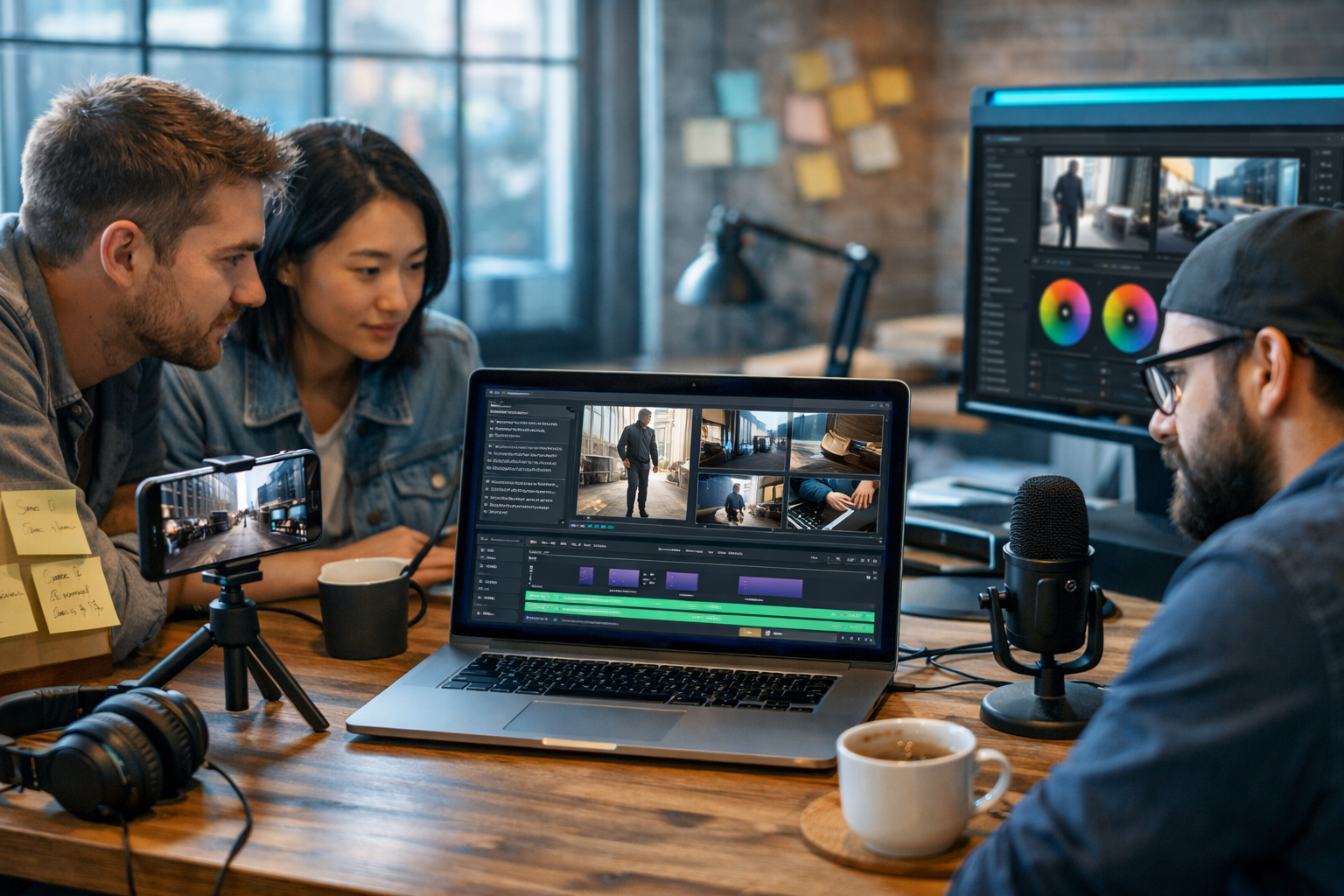
Text to video AI lets you create videos from scripts without filming, editing timelines for hours, or hiring a full production team. If you can write (or generate) a clear script, you can produce social reels, product demos, and explainers at scale—complete with visuals, voice-over, music, and on-brand pacing. This guide shows a repeatable workflow you can use today with Gen AI Last.
What “text to video AI create videos from scripts” actually means
When people search “text to video AI create videos from scripts”, they usually want one of two outcomes:
- Script-to-scene video: you provide a script (or bullet points) and the system generates a sequence of scenes—often including stock-style visuals, transitions, and subtitles.
- Script-to-voice + visuals: you provide a script and the system creates a narrated video using AI voice-over, B-roll imagery, simple animations, and music.
In practice, the best results come from a structured script with clear scene instructions, a consistent tone, and a defined duration. Gen AI Last supports the wider workflow too: you can generate the script, supporting visuals, voice-over audio, and then assemble a finished video—without bouncing between multiple subscriptions.
Why script-to-video matters for small teams
Video is often the highest-performing format for marketing, but it’s also the most resource-intensive. Script-to-video changes the economics:
- Speed: go from idea to first draft in hours, not weeks.
- Consistency: maintain a repeatable structure across a series (hooks, CTAs, visual rhythm).
- Lower cost: reduce filming days, editing contractors, and reshoots.
- More testing: produce variations for A/B testing (different hooks, offers, lengths).
With Gen AI Last, all plans include text, image, audio, and video generation from $10/month, which is particularly useful if you’re a startup, creator, or small marketing team trying to publish frequently.
The best use cases for creating videos from scripts
Script-to-video works best when the message is clear and can be illustrated with straightforward scenes. Typical high-ROI formats include:
- Explainer videos for landing pages (60–120 seconds).
- Product demos showing steps, benefits, and outcomes.
- Social reels (15–45 seconds) with a bold hook and captions.
- Video ads with clear offer framing and a single call-to-action.
- Internal training and onboarding clips (processes, SOPs, how-to).
- Repurposed content from blog posts, webinars, or podcasts.
If your content relies on live performance (comedy timing, high-emotion acting, complex physical demonstrations), AI video may still work—just expect more iteration and tighter art direction.
A step-by-step workflow: from script to finished video
Below is a practical workflow you can repeat weekly. It assumes you’re using Gen AI Last as your central hub for scriptwriting, visual generation, voice, and video creation. You can explore our AI content tools to see how these pieces fit together.
Step 1: Start with a clear goal and a single viewer action
Before you write the script, define:
- Audience: who is this for?
- Promise: what will they get in 30–90 seconds?
- Action: sign up, book a call, download, purchase, or watch the next video.
Script-to-video works best when there’s one main idea. If you try to include everything, the video becomes a list rather than a story.
Step 2: Write a “video-first” script (not a blog post)
A common mistake is copying a blog paragraph into a video prompt. Instead, write in short lines, with a strong hook and clear scene cues.
Recommended structure (60–75 seconds):
- 0–3s Hook: a problem, surprising stat, or “do this, not that”.
- 3–10s Context: why it matters and who it’s for.
- 10–55s Steps/Proof: 3–5 points with visuals.
- 55–75s CTA: tell them what to do next.
In Gen AI Last, you can generate first drafts using AI Text Generation (blog posts, product descriptions, email campaigns, social copy) and then refine the output into a video-ready script with short sentences and clear beats.
Step 3: Add scene directions the AI can actually follow
Scene directions reduce randomness. Use simple, concrete descriptions:
- Setting: home office, shop floor, agency desk, app screen.
- Subjects: “hands typing”, “close-up of product”, “person pointing at dashboard”.
- Camera: wide shot, close-up, pan, slow zoom.
- Style: clean, modern, soft natural light, cool tech vibe.
If you need specific brand visuals (product mockups, consistent characters, recurring backgrounds), you can use AI Image Generation in Gen AI Last to create repeatable assets, then build videos around them.
Step 4: Create the voice-over (or choose text-on-screen)
For most marketing videos, voice-over improves clarity and watch time. Gen AI Last includes AI Audio Generation for voice-overs, narration, background music, and podcast-style audio—useful if you want to turn the same script into both a video and an audio clip.
Practical voice-over tips:
- Write for speech: contractions, simple phrasing, fewer subordinate clauses.
- Mark emphasis: indicate pauses and key words (e.g., “Pause. Here’s the trick…”).
- Keep names simple: if a brand name is unusual, add a phonetic hint in the script.
Step 5: Generate the video and iterate like an editor
Treat the first render as a draft. Your job is to provide better direction each iteration:
- Tighten pacing: remove filler words; shorten scene durations.
- Strengthen the hook: try 3 variants and pick the best.
- Swap weak visuals: replace generic scenes with product shots, UI screens, or image-generated assets.
- Improve clarity: add on-screen captions for the key message and numbers.
If you want an affordable place to run these iterations without juggling tools, you can view pricing from $10/month and pick the plan that fits your output volume (monthly, 6 months, or yearly).
Copy-and-paste script templates (with scene cues)
Use these as starting points. Replace the bracketed parts with your product and audience details.
Template 1: 30-second social reel (problem → fix → CTA)
HOOK (0–3s): “If your [task] takes longer than [time], you’re doing it the hard way.”
SCENE: Close-up of messy notes / chaotic desktop. Fast cuts.
CONTEXT (3–7s): “Most [audience] waste hours because they start without a script.”
SCENE: Person staring at blank document; clock ticking.
STEPS (7–25s): 1) “Write a 1-sentence promise.” 2) “Add 3 scenes that prove it.” 3) “Record a voice-over—or generate one.”
SCENE: Simple storyboard cards appearing; waveform animation; quick cut to finished video preview.
CTA (25–30s): “Want the exact workflow? Build your next script-to-video in Gen AI Last.”
SCENE: Clean dashboard-style shot; cursor clicks ‘Generate’.
Template 2: 60–90 second explainer (why → how → results)
HOOK: “Here’s how to turn one script into a full video—without filming.”
WHY: “If you’re a [role], you need consistent video output, but production time is the bottleneck.”
HOW: “Step 1: Write a video-first script with short lines.” “Step 2: Add scene cues (setting, subject, camera).” “Step 3: Generate visuals and voice-over.” “Step 4: Render, then refine hook and pacing.”
RESULT: “You’ll publish more often, test more ideas, and keep brand style consistent.”
CTA: “Try it now—start with a script and let the tools build the rest.”
How to write prompts that produce better script-to-video results
Even with a strong script, the quality of your output depends on how well you describe what should appear on screen. Use this simple “prompt pack” alongside your script.
1) Define the visual language
Add a short style block at the top of your prompt:
- Brand vibe: minimalist, premium, playful, bold.
- Colours: “neutral greys + one accent colour”.
- Lighting: soft daylight, studio lighting, cool tech.
- Framing: close-ups for tools, wides for context.
2) Make each scene “filmable”
Replace abstract instructions (“show productivity”) with something concrete (“hands arranging storyboard cards on desk”, “calendar view filling up with blocks”, “before/after dashboard”). The more filmable your description, the more coherent the generated video tends to be.
3) Keep scenes short and single-purpose
Aim for one idea per scene. If a scene tries to communicate two benefits, split it into two. This improves pacing and makes the message easier to follow—especially for mobile viewers.
Practical examples: turning scripts into marketing videos
Here are three examples of how teams typically convert scripts into videos using an all-in-one approach (text → images → audio → video).
Example A: Product demo for a SaaS feature
Script focus: show the “before” pain, then the feature, then the outcome.
- Visuals: UI-style scenes, clean overlays, close-ups of clicks.
- Audio: calm, confident narration + low music bed.
- CTA: “Start a trial” or “Watch the full walkthrough”.
Tip: generate supporting UI mock visuals with AI Image Generation if you don’t yet have polished screenshots, then swap to real UI assets later.
Example B: E-commerce social ad (benefit-led)
Script focus: one hero benefit, one proof point, one offer.
- Visuals: product close-ups, lifestyle scenes, packaging reveal.
- Audio: upbeat voice-over, punchy music.
- Captions: highlight the benefit and the offer for silent viewing.
Tip: keep the script tight—ads fail more from weak hooks than from imperfect visuals.
Example C: Educational explainer series (content marketing)
Script focus: consistent format across episodes (hook → 3 tips → CTA).
- Visuals: recurring background, recurring presenter style, consistent transitions.
- Audio: same voice each episode for brand recognition.
- Repurposing: turn each script into a blog post and email—use AI Text Generation to scale written assets.
Quality checklist: what makes script-to-video look professional
Use this checklist before publishing:
- Hook clarity: can a viewer understand the value in 2–3 seconds?
- Audio balance: voice is clear; music doesn’t mask speech.
- Caption accuracy: correct spelling, punctuation, and timing.
- Visual relevance: every scene supports the line being spoken.
- Brand consistency: similar styles, colours, and pacing across videos.
- One CTA: a single next step that matches the video’s goal.
Common mistakes (and how to fix them)
If your results feel generic, it’s rarely “the AI”. It’s usually the inputs.
Mistake 1: The script is too long for the target duration
Fix: read it aloud. Most people speak ~130–160 words per minute. For a 30-second reel, aim for 65–80 words.
Mistake 2: Vague visuals
Fix: add “who/what/where” for each scene. “A marketer in a home office reviewing ad metrics on a laptop” beats “show marketing”.
Mistake 3: Too many topics
Fix: cut to one promise. Save the rest for the next video in the series.
Mistake 4: No iteration
Fix: plan for two rounds—draft render, then “editor pass” (tighten hook, swap scenes, adjust pacing). The second pass is where it starts to feel intentional.
A simple publishing plan: one script, four assets
To maximise output, treat the script as your “source of truth” and repurpose it:
- Video: your main asset (reel, demo, explainer).
- Blog post: expand the steps with screenshots and examples.
- Email: hook + summary + CTA.
- Social thread: 5–7 bullets from the script.
Gen AI Last is designed for this kind of workflow—text, images, audio, and video in one place—so you can keep your message consistent while adapting it for each channel.
Getting started with Gen AI Last
If you want to test a script-to-video workflow without building a complicated tool stack, start simple:
- Generate or refine a video-first script using AI Text Generation.
- Create supporting visuals with AI Image Generation (consistent scenes and product shots).
- Produce narration and background music using AI Audio Generation.
- Assemble the final clip with AI Video Generation.
You can start creating for free, then upgrade when you’re ready to publish consistently. All paid plans unlock full access to text, image, audio, and video generation, making it a practical option for startups and small teams.
FAQ: text to video AI from scripts
How long should my script be?
As a rule: 130–160 words per minute of finished narration. For 45 seconds, aim for roughly 100–120 words. Shorter usually performs better on social.
Do I need voice-over?
Not always, but voice-over typically improves clarity and retention, especially for explainers and product demos. If you skip voice, use strong on-screen captions and very clear visuals.
How do I keep videos consistent across a series?
Use a repeatable script format, reuse scene types (intro shot, steps shot, CTA shot), and keep style cues consistent (lighting, colour, pacing). Generating your visuals and audio in the same platform helps maintain coherence.
What’s the fastest way to improve quality?
Improve the hook and make visuals more specific. Most “generic AI video” problems come from generic scripts and vague scene descriptions.
Final takeaway
The easiest way to succeed with “text to video AI create videos from scripts” is to think like a producer: one clear promise, filmable scenes, strong narration, and at least one iteration. With Gen AI Last, you can generate the script, visuals, voice-over, and the final video in one workflow—so you publish faster, test more ideas, and keep your content consistent.
Ready to Create with Generative AI?
Join thousands of creators using Gen AI Last to generate text, images, audio, and video — all from one platform. Start your 7-day free trial today.
Start Free — Try 7 DaysQuick Links
Create AI content from $10/month
View Plans