Text to video AI: create videos from scripts (step-by-step)
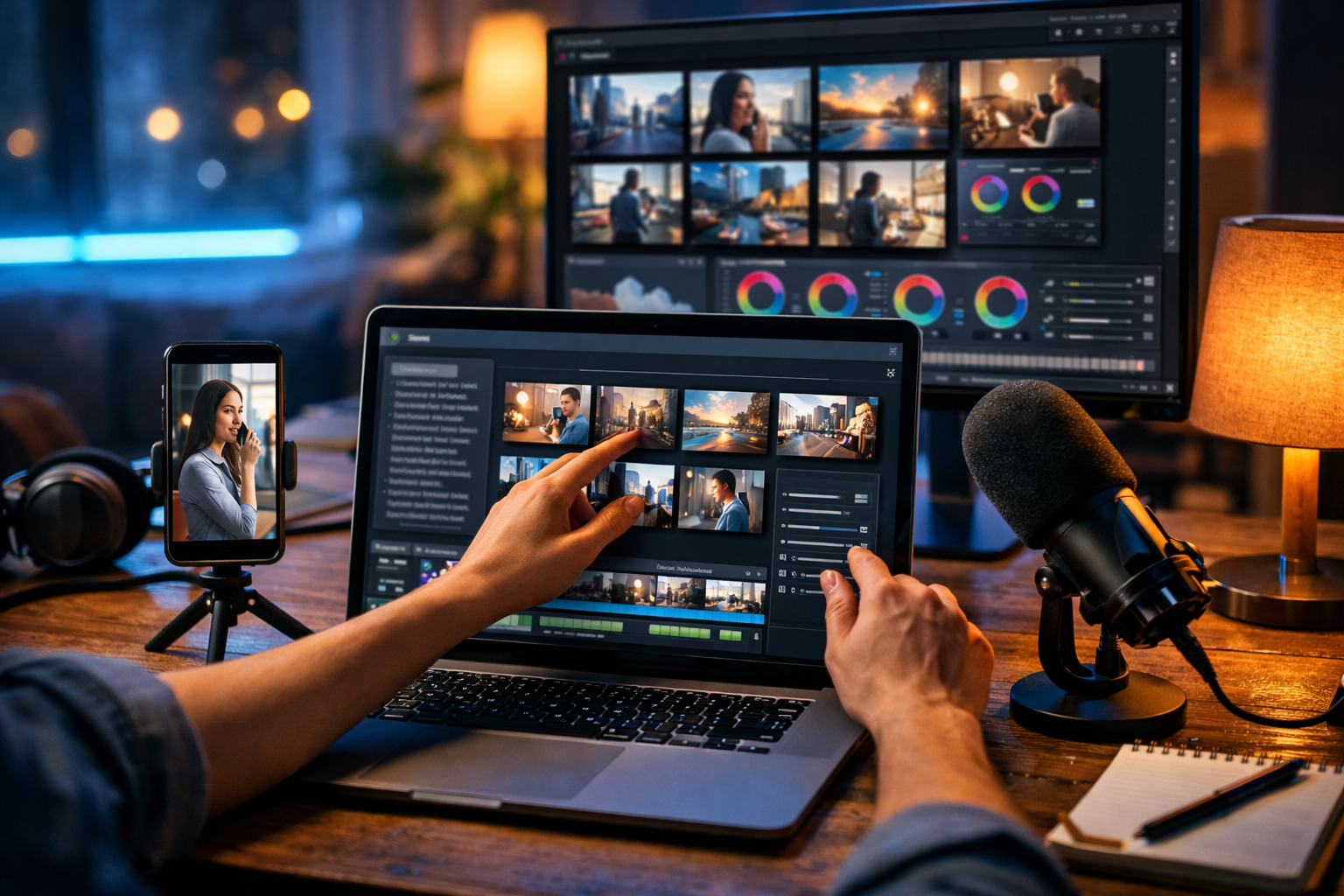
If you’ve ever had a great script but no time, budget, or editing skills to turn it into a polished video, you’re not alone. Text to video AI can create videos from scripts by transforming your written structure (hook, scenes, voice-over, and on-screen actions) into a coherent video draft you can refine for ads, explainers, product demos, and social reels.
What “text to video AI create videos from scripts” actually means
The keyword phrase sounds simple, but it covers a workflow with a few moving parts. In practice, script-to-video tools typically do four jobs:
- Interpret your script as a sequence of scenes (often one idea per sentence or paragraph).
- Generate or source visuals for each scene (AI-generated images/video clips, stock-style footage, or simple motion graphics).
- Create audio (AI voice-over, narration pacing, background music, and sometimes sound effects).
- Assemble the edit (timing, transitions, captions, aspect ratios, and exports).
Gen AI Last is designed for this end-to-end approach: you can generate the script (text), the visuals (images), the voice-over/music (audio), and the final video (video) in one place using our AI content tools. That matters because the best results come from tight alignment between script, visuals, and audio.
Why script-to-video is a game-changer for small teams
Traditional video production has friction: briefing, filming, editing, and endless revisions. Text to video AI reduces that friction by making the script the single source of truth. For startups and small marketing teams, the biggest wins are:
- Speed: draft videos in minutes, then iterate quickly.
- Consistency: reuse a script framework across multiple videos and channels.
- Cost control: avoid constant outsourcing for simple campaigns and updates.
- Scale: one script can become a 15-second reel, a 60-second explainer, and a product demo.
With Gen AI Last, every plan includes text, image, audio, and video generation from $10/month, which is particularly useful when you need to produce content regularly without adding multiple subscriptions. You can view pricing from $10/month to compare monthly, 6-month, and annual options.
The best script formats for text-to-video AI
The most common reason AI videos feel “random” is that the script isn’t structured for visual interpretation. A good script for text-to-video is clear, modular, and visual.
1) The scene-by-scene script (recommended)
Write your script as short scenes that each describe one visual idea. Keep each scene to one message, ideally 1–2 sentences.
- Scene title: what we’re showing
- Voice-over: what’s being said
- On-screen action: what changes visually
- Optional: camera angle / mood / style notes
2) The “hook–value–proof–CTA” short-form script
Ideal for reels and paid social. Keep it to 90–140 words for a ~20–30 second video. Make the hook a single punchy line that matches a strong opening visual.
3) The explainer script (problem → solution → steps)
Best for landing pages and YouTube. Aim for 130–160 spoken words per minute. If you need a 60-second explainer, target ~140–160 words and keep the steps visually distinct.
Step-by-step: create videos from scripts using text-to-video AI
Below is a reliable workflow you can use repeatedly. The tool specifics vary, but the principles are consistent. If you’re using Gen AI Last, you can generate each component inside the same platform.
Step 1: Start with the outcome and constraints
Before you generate anything, decide:
- Format: 9:16 (reels), 1:1 (feed), 16:9 (YouTube/website)
- Length: 10–15 seconds, 30 seconds, 60–90 seconds
- Goal: awareness, sign-ups, demo requests, purchases
- Audience stage: cold (explain context) vs warm (get to the point)
These decisions shape your script pacing and visual complexity. Short videos need fewer scenes with stronger contrasts.
Step 2: Generate or refine the script (write for visuals)
Use AI text generation to draft a script quickly, then edit it like a producer. For example, in Gen AI Last you can generate multiple script options (reel-style, explainer, product demo) and merge the best parts.
Practical rules:
- Write short sentences; avoid long clauses.
- Use concrete nouns ("dashboard", "product page", "checkout") instead of abstract ones ("solution", "process").
- Make each sentence “filmable”: it should imply a visual.
- Include clear transitions (“Next…”, “Here’s how…”, “In 10 seconds…”).
Step 3: Break the script into scenes and add visual prompts
Most text-to-video AI performs better when you explicitly map scenes. A simple approach is 6–10 scenes for a 30–60 second video.
Example scene mapping (30–40s SaaS promo):
- Hook: “Still spending hours rewriting content?” (Visual: stressed marketer, messy notes, multiple tabs)
- Introduce: “Turn prompts into text, images, audio and video.” (Visual: clean AI dashboard, content types)
- Proof: “Create a script, then generate a video draft.” (Visual: script panel → storyboard thumbnails)
- Benefit: “Publish faster across channels.” (Visual: phone showing reel, desktop showing YouTube)
- CTA: “Try it today.” (Visual: simple end card style visual)
If you need bespoke visuals, use AI image generation to create consistent scene frames (same character, outfit, location). Then assemble those images into video scenes with motion and transitions.
Step 4: Generate voice-over and choose pacing
Audio quality is often what separates “template-looking” AI videos from believable ones. Generate narration that matches your brand: calm and instructional for B2B, energetic for short-form social.
- Tip: add pauses where visuals change (“…and here’s the best part.”)
- Tip: avoid tongue-twisters; AI voices sound more natural with clean phrasing.
- Tip: keep key claims short so captions are readable.
With Gen AI Last you can generate voice-overs and background music, then pair them with your scenes to create a cohesive final edit.
Step 5: Build the video and iterate like an editor
Treat your first output as a draft. The strongest workflow is: generate → review → refine script/visual prompts → regenerate. Focus your iteration on:
- Scene relevance: does each visual clearly match the narration?
- Continuity: is the style consistent (lighting, character, colour palette)?
- Rhythm: are scene changes aligned to beats in the voice-over?
- Clarity: would someone understand it on mute with captions?
Step 6: Export for each platform (don’t reuse one cut everywhere)
To maximise performance, export variations:
- 9:16 (TikTok/Reels/Shorts): faster pacing, bigger subjects, fewer wide shots.
- 16:9 (YouTube/website): more context, clearer step-by-step visuals.
- 1:1 (LinkedIn feed): strong captions, minimal clutter, slower transitions.
Prompting tips: how to get better visuals from your script
Text-to-video results improve when you provide visual direction that’s specific but not restrictive. Use a consistent style line for every scene, then add a scene-specific detail.
A simple prompt template for each scene
Style line: “Photorealistic, modern startup office, soft natural light, shallow depth of field, cinematic colour grade.”
Scene line: “Marketing manager reviewing a script on a laptop beside a video timeline, storyboard thumbnails visible, microphone on desk, focused expression.”
Camera line: “Medium close-up, 35mm lens look, slight angle from the side.”
Common mistakes (and how to fix them)
- Too abstract: “show innovation” → specify an action: “dragging scenes into a timeline, generating voice-over”.
- Too many ideas in one scene: split into two scenes; each should support one sentence.
- Inconsistent characters: describe the person consistently (age range, hair, clothing style) across prompts.
- Unreadable screens: avoid depending on small UI text; use recognisable layouts and icons instead.
Three ready-to-use scripts you can turn into videos
Use these as starting points, then tailor the product details and tone. You can generate variations in Gen AI Last and test which hook performs best.
Script A: 15-second social reel (hook-first)
Scene 1 (Hook): “If your content takes days, your competitors are already posting.”
Scene 2: “With Gen AI Last, turn one prompt into text, images, voice-over and video.”
Scene 3: “Draft a script, generate scenes, add narration, export for Reels.”
Scene 4 (CTA): “Create your first video today.”
Script B: 45–60 second product explainer (problem → solution → steps)
Scene 1: “You have ideas, but turning them into videos is slow and expensive.”
Scene 2: “Text to video AI changes that by building your video from a script.”
Scene 3: “Step one: write a clear hook and 5–7 short scenes.”
Scene 4: “Step two: generate matching visuals and keep the style consistent.”
Scene 5: “Step three: add a natural voice-over and captions for silent viewing.”
Scene 6: “Step four: export versions for 9:16, 1:1, and 16:9.”
Scene 7 (CTA): “Gen AI Last gives you text, image, audio and video generation in one platform.”
Script C: 30-second e-commerce promo (feature + benefit)
Scene 1: “Launching a product? Don’t wait for a full production shoot.”
Scene 2: “Write a simple script: problem, product, proof, offer.”
Scene 3: “Generate clean product visuals, then animate them into a punchy video.”
Scene 4: “Add voice-over and music that matches your brand.”
Scene 5 (CTA): “Publish today and test new angles weekly.”
Quality checklist: make AI videos feel professional
Use this checklist before you publish:
- One idea per scene: if you can’t summarise the scene in 5 words, split it.
- Brand consistency: reuse colours, product shots, and typography style across versions.
- Captions: assume many viewers watch without sound.
- First 2 seconds: show the outcome or pain point immediately.
- Audio balance: voice should be clear above music.
- CTA clarity: one action, one destination (sign up, demo, buy).
How Gen AI Last supports the full script-to-video workflow
If you’re building a repeatable system, the advantage of an all-in-one platform is fewer handoffs and fewer mismatches between script, visuals, and voice. Gen AI Last lets you:
- Draft and refine scripts with AI text generation (hooks, variants, CTAs, different tones).
- Create scene visuals with AI image generation for consistent, campaign-ready frames.
- Generate voice-overs, narration, and background audio for a polished finish.
- Produce AI videos for marketing, product demos, reels, and explainers.
Because all features are included in every plan, it’s practical for startups and small teams to run weekly content cycles without juggling extra tools. If you want to test it with your own script, you can start creating for free.
Frequently asked questions
How long should my script be for a 60-second AI video?
Aim for roughly 140–160 words for a typical narration pace. If you need on-screen pauses for product shots or steps, keep it closer to 120–140 words.
Do I need to write detailed camera directions?
Not always. Start with a consistent visual style and clear scene descriptions. Add camera notes only when the result feels off (for example, you need a close-up of hands on a keyboard rather than a wide office shot).
What’s the fastest way to improve results?
Split your script into more scenes and make each scene more visual. Most “AI weirdness” comes from trying to force one long paragraph into a single visual interpretation.
Next steps: turn your next script into a publishable video
Choose one of the scripts above, adapt it to your offer, and create a 30-second draft. Then iterate twice: first on scene relevance (does each visual match the line?), then on pacing (are the cuts aligned to the voice-over?). When you’re ready to produce consistently, use our AI content tools to generate the script, visuals, audio, and video in one workflow, and scale output on an affordable plan—view pricing from $10/month.
Ready to Create with Generative AI?
Join thousands of creators using Gen AI Last to generate text, images, audio, and video — all from one platform. Start your 7-day free trial today.
Start Free — Try 7 DaysQuick Links
Create AI content from $10/month
View Plans