Text to video AI: create videos from scripts (complete guide)
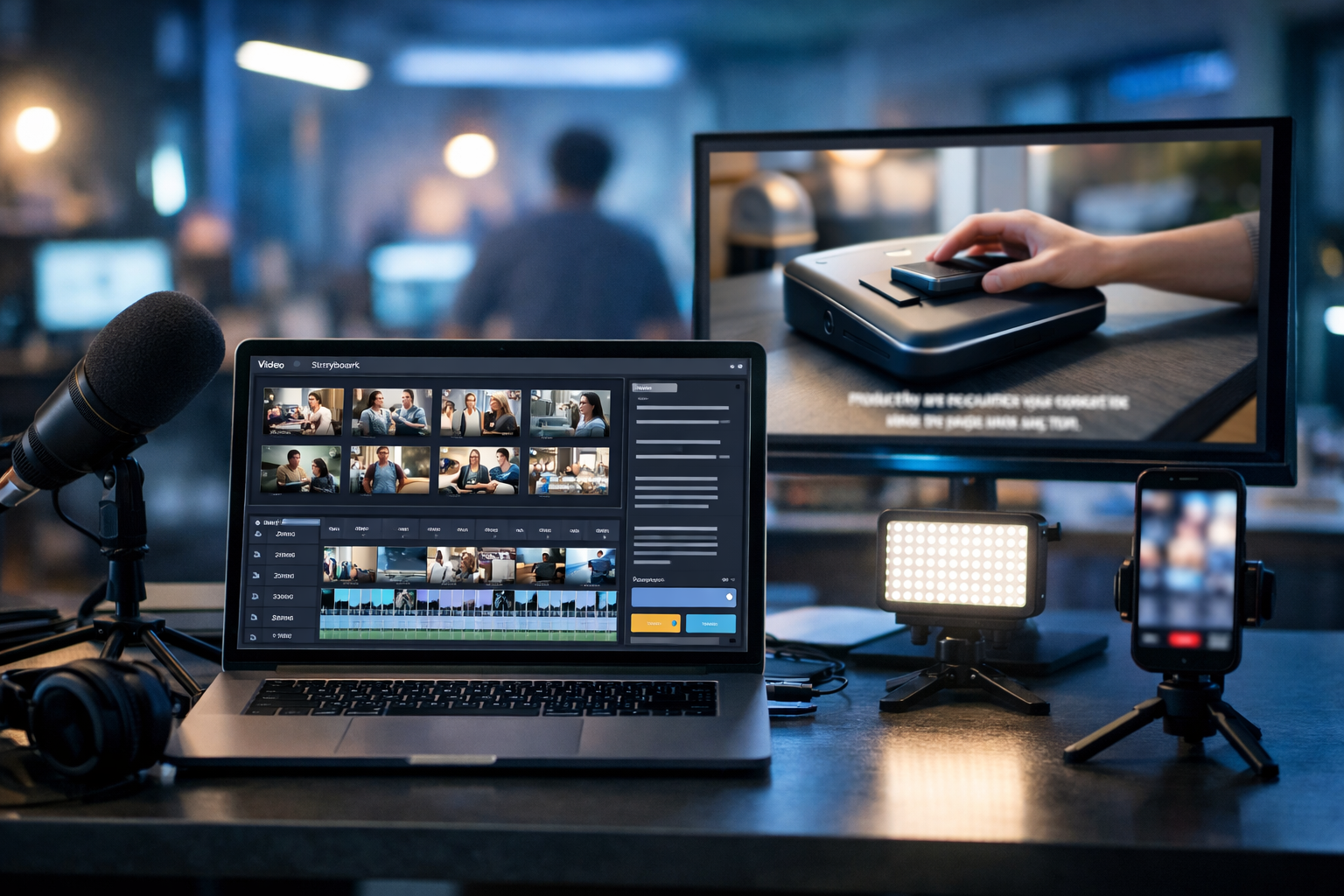
Text to video AI has changed how teams produce content: you can create videos from scripts in hours rather than weeks, without hiring a full production crew. This guide shows you a practical, repeatable workflow to turn a written script into a marketing video, explainer, reel or product demo—using Gen AI Last’s all-in-one text, image, video and audio generation tools.
What “text to video AI” really means (and what it doesn’t)
When people search for “text to video ai create videos from scripts”, they usually want a tool that can take a written script and output a ready-to-post video—scenes, visuals, voiceover, and ideally music—without complex editing.
In practice, text-to-video AI works best when you treat it as a smart production partner. It can generate clips, b-roll style shots, animated sequences, and voiceovers quickly, but you still get the best results by providing structure: scene prompts, clear pacing, and brand constraints (tone, colours, product details, required claims).
- Great for: marketing teasers, short explainers, product feature walkthroughs, social ads, internal training snippets, content repurposing.
- Less ideal for: highly specific cinematic storytelling with complex character continuity across many scenes (though it’s improving).
Why script-to-video beats “editing from scratch” for most businesses
If you’re a startup, agency, or small team, the bottleneck isn’t ideas—it’s production time. A script-first workflow keeps you focused on message clarity, then uses AI to handle the heavy lifting of first drafts, visuals, voice, and variations.
- Speed: generate multiple versions of a video for different audiences or platforms.
- Consistency: keep the same core message across ads, landing pages, and social clips.
- Lower cost: reduce reliance on expensive shoots for every concept test.
- More experimentation: A/B test hooks, offers, and CTAs without re-editing from zero.
Gen AI Last is built for this: you can generate the script (text), visuals (image/video), voiceover (audio), and supporting assets in one place. Explore our AI content tools to see how the components fit together.
The best workflow to create videos from scripts (step-by-step)
Below is a proven workflow you can reuse for product launches, weekly content, or client campaigns. The goal is to move from a single script to a complete video package with minimal back-and-forth.
Step 1: Start with a “video-ready” script structure
A video script is not a blog post. It needs rhythm, clear scene changes, and visual cues. Use a simple structure:
- Hook (0–3s): the main pain point or promise.
- Problem (3–10s): what’s broken, costly, annoying, or slow.
- Solution (10–25s): your product/process and top benefits.
- Proof (optional): stats, before/after, testimonial snippet.
- Call to action (final 3–5s): what to do next.
If you don’t already have a script, use Gen AI Last’s AI Text Generation to draft one in your brand voice (for example: “Write a 30-second script for a product demo targeting UK SMB owners, friendly but professional tone”).
Step 2: Break the script into scenes (the “scene map”)
Text-to-video AI performs better when you provide scene-by-scene direction rather than a single wall of text. Create a scene map with:
- Scene duration: 2–5 seconds per scene for social; 4–8 seconds for explainers.
- On-screen goal: what should the viewer understand?
- Visual prompt: what should be shown?
- Voiceover line: one clear sentence maximum per short scene.
This scene map becomes your production blueprint for AI video generation and helps you avoid mismatched visuals.
Step 3: Choose your video style (and lock it in)
One common mistake is mixing styles: hyper-real footage in scene one, then cartoon graphics in scene two. Pick one style and keep it consistent across prompts.
- Photorealistic b-roll: ideal for SaaS, services, lifestyle brands.
- Product demo UI: screen-record style or simulated interface scenes.
- Minimal motion graphics: clean shapes, icons, and simple transitions.
- 3D/illustration: great for abstract concepts and playful brands.
In Gen AI Last, you can generate supporting images (thumbnails, frames, backgrounds) with AI Image Generation to reinforce the same look and feel before you commit to full video output.
Step 4: Generate video scenes from your prompts
Now you can turn each scene prompt into a short clip. Aim for “modular” clips that are easy to re-order. Keep prompts specific:
- Subject: who/what is in the shot?
- Action: what’s happening?
- Setting: home office, studio, warehouse, retail counter.
- Camera: close-up, wide, slow pan, handheld feel.
- Lighting: soft natural, warm golden hour, cool tech vibes.
If you’re building a marketing pipeline, you’ll likely create 5–12 clips per video, then assemble them into 15–60 seconds depending on channel.
Step 5: Add AI voiceover (match pacing to the edit)
Voiceover makes AI-generated visuals feel intentional. Keep the delivery conversational and leave micro-pauses for emphasis. Gen AI Last’s AI Audio Generation can create narration and voiceovers so you don’t need a studio session for every iteration.
- Pacing rule: 130–160 words per minute for most marketing voiceovers.
- Clarity rule: avoid stacking multiple claims in one sentence.
- Pronunciation: specify tricky names (brand, product, acronyms) in your prompt notes.
Step 6: Add background music (quietly) and export variants
Music should support the message, not compete with it. Keep it low under voiceover and raise it slightly during silent b-roll moments. For performance marketing, export multiple variants:
- Variant A: benefit-led hook.
- Variant B: problem-led hook.
- Variant C: social proof hook (stat/testimonial).
Because Gen AI Last includes text, image, audio and video generation in every plan, you can iterate without juggling multiple subscriptions—view pricing from $10/month.
Prompt templates: copy, paste, and adapt
Use these templates to create videos from scripts reliably. Replace the bracketed sections.
Template 1: Scene prompt for photorealistic b-roll
Prompt: “Photorealistic video, [duration] seconds. A [person/role] in a [setting] performing [action] that represents [concept]. Camera: [wide/close-up], slight motion [pan/dolly]. Lighting: [soft natural/cool tech/warm]. Mood: [confident/calm/energetic]. Colour palette: [brand colours]. No logos, no readable text.”
Template 2: Scene prompt for a SaaS product demo feel
Prompt: “Clean modern UI demo video, [duration] seconds. Show a dashboard interface with [widgets/charts] and a cursor selecting [feature]. Subtle depth-of-field, crisp edges, neutral background. Motion: smooth zoom-in and highlight on [key metric]. No brand names, no readable text, minimal UI elements.”
Template 3: Voiceover prompt to match a 30–45s edit
Prompt: “Create a friendly professional voiceover in UK English. Pace: medium. Tone: confident, helpful. Read this script with short pauses after each sentence: [paste script]. Pronounce [brand term] as [phonetic].”
Example: turning one script into a complete 30-second video
Here’s a simple example for a fictional productivity tool. You can adapt the structure to e-commerce, agencies, local services, or SaaS.
The script (30 seconds)
- Hook: “Still writing content from scratch every week?”
- Problem: “It eats your time, and your output looks inconsistent across channels.”
- Solution: “With Gen AI Last, you generate blogs, social posts, images, voiceovers and videos from one prompt.”
- Benefit: “Launch faster, keep your brand consistent, and test more ideas without extra tools.”
- CTA: “Try it today and turn your next script into a video.”
Scene map (8 scenes)
- 0–3s: creator staring at an overloaded content calendar (b-roll).
- 3–7s: close-up of messy notes and multiple tabs (b-roll).
- 7–11s: clean dashboard-style “all-in-one” vibe (UI demo style).
- 11–15s: script becomes storyboard thumbnails (concept visual).
- 15–20s: product visuals/images generated (marketing assets b-roll).
- 20–24s: microphone + waveform for voiceover (audio b-roll).
- 24–28s: video preview in a timeline, ready to export (editing b-roll).
- 28–30s: confident creator clicks publish (CTA b-roll).
This is the core idea behind text to video AI: you’re not just generating a single clip; you’re producing a sequence of scenes that match your script and can be repurposed across formats.
How to get better results: practical tips that actually matter
1) Write for the edit, not for the page
If a sentence can’t be understood in one breath, shorten it. If it includes three benefits, split them across scenes. Your video will feel tighter, and your AI visuals will align more easily with the narration.
2) Keep a “brand pack” for prompts
Maintain a small block of reusable prompt details: tone, colour palette, lighting style, and what to avoid. Paste it into each scene prompt to reduce random drift.
- Colours: e.g., charcoal, white, electric blue accents.
- Style: modern, minimal, professional, realistic.
- Avoid: distorted hands, unreadable UI text, cluttered backgrounds.
3) Use images to “lock” the look before generating video
If you’re unsure about style, generate a few keyframes as still images first (hero shot, product environment, character look). Once you like the aesthetic, generate video scenes that match. Gen AI Last makes this straightforward because image and video generation are in the same platform.
4) Add proof without overloading the viewer
Proof can be as simple as one metric or one testimonial line. If you include claims, keep them accurate and verifiable. For regulated industries, keep compliance in mind and avoid making promises you can’t substantiate.
5) Build once, repurpose everywhere
From one script, create:
- 15s hook cut: just the hook + one benefit.
- 30–45s full version: hook, problem, solution, CTA.
- 60–90s explainer: add steps, use cases, and proof.
- Audio-only: voiceover as a short podcast-style tip.
- Blog/social: turn the script into a post and caption set with AI text tools.
Common mistakes when using text-to-video AI (and how to avoid them)
- Vague prompts: “make an engaging video” leads to generic results. Specify setting, action, camera and lighting.
- Too much script per scene: if your voiceover line is long, the visuals won’t keep up. Split scenes.
- Inconsistent style: lock a visual direction and reuse it.
- Ignoring audio: a good voiceover and balanced music can turn “AI-looking” footage into a polished ad.
- No CTA: don’t waste the final seconds—tell people exactly what to do next.
Why Gen AI Last is a practical choice for script-to-video production
Many teams struggle because their workflow is split across separate tools: one for scripts, one for images, one for voiceover, one for video. Gen AI Last is designed as an all-in-one AI content creation platform, so you can:
- Draft and refine the script with AI Text Generation.
- Create on-brand visuals with AI Image Generation.
- Generate video scenes for marketing videos, product demos, reels and explainers with AI Video Generation.
- Add narration, voiceovers or background audio with AI Audio Generation.
And importantly for startups and small teams: all features are available from $10/month. If you want to experiment before committing, start creating for free.
Quick checklist: from script to publish-ready video
- Write a tight script with a hook and CTA.
- Create a scene map (duration, goal, visual prompt, voiceover line).
- Choose one consistent visual style.
- Generate short clips per scene and review for coherence.
- Generate voiceover; adjust pacing to match scene lengths.
- Add background music; keep it subtle under narration.
- Export 2–3 variants for testing (different hooks/CTAs).
Final thoughts
If your goal is to create videos from scripts reliably, the winning approach is simple: script-first, scene-by-scene prompts, consistent style, then voice and music to glue everything together. With Gen AI Last, you can run the entire production loop—text, visuals, video, and audio—in one platform and iterate quickly until you have a version that performs.
Ready to build your first script-to-video workflow? Explore our AI content tools or view pricing from $10/month to start producing more video with less effort.
Ready to Create with Generative AI?
Join thousands of creators using Gen AI Last to generate text, images, audio, and video — all from one platform. Start your 7-day free trial today.
Start Free — Try 7 DaysQuick Links
Create AI content from $10/month
View Plans